I make Picmal, one of the 5 apps here. So I didn’t rank them. I grouped them by what your folder needs, and I timed Picmal on public test photos you can download yourself.
I didn’t test the other 4. What I write about them comes from their makers’ own websites, checked on 15 October 2026, and each section says so.
Every app here runs on your Mac. None of them needs you to upload a file.
The short answer
- Free: XnConvert, for personal use.
- You want to see the quality first: Kompressor.
- Each batch also needs a watermark or a filter: BatchPhoto or Squash.
- Your images come with video, audio and PDFs: Picmal, $29 once.
- A folder now and then: your Mac already does it for free. Preview exports a selection of images, and
sipsin Terminal converts a whole folder with one line.
Quick comparison
| App | Price | Edits in the batch | Watched folders | Runs on | Tested here |
|---|---|---|---|---|---|
| XnConvert | Free (personal), €15 (company) | 80+ actions | Yes | Mac, Windows, Linux | No |
| Kompressor | Free + in-app purchases | Resize, EXIF | Not stated | Mac | No |
| BatchPhoto | From $29.95 | Watermark, filters, rename, date stamp | Yes | Cross-platform | No |
| Squash | $29.99 | Resize, watermarks, 8 filters | Not stated | Mac | No |
| Picmal | $29 once | Watermark, crop, metadata | Yes | Mac | Yes |
I left out Adapter, which older lists of this kind still recommend. It’s free, but its download is dated 2016 and it asks for macOS 10.7, so it looks unmaintained. I won’t point you at an app that may not open on your Mac.
How I tested Picmal
I ran it on my own Mac, an Apple M3 with 16 GB and macOS 27.0.1, using picmal-cli 2.0.0. The command line uses the same bundled tools as the app, and it gives clean timings. Every test used Picmal’s default settings.
The files are public, so you can repeat it. I used the Kodak Lossless True Color Image Suite: 24 photos as PNG, 768 by 512 pixels, 14.7 MB in all. I made HEIC and JPG copies with macOS’s own sips.
Each time is the middle of 3 runs.
| Job | Time | Result |
|---|---|---|
| 24 PNG to JPG | 0.56 s | 14.7 MB to 3.5 MB |
| 24 PNG to WebP | 1.05 s | 14.7 MB to 1.1 MB |
| 24 PNG to AVIF | 1.85 s | 14.7 MB to 0.8 MB |
| 24 HEIC to JPG | 0.86 s | 24 JPGs, 3.1 MB |
| 24 JPG compressed | 0.46 s | 4.0 MB to 1.8 MB (55% smaller) |
24 photos is a small folder. I picked it because anyone can download the same 24 and check my numbers.
If you want it free
XnConvert
XnConvert reads 500+ image formats, writes about 70, and chains 80+ actions (resize, crop, watermark, filters) into one batch. It has watch folders and presets, and it exports a batch to its command line sibling, NConvert. It’s free for personal and educational use; a company license is €15. It runs on Mac, Windows and Linux, and it looks like it.
Pick it if a format nobody else opens lands on your desk, or if one batch needs ten steps.
Not tested by me. Facts from xnview.com.
If you want to see the quality before you convert
Kompressor
Kompressor converts and resizes images in batch with a real-time preview, so you see what a quality setting does before you commit. It reads 50+ formats and writes 20+, and it can remove or keep EXIF data. It’s a free download on the Mac App Store with paid upgrades (lifetime is $14) and needs macOS 13. The maker calls its updates “sporadic”.
Pick it if you want to watch the quality setting before you trust it.
Not tested by me. Facts from kompressor.app and its App Store listing.
If each batch also needs a watermark or a filter
BatchPhoto
BatchPhoto converts and edits in the same pass: watermark, filters, date stamp, batch rename, and watch folders for jobs that repeat. It lists 170+ formats, RAW and PDF included. Home is $29.95, Pro $49.95 and Enterprise $129.95, each a lifetime license with 1 year of free updates. The trial watermarks what it outputs.
Its site lists macOS 12 to 15. If you’re on a newer macOS, check with the maker before you pay.
Pick it if every photo leaves with your name stamped on it.
Not tested by me. Facts from batchphoto.com.
Squash
Squash, from Realmac Software, converts, compresses and resizes images in batch, and adds layered watermarks, 8 filters and metadata control on the way. It saves presets and works from Shortcuts. It’s $29.99, with Effect Packs sold on top, and needs macOS Big Sur or later.
Pick it if you want BatchPhoto’s kind of job in a native Mac window.
Not tested by me. Facts from realmacsoftware.com.
If your images come with video, audio and PDFs
Picmal
Picmal is the one I make, and the one I timed above. It converts and compresses images in batch (HEIC, camera RAW, SVG, PSD and the usual ones) without leaving your Mac. On images it also watermarks, crops, upscales, removes backgrounds, vectorizes, and lets you strip all metadata, keep the essentials, keep everything, or set your own rule.
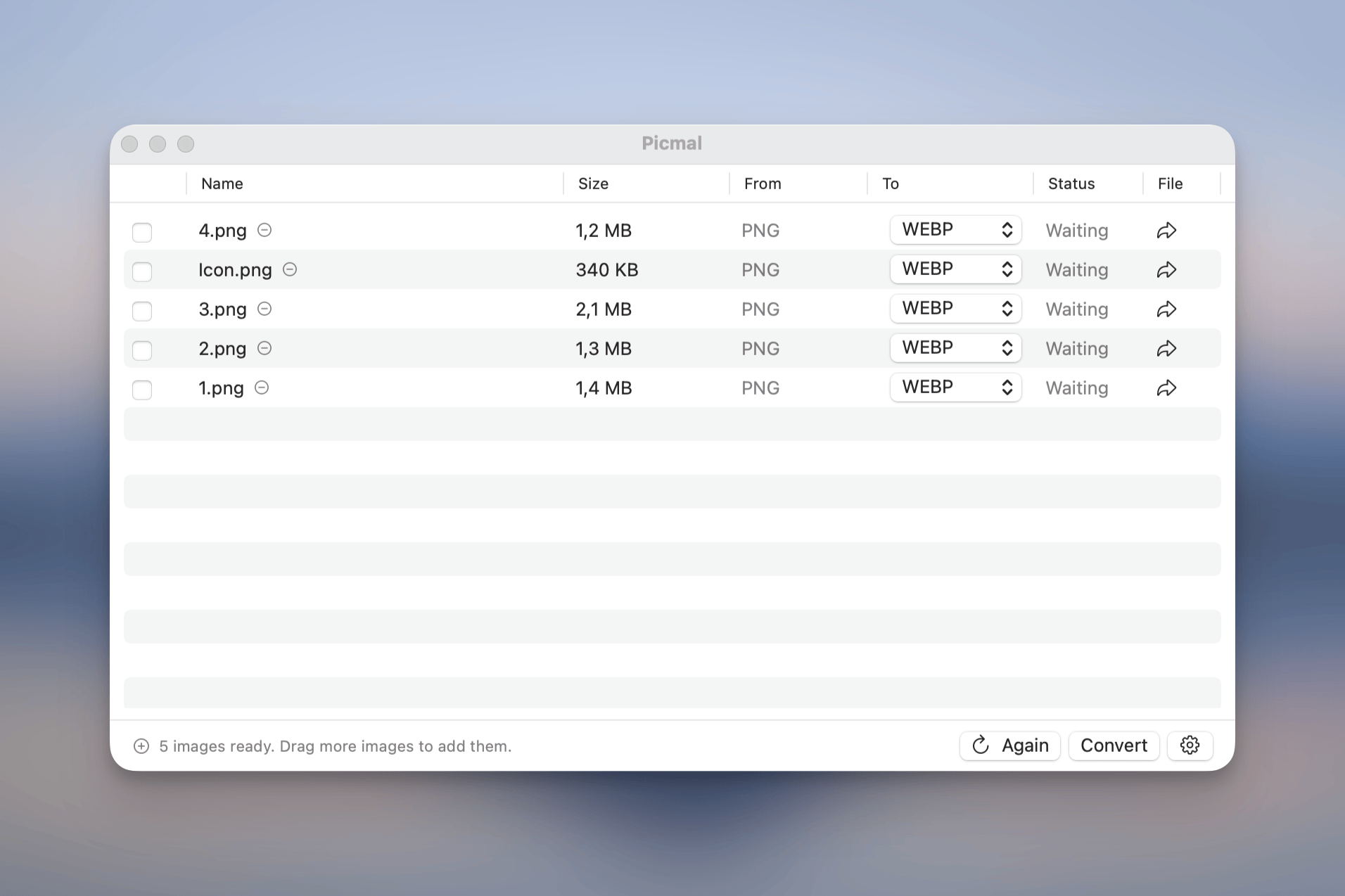
The same window converts video, audio and PDF. It lives where you already work: Finder’s right-click menu, Shortcuts, Raycast, watched folders and picmal-cli. It needs macOS 15 or later.
It’s $29 once for one Mac, with a 7-day free trial and a 14-day refund. No subscription. The image converter for Mac page shows it working, and the docs have the full list of formats.
What it doesn’t do: image filters like BatchPhoto, Squash and XnConvert, and it doesn’t read 500 formats. If you need those, the apps above are the better pick.
How do I batch convert images on a Mac?
Pick a batch converter, drop the whole folder in, choose one output format, and convert. Here is how it goes in Picmal.
- Drag a folder of images into the window. Mixed HEIC, PNG and JPG is fine.
- Choose the output format, for example WebP, for all of them at once.
- Pick where the converted files go.
- Click Convert.
If you’d rather skip the window, enable the right-click menu and convert straight from Finder. For a folder you fill every week, set it as a watched folder and new images convert on their own.
If the files are still too heavy after the format change, compress images on Mac in the same pass.
Frequently asked questions
What is the best batch image converter for Mac? It depends on the folder. XnConvert costs nothing for personal use. To see the quality before you convert, Kompressor has a live preview. For watermarks and filters in the same batch, BatchPhoto and Squash. If your images sit next to video, audio and PDFs, Picmal does all of it for $29 once. I make Picmal, so weigh that.
Is there a free batch image converter for Mac? Yes. XnConvert is free for personal and educational use, and a company license is €15. Kompressor is a free download with paid upgrades. Your Mac also has free tools of its own: Preview and the sips command line tool.
Can I batch convert photos on my Mac? Yes. Drag a whole folder into a batch image converter, pick one output format, and convert every file in one pass. In Picmal, 24 PNG photos to JPG took 0.56 seconds on an M3 Mac.
Can I batch convert HEIC to JPG on a Mac? Yes. Drop a folder of iPhone photos into a batch converter and set the output to JPG. Picmal converted 24 HEIC photos to JPG in 0.86 seconds on an M3 Mac, and the photos never left the Mac.
What image formats can a Mac batch converter handle? It varies a lot by app. XnConvert reads 500+ formats and writes about 70. BatchPhoto lists 170+, RAW and PDF included. Kompressor reads 50+ and writes 20+. Picmal reads HEIC, camera RAW, SVG and PSD next to the usual JPG and PNG, and writes WebP and AVIF.
Weighing Picmal against one app in particular? There’s a side-by-side page for XnConvert and Kompressor.
If you also convert video and audio, the comparison of media converters for Mac covers 8 apps. Most batch jobs on a Mac are iPhone photos, so there’s also a walkthrough to batch convert HEIC photos on Mac and the HEIC converter for Mac page.