
License
How to activate, manage, and transfer your Picmal license key on macOS — including device limits and recovering a lost key.
Activate your license
Section titled “Activate your license”- Open Settings → License
- Enter your license key
- Click Activate
Your license is tied to your Mac and stored securely in the keychain. It works offline after the initial activation.
Deactivate
Section titled “Deactivate”If you’re moving to a new Mac, deactivate your license first:
- Open Settings → License
- Click Deactivate
This frees up the license so you can activate it on another machine.
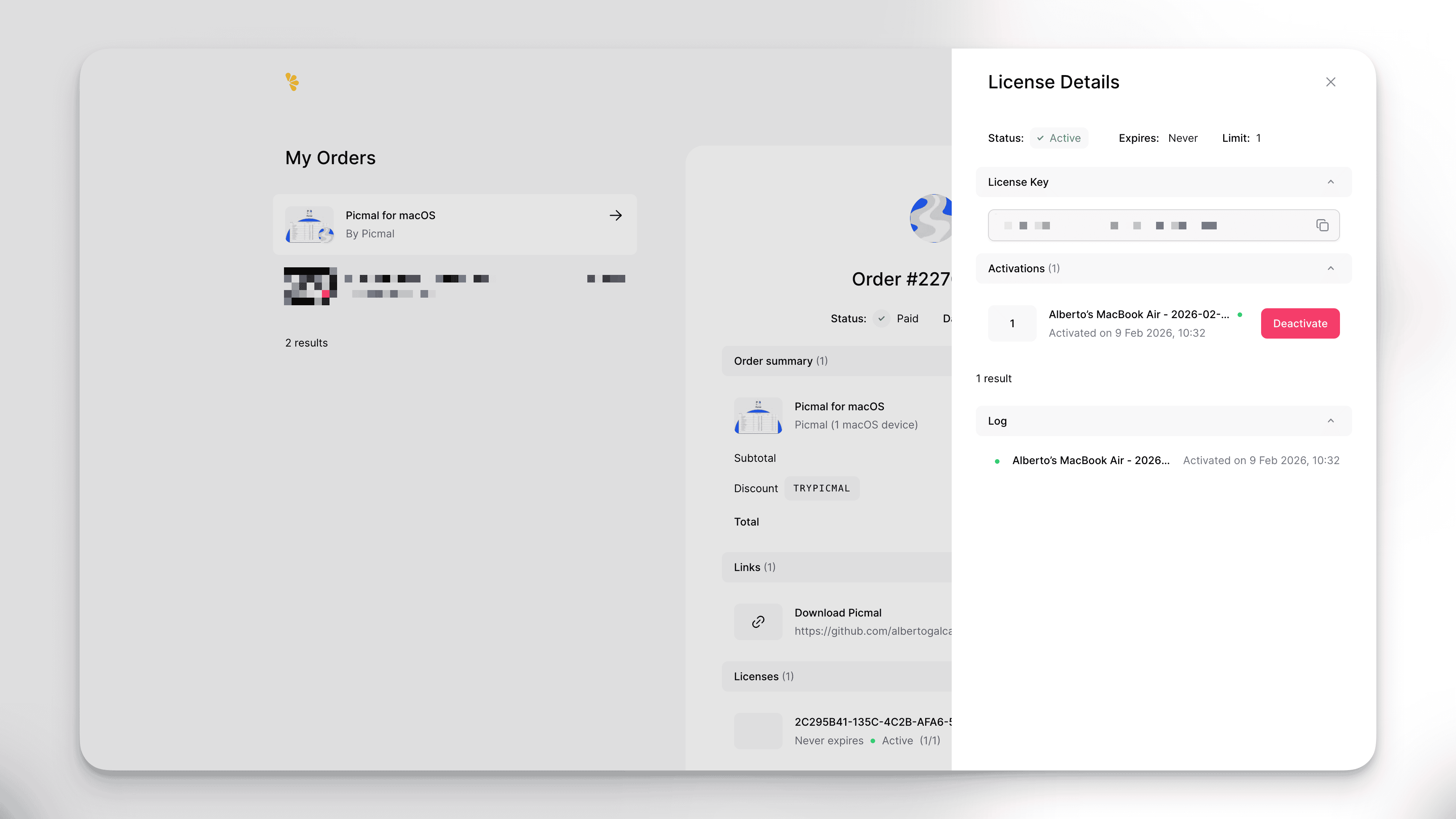
You can also deactivate remotely through Lemon Squeezy:
- Go to app.lemonsqueezy.com/my-orders
- Select your order
- Select the license key
- Click Deactivate next to the activation
Buy a license
Section titled “Buy a license”Visit picmal.app or buy directly to purchase a license. All payments are processed securely through Lemon Squeezy.
Lost your license key?
Section titled “Lost your license key?”If you can’t find your license key or the original email:
- Go to app.lemonsqueezy.com/my-orders
- Enter the email address you used when purchasing
- You’ll receive an email with a link to view your orders and license keys