
Image compression
Picmal's image compression presets and quality controls — pick a one-click preset or fine-tune quality per format with the custom slider.
Presets vs custom
Section titled “Presets vs custom”Picmal ships with six built-in presets that apply sensible quality settings across all image formats. Pick Custom if you want full control over the quality slider for each format.
See compressing files for the presets table.
Lossy formats (Quality 0–100)
Section titled “Lossy formats (Quality 0–100)”These formats use a quality percentage where higher = better quality, larger file.
| Format | Range | Default | Notes |
|---|---|---|---|
| JPEG | 0–100 | 85 | Most common. 80–90 is usually the sweet spot |
| WebP | 0–100 | 85 | Excellent compression, modern browsers |
| HEIC | 0–100 | 85 | Apple ecosystem, great compression |
| AVIF | 0–100 | 85 | Next-gen, best compression ratios |
| TIFF | 0–100 | 85 | Archival/print use |
| 0–100 | 85 | Image-in-PDF quality | |
| JP2 | 0–100 | 85 | JPEG 2000 |
| JXL | 0–100 | 85 | JPEG XL |
| EXR | 0–100 | 85 | HDR imagery |
| PSD | 0–100 | 85 | Photoshop files |
| BMP | 0–100 | 85 | Bitmap |
| TGA | 0–100 | 85 | Targa |
| DDS | 0–100 | 85 | DirectDraw Surface |
| SGI | 0–100 | 85 | Silicon Graphics |
| QOI | 0–100 | 85 | Quite OK Image |
Level-based formats (1–9)
Section titled “Level-based formats (1–9)”These formats use a compression level where higher = more compression, smaller file (but processing takes longer).
| Format | Range | Default | Notes |
|---|---|---|---|
| PNG | 1–9 | 9 | Lossless — level affects compression effort, not quality |
| GIF | 1–9 | 7 | Higher levels mean more aggressive optimization |
| SVG | 1–9 | 7 | Optimization level for SVG cleanup |
PDF rasterization DPI
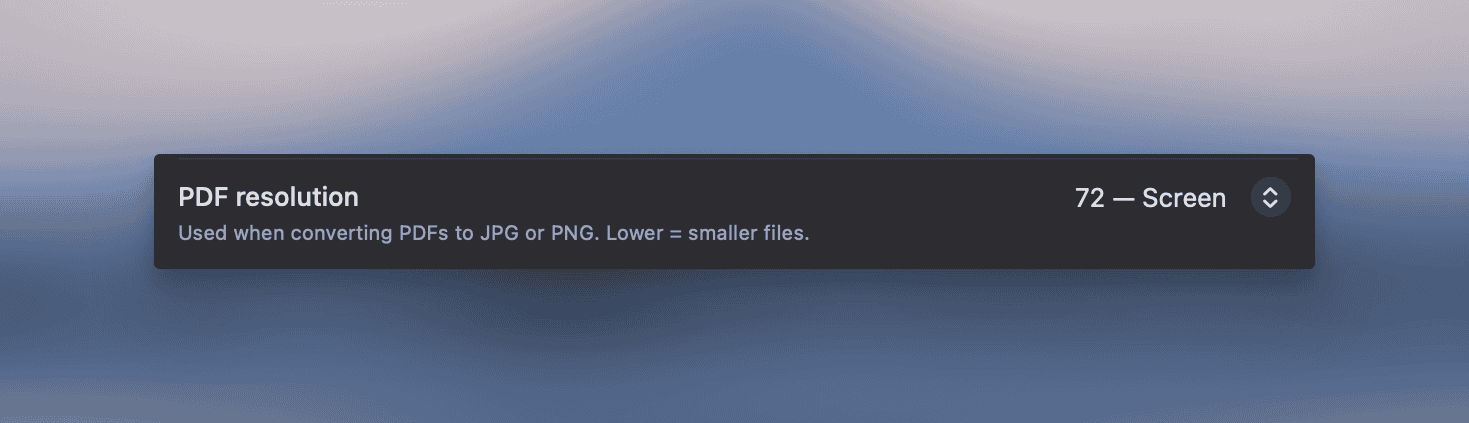
Section titled “PDF rasterization DPI”When converting PDFs to JPG or PNG, Picmal rasterizes each page at a chosen DPI. Higher DPI means sharper output and larger files. Pick the resolution in Settings → Images:
| DPI | Best For |
|---|---|
| 72 | Quick thumbnails, screen previews |
| 150 | General web use (default) |
| 300 | Print-ready output |
| 600 | High-quality print, fine detail |
The default is 150, which keeps output crisp without bloating file sizes on multi-page documents.
Quick Guide: What preset should I use?
Section titled “Quick Guide: What preset should I use?”| Use Case | Recommended Preset |
|---|---|
| Archiving photos, printing | Maximum quality |
| Portfolio website, client delivery | High quality |
| Blog posts, documentation | Balanced |
| Landing pages, e-commerce | Web optimized |
| Social media posts | Social media |
| Email attachments, bandwidth-limited | Maximum compression |
| Specific needs | Custom |