Output and naming
Control where Picmal saves converted files and how it names them — subfolders, suffixes, prefixes, and overwrite rules.
Where files go
Section titled “Where files go”By default, converted and compressed files are saved in the same folder as the originals.
Save to a subfolder
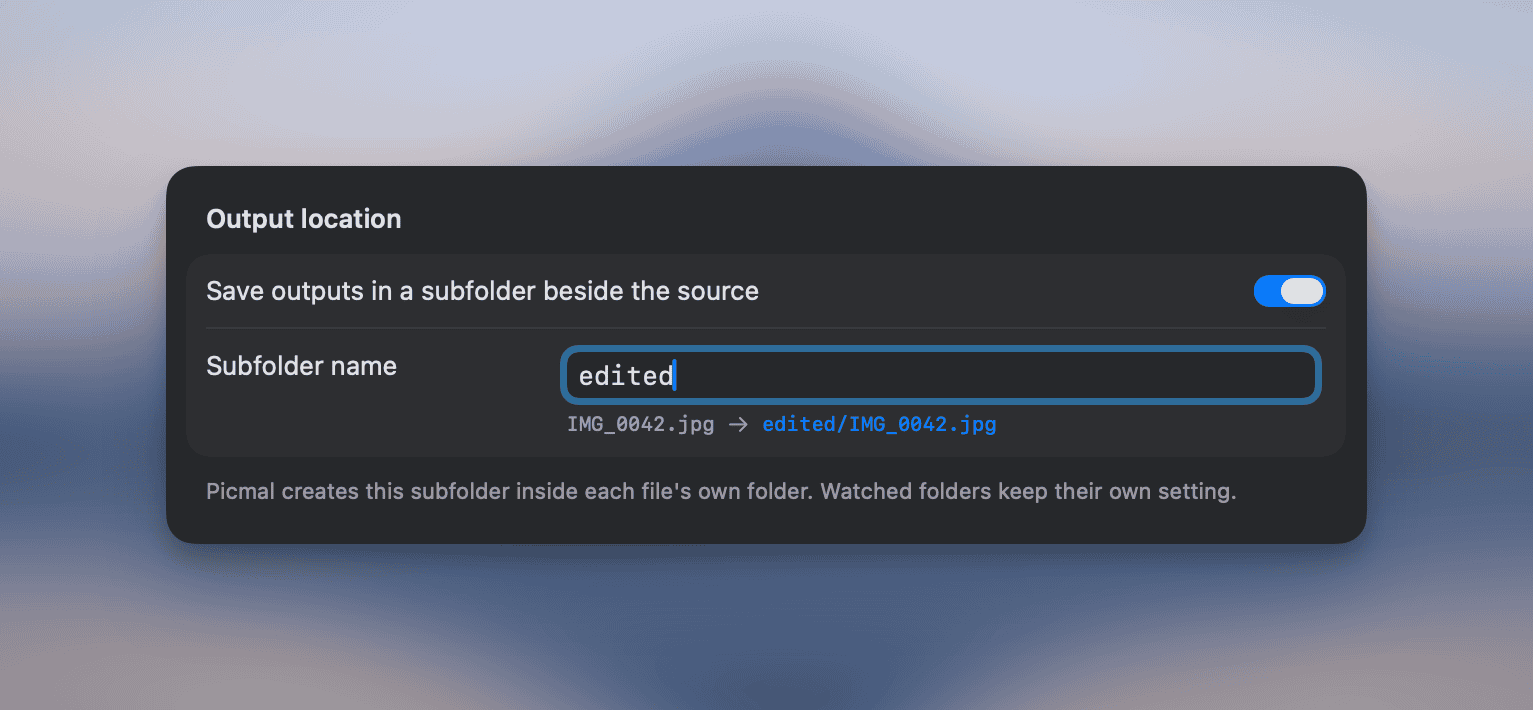
Section titled “Save to a subfolder”If you’d rather keep outputs out of the source folder, turn on Output location → Save to subfolder in Settings → Output and type a folder name (for example picmal). Every conversion or compression then writes to <sourceFolder>/<name>/ instead of next to the source file.
- Files dropped from different folders each get their own subfolder, created beside the source.
- The subfolder is created automatically the first time it’s needed.
- Leaving the name empty is the same as turning the toggle off — outputs go next to the source as before.
- Finder services (Compress/Convert from the right-click menu) follow this setting too, since they use your current app settings.
- Watched folders ignore this setting; configure their output location per folder under Settings → Watched Folders.
File naming
Section titled “File naming”Picmal names output files using patterns. You write a pattern (literal text plus tokens) and that becomes the output file’s base name. The extension comes from the output format.
Configure patterns in Settings → Output. There are two independent patterns:
- Convert pattern — used when converting to a different format. Default:
{original}_converted - Compress pattern — used in Compress mode. Default:
{original}_compressed
Tokens
Section titled “Tokens”| Token | Replaced with | Example |
|---|---|---|
{original} | Original filename (no extension) | IMG_0042 |
{date} | Capture date from EXIF | 2026-03-15 |
{datetime} | Capture date and time from EXIF | 2026-03-15_14-22-08 |
{year} | Capture year from EXIF | 2026 |
{month} | Capture month from EXIF | 03 |
{day} | Capture day from EXIF | 15 |
{camera} | Camera make and model from EXIF | FUJIFILM_X-T20 |
{iso} | ISO value from EXIF | 400 |
Click any token in the settings panel to insert it into the focused pattern field. A live preview shows what the output filename will look like.
Examples
Section titled “Examples”{original}_web → IMG_0042_web.jpeg{date}_{original} → 2026-03-15_IMG_0042.jpeg{camera}_{iso}_{original} → FUJIFILM_X-T20_400_IMG_0042.jpeg{year}/{month}/{original} → (slashes are sanitized to underscores)Missing metadata
Section titled “Missing metadata”If a pattern uses an EXIF token but the source file has no matching metadata (e.g. {camera} on a screenshot), Picmal falls back to the original filename for that file. This avoids broken names like _400_IMG_0042.
Unknown tokens (anything inside {...} that isn’t recognized) are dropped silently.
Overwriting originals
Section titled “Overwriting originals”If your pattern produces the same name as the source file (for example, using just {original}), Picmal writes to a temporary file and replaces the original only after the operation succeeds. This is safe even on case-insensitive APFS volumes, where .JPG and .jpg collide.
In Compress mode, if the result isn’t smaller than the original, the original is left untouched.
The settings panel warns you when your pattern would overwrite originals.
Default format mapping
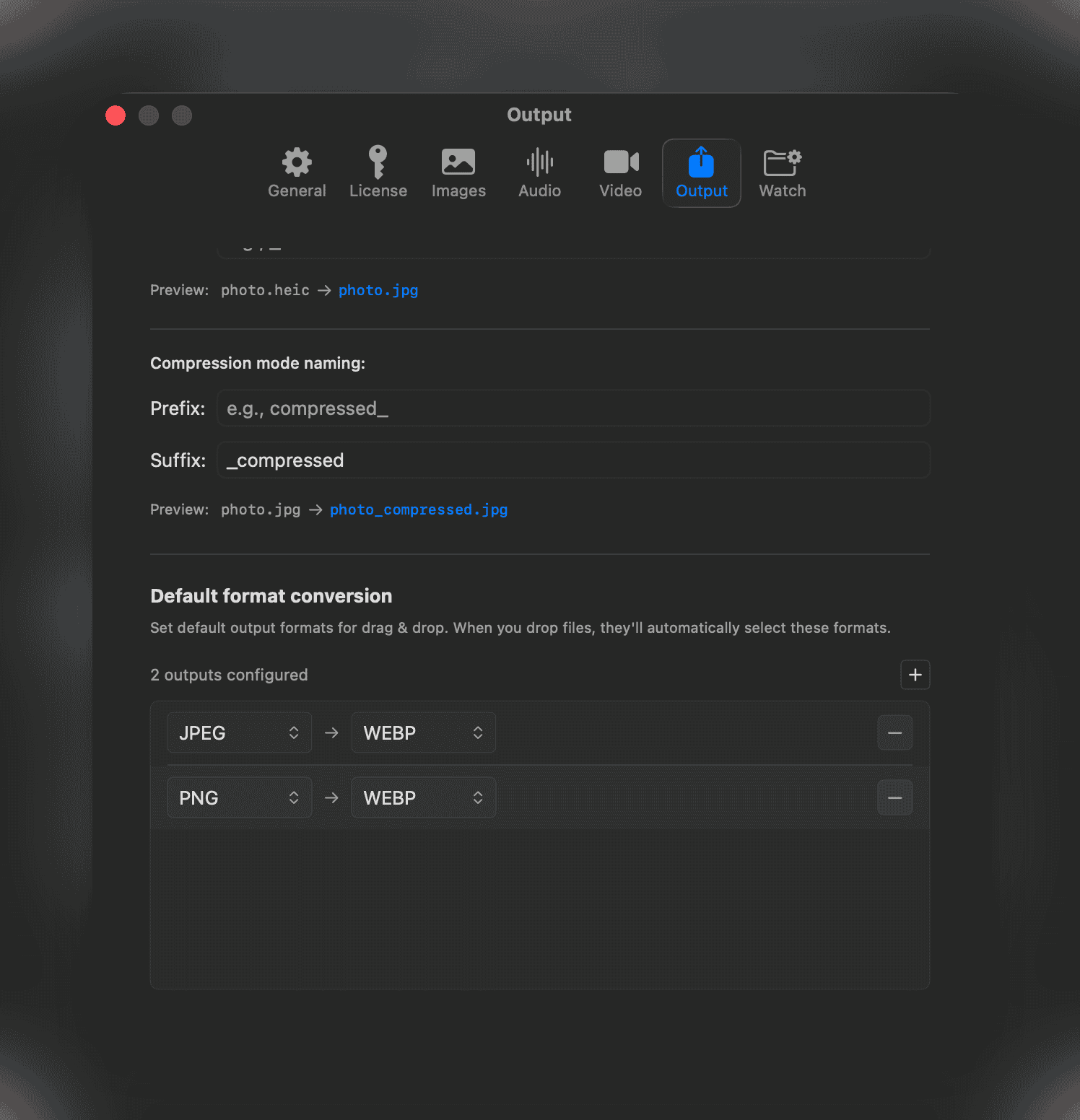
Section titled “Default format mapping”You can configure default output formats per input type. For example, you can set all HEIC files to convert to JPEG automatically. This is useful for drag-and-drop workflows where you always want a specific conversion.
Configure default mappings in Settings → Output.