
Compressing Files
Shrink image, audio, and video files on Mac without changing their format — Picmal's compress mode keeps the extension but cuts the size.
Compress mode reduces file size without changing the format. A JPEG stays a JPEG, just smaller.
How to use
Section titled “How to use”- Switch to the Compress tab
- Drop files into the window or click Add Files
- Pick a preset or configure custom settings
- Click Compress
Compressed files are saved with a _compressed suffix by default. You can change this to any pattern, including EXIF-based names like {date}_{original}, in Settings → Output. See output and naming.
If the compressed output isn’t smaller than the original, Picmal discards it and leaves the original untouched.
Space saved
Section titled “Space saved”When a batch finishes, Picmal totals up how much space you freed and shows it in the bottom bar and the completion notification — with a comparison to put the number in context, like “Freed up 9.66 GB · about a 4K movie 🎬”.
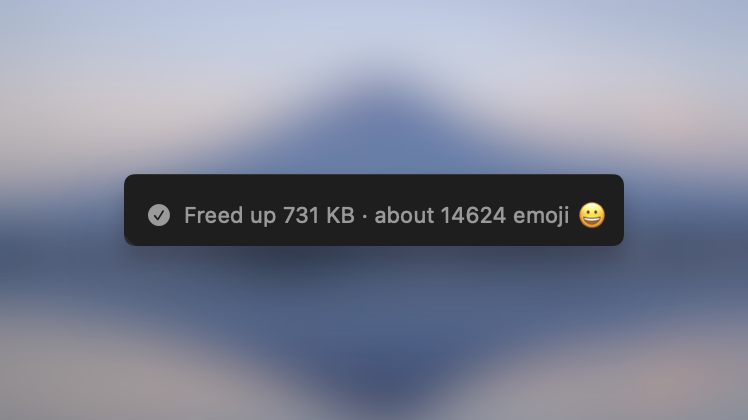
Image presets
Section titled “Image presets”| Preset | Best For | JPEG Quality | PNG Level |
|---|---|---|---|
| Maximum quality | Archival, print, master copies | 92% | 2 |
| High quality | Professional websites, portfolios | 85% | 3 |
| Balanced | General web use, documentation | 80% | 6 |
| Web optimized | Fast-loading websites | 75% | 7 |
| Social media | Instagram, X, Facebook | 70% | 8 |
| Maximum compression | Email attachments, slow networks | 60% | 9 |
| Custom | Your own settings | You choose | You choose |
Audio presets
Section titled “Audio presets”| Preset | Codec | Bitrate | Best For |
|---|---|---|---|
| Maximum quality | FLAC | Lossless | Archival, music production |
| CD quality | FLAC | 16 bit / 44.1 kHz | Lossless CD-equivalent rips |
| High quality | AAC | 256 kbps | Music listening |
| Balanced | AAC | 192 kbps | General use |
| Podcast | Opus | 96 kbps | Speech, podcasts |
| Voice memo | Opus | 64 kbps (mono) | Voice recordings |
| Maximum compression | Opus | 48 kbps | Minimum file size |
| Custom | You choose | You choose | Your own settings |
Video presets
Section titled “Video presets”| Preset | Codec | CRF | Speed | Best For |
|---|---|---|---|---|
| Maximum quality | H.265 | 18 | Slow | Archival, mastering |
| High quality | H.265 | 20 | Slow | High-quality delivery |
| Balanced | H.265 | 23 | Medium | General use |
| Web optimized | H.264 | 23 | Medium | Maximum compatibility |
| Social media | H.264 | 25 | Fast | Social media uploads |
| Maximum compression | H.265 | 28 | Medium | Minimum file size |
| Custom | You choose | You choose | You choose | Your own settings |
Before/after preview
Section titled “Before/after preview”After compressing an image, click the screen icon on any processed file to open a before/after slider. Drag it around to compare the original and compressed versions side by side — useful for dialing in quality when you’re not sure how far you can push it.
Custom settings
Section titled “Custom settings”Pick Custom to dial in your own quality, codec, bitrate, and other settings per format. See image compression and audio & video for details.
Save your own presets
Section titled “Save your own presets”Once you’ve tuned settings you like, click Save as preset, give it a name, and it appears alongside the built-in presets the next time you compress. Custom presets work for images, audio, and video, so you can keep a “client delivery” or “podcast” preset a click away instead of re-entering values each time.