
Converting Files
Convert images, audio, and video between formats on macOS — HEIC to JPEG, WAV to MP3, MOV to MP4, and more, all in batch.
Convert mode changes a file from one format to another. For example, HEIC to JPEG, WAV to MP3, or MOV to MP4.
How to use
Section titled “How to use”- Make sure you’re on the Convert tab
- Drop files into the window or click Add Files
- Select the output format
- Click Convert
Optional compression during conversion
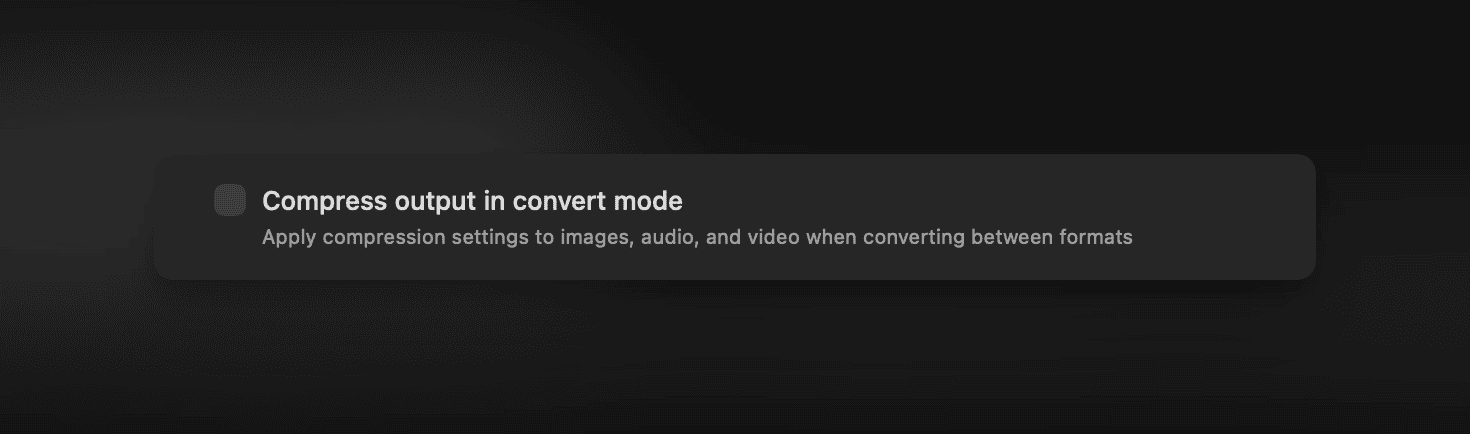
Section titled “Optional compression during conversion”You can apply compression as part of the conversion. Enable Compress output in convert mode in Settings, then adjust the quality slider or pick a preset before converting. This lets you change format and reduce file size in one step.
Smart format memory
Section titled “Smart format memory”Picmal remembers the last output format you selected for each input type. Drop a new file and it automatically picks the same format you used last time, no need to reselect. For example, if you always convert HEIC to JPG, Picmal will default to JPG whenever you drop a HEIC file.
Before/after preview
Section titled “Before/after preview”After converting a file, click the screen icon on any processed file to open an interactive before/after slider. This lets you compare the original and converted versions side by side, useful for checking how a format change affects visual quality.
Same-format conversions
Section titled “Same-format conversions”You can convert a file to the same format it’s already in. This is useful for resampling audio (for example, FLAC to FLAC at a different sample rate) without changing the codec. Same-format conversions follow your convert naming pattern (default {original}_converted), so the output lands beside the original instead of overwriting it. Adjust the pattern, prefix, or suffix in Settings → Output; see output and naming.
Format compatibility
Section titled “Format compatibility”Picmal converts within the same media type:
- Image → Image (e.g., PNG → JPEG, HEIC → WebP)
- Audio → Audio (e.g., WAV → MP3, FLAC → AAC)
- Video → Video (e.g., MOV → MP4, AVI → WebM)
You can also extract audio from video — for example, MP4 to MP3.
Metadata control
Section titled “Metadata control”Choose how metadata is handled during conversion:
| Mode | What It Does |
|---|---|
| Strip all | Removes all metadata for smallest file size |
| Keep essential | Preserves orientation, color profile, and copyright |
| Keep all | Preserves all original metadata |
RAW photos
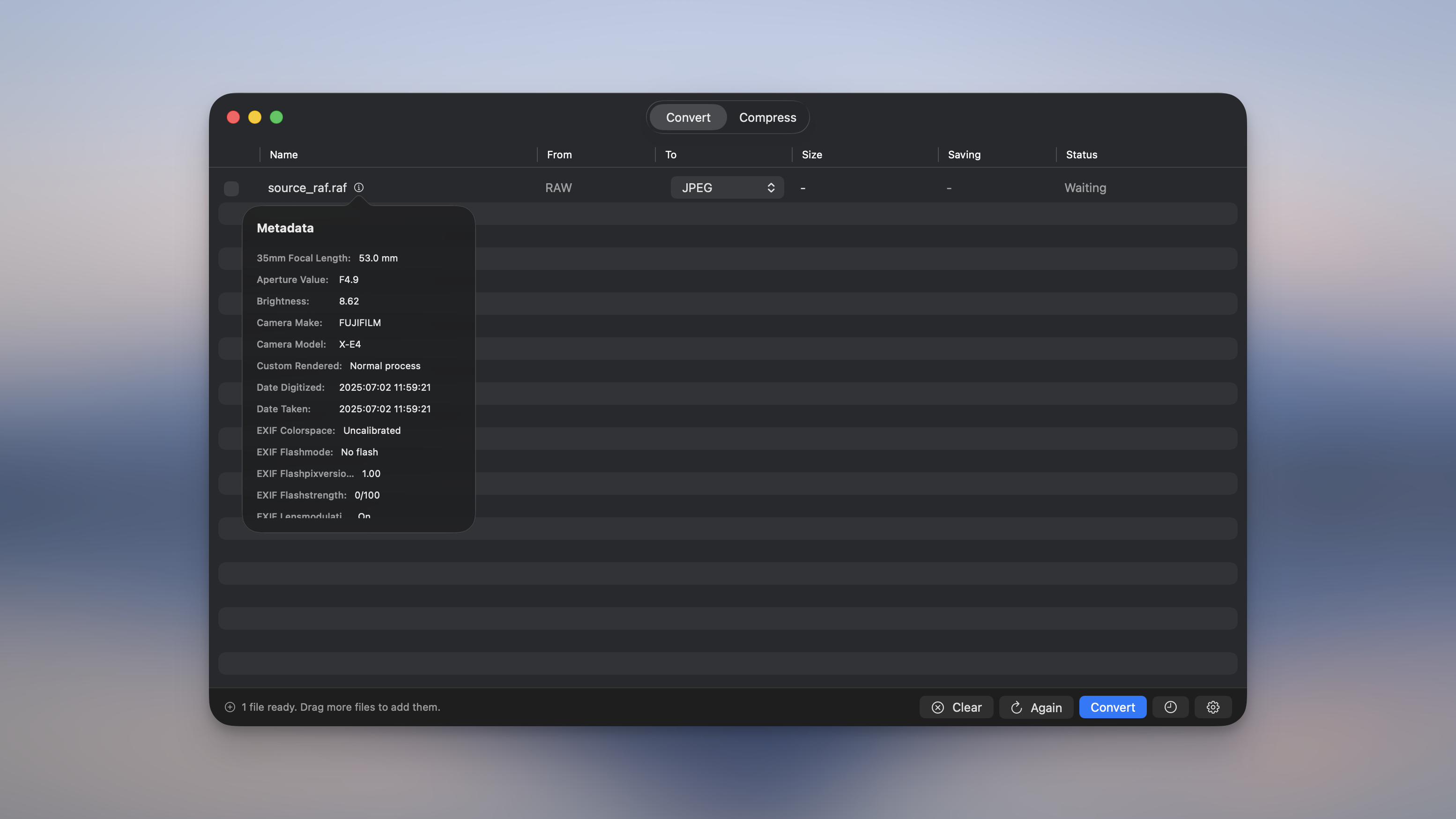
Section titled “RAW photos”Converting RAW photos (NEF, CR2, ARW, RAF, DNG) keeps your camera metadata. With Keep all, the output JPEG carries the make, model, lens, exposure, capture date, and GPS. Keep essential keeps the basics while dropping location and serial numbers. The metadata indicator reads RAW files too, so it shows what’s actually there instead of appearing empty.
See Supported formats for the full list of input and output formats.