
Command line (picmal-cli)
Run Picmal from the terminal — convert, compress, watch folders, and apply saved presets without opening the app.
Picmal ships with a command-line companion, picmal-cli, bundled inside the app. Same conversion engine as the UI, so the output is identical — you just get flags, JSON, and exit codes you can drop into a script.
Installation
Section titled “Installation”From the menu bar, choose Picmal → Install Command Line Tool…. Picmal asks for your administrator password and creates a symlink at /usr/local/bin/picmal-cli, which is on the default macOS PATH for both bash and zsh. After that, picmal-cli works from any terminal.
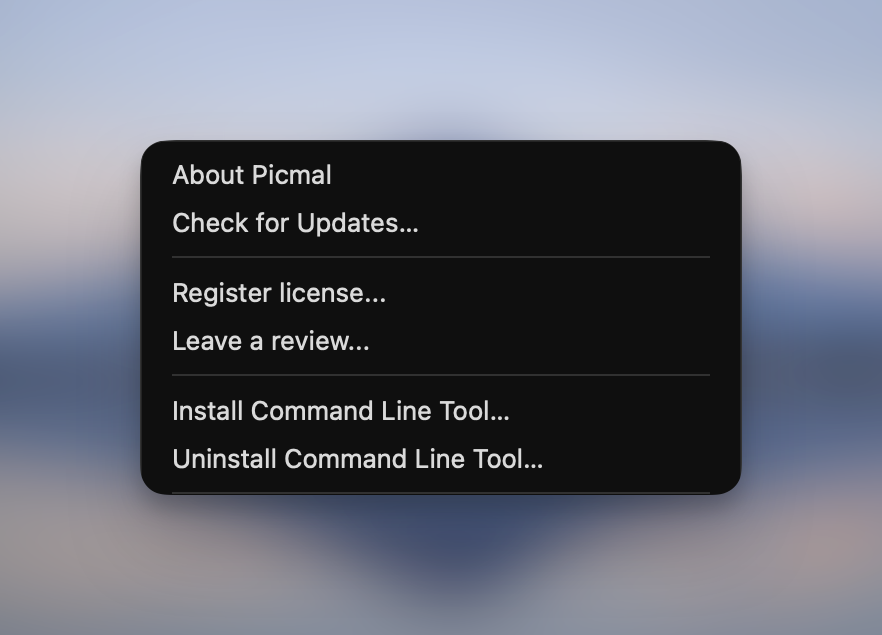
To remove it later, use Picmal → Uninstall Command Line Tool…. Only the symlink is removed; the app stays put.
If you’d rather invoke the binary directly without installing it, it lives inside the app bundle:
/Applications/Picmal.app/Contents/MacOS/picmal-cliconvert, compress, and watch need a valid Picmal license. The read-only commands (presets, formats, license-status, version) work without one.
Synopsis
Section titled “Synopsis”picmal-cli <subcommand> [options]| Subcommand | What it does |
|---|---|
convert | Convert files to a target format |
compress | Compress files keeping the same format |
presets | List or inspect saved presets (built-in + custom) |
formats | List supported formats by category |
watch | Add, list, and remove watched folders |
license-status | Check whether the host app is licensed |
version | Print the bundled app version |
Global options
Section titled “Global options”These flags work on every subcommand:
| Flag | Description |
|---|---|
--json | Force NDJSON output to stdout (one JSON object per line). Auto-on when piped. |
--text | Force human-readable output even when piped. |
-q, --quiet | Suppress per-file status lines (final summary still emitted). Where available. |
--verbose | Pass underlying tool stderr through. Useful for debugging. |
convert
Section titled “convert”Convert one or more files to a target format.
picmal-cli convert -i photo.heic -f jpgpicmal-cli convert -i ~/Pics -f webp -o ~/out --quality 80picmal-cli convert -i a.png b.png -f avif --strip-metadatapicmal-cli convert -i clip.mov -f mp4 --quality 70cat list.txt | picmal-cli convert -i - -f webp -o ~/out| Flag | Description |
|---|---|
-i, --input <paths> | One or more input paths. Use - to read newline-separated paths from stdin. |
-f, --format <ext> | Target format extension (e.g. jpg, webp, mp4, mp3). |
-o, --output <path> | Output file or directory. Defaults to alongside each input. |
-w, --overwrite | Overwrite existing outputs. |
--quality <n> | Quality 0–100. Format-specific defaults if omitted. Overrides --preset. |
--preset <name> | Apply a saved preset by name (see Presets). |
--resize <geometry> | Resize geometry, e.g. 1920x1080, 1920x, x1080, 50%. |
--color-space <name> | One of srgb, p3, adobergb, gray. |
-s, --strip-metadata | Strip EXIF/IPTC/XMP from output. |
--pdf-dpi <n> | DPI for PDF rasterization (also tags output density on raster outputs). |
--watermark <path> | Watermark image path. |
--watermark-opacity <n> | 0.0–1.0. Default 0.5. |
--watermark-position | tl, tr, bl, br, or center. Default br. |
compress
Section titled “compress”Compress one or more files keeping the same format. Output defaults to <basename>_compressed.<ext> next to each input.
picmal-cli compress -i big.jpg --quality 70picmal-cli compress -i ~/Pics -o ~/out --strip-metadatapicmal-cli compress -i clip.mp4 --quality 60 -o clip-small.mp4picmal-cli compress -i podcast.mp3 --preset "Voice memo"| Flag | Description |
|---|---|
-i, --input <paths> | One or more input paths. Use - for stdin. |
-o, --output <path> | Output file or directory. |
--quality <n> | Quality 0–100. Format-specific defaults if omitted. Overrides --preset. |
--preset <name> | Apply a saved preset by name (see Presets). |
-s, --strip-metadata | Strip EXIF/IPTC/XMP from output. |
-w, --overwrite | Overwrite existing outputs. |
If your --preset is an audio or video preset and you don’t pass --output, picmal-cli picks the right container for you (Opus → .opus, AAC → .m4a, FLAC → .flac, VP9 → .webm). Pass --output if you want a specific path.
presets
Section titled “presets”Browse the presets you’ve made in the app, plus the built-ins that ship with Picmal. Read-only — make new ones in the app.
picmal-cli presets listpicmal-cli presets list --kind imagepicmal-cli presets show "Balanced"| Flag | Description |
|---|---|
--kind <image|audio|video> | Only show presets of this kind. |
Text mode groups results under Built-in and Custom. JSON mode emits a presets array where each row carries id, name, kind, source ("built-in" or "custom"), and description.
picmal-cli presets show "Maximum quality"Takes a preset name (case-insensitive) and prints everything it contains:
- Image presets: per-format quality (
jpegQuality,webpQuality,pngLevel,heicQuality, …) plus any resize / color / DPI sections. - Audio presets: codec, bitrate mode, target bitrate, sample rate, bit depth, mono flag.
- Video presets: codec, CRF, encoding speed.
If a name exists across kinds (the built-in “Maximum quality” exists for image, audio, and video), show prints every match. Custom presets win over built-ins of the same name within the same kind.
Using presets in compress / convert
Section titled “Using presets in compress / convert”Pass --preset NAME to either subcommand. The kind is matched against the input’s category (image / audio / video), and the preset’s values feed into the engine:
- Image preset → per-output-format quality, resize geometry, target color space, DPI.
- Audio preset → ffmpeg codec, bitrate, mono flag, sample rate, bit depth.
- Video preset → ffmpeg codec, CRF, encoding speed. Input audio is stream-copied.
Explicit flags always beat preset values. So --preset "Maximum compression" --quality 95 gives you a high-quality output, not a tiny one.
You can’t create custom presets from the CLI. Make them in the app first (see image compression and audio and video).
formats
Section titled “formats”List the formats Picmal can read and write, grouped by category.
picmal-cli formatspicmal-cli formats --category imagepicmal-cli formats --json | jq '.formats.image'| Flag | Description |
|---|---|
--category <image|audio|video|document> | Restrict output to one category. |
Manage Picmal’s watched folders from the terminal. The host app does the actual processing; picmal-cli watch only edits the list.
picmal-cli watch add ~/Screenshots --format webp --strip-metadatapicmal-cli watch listpicmal-cli watch remove ~/Screenshots --yeswatch add
Section titled “watch add”| Flag | Description |
|---|---|
<folder> | Folder path to watch (positional). |
-o, --output <dir> | Output destination. Defaults to the watched folder. |
-f, --format <ext> | Target format extension. Implies convert mode. |
-r, --recurse | Watch subfolders recursively. |
-s, --strip-metadata | Strip metadata from processed files. |
watch list
Section titled “watch list”Lists every configured watched folder, with mode, format, output, and UUID.
watch remove
Section titled “watch remove”picmal-cli watch remove <uuid-or-path> [--yes]Pass either the folder path or the UUID printed by watch list. --yes (-y) skips the confirmation prompt, which is required when stdout isn’t a terminal.
license-status
Section titled “license-status”Prints whether the host app is licensed.
picmal-cli license-statuspicmal-cli license-status --jsonversion
Section titled “version”Prints the bundled app version.
picmal-cli versionExit codes
Section titled “Exit codes”picmal-cli uses stable exit codes so scripts can branch on them:
| Code | Meaning |
|---|---|
0 | Success. |
1 | Generic failure (e.g. underlying tool reported a non-zero exit). |
2 | Usage error — bad arguments or missing required flag. |
3 | Unlicensed. |
4 | Input missing. |
5 | Unsupported format. |
7 | Cancelled (Ctrl+C). |
8 | Output write failure (output already exists without -w, disk full, …). |
9 | Partial success: some files succeeded, some failed in a batch. |
10 | A bundled tool (magick, ffmpeg) couldn’t be located. Reinstall fixes it. |
11 | Input is corrupt or cannot be decoded. |
JSON output
Section titled “JSON output”When stdout isn’t a terminal (piped or redirected), picmal-cli emits NDJSON: one JSON object per line. Force it with --json, force text with --text.
Every event carries an event discriminator and an RFC 3339 ts. Successful file outputs go to stdout; errors, warnings, and progress go to stderr. The schema version is 1 and is included in the started event so consumers can detect breakages early.
Example pipeline:
picmal-cli compress -i ~/Pics -o ~/out --preset Balanced --json \ | jq -c 'select(.event=="file") | {input, output, savedPct: (1 - .bytesOut/.bytesIn)*100}'