
Output and naming
Where files go
Section titled “Where files go”By default, converted and compressed files are saved in the same folder as the originals.
Save to a subfolder
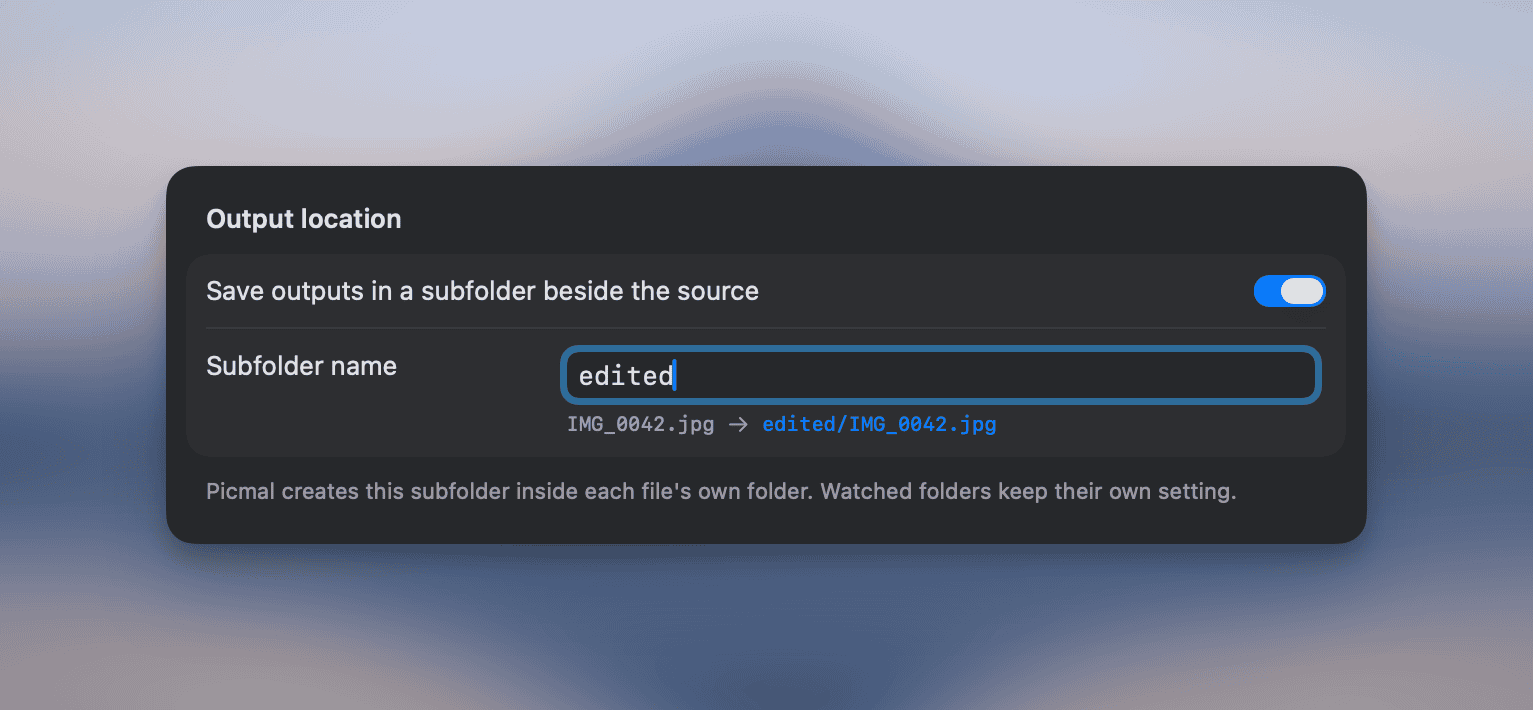
Section titled “Save to a subfolder”If you’d rather keep outputs out of the source folder, turn on Output location → Save to subfolder in Settings → Output and type a folder name (for example picmal). Every conversion or compression then writes to <sourceFolder>/<name>/ instead of next to the source file.
- Files dropped from different folders each get their own subfolder, created beside the source.
- The subfolder is created automatically the first time it’s needed.
- Leaving the name empty is the same as turning the toggle off, outputs go next to the source as before.
- Finder services (Compress/Convert from the right-click menu) follow this setting too, since they use your current app settings.
- Watched folders ignore this setting; configure their output location per folder under Settings → Watched Folders.
File naming
Section titled “File naming”Picmal names output files using patterns. You write a pattern (literal text plus tokens) and that becomes the output file’s base name. The extension comes from the output format.
Configure patterns in Settings → Output. There are two independent patterns:
- Convert pattern: used when converting to a different format. Default:
{original}_converted - Compress pattern: used in Compress mode. Default:
{original}_compressed
Tokens
Section titled “Tokens”Click Insert token next to a pattern to add one at the cursor, or type it yourself.
| Token | Replaced with | Example |
|---|---|---|
{original} | Original filename (no extension) | IMG_0042 |
{date} | Capture date from EXIF | 2026-03-15 |
{datetime} | Capture date and time from EXIF | 2026-03-15_14-22-08 |
{year} | Capture year from EXIF | 2026 |
{month} | Capture month from EXIF | 03 |
{day} | Capture day from EXIF | 15 |
{camera} | Camera make and model from EXIF | FUJIFILM_X-T20 |
{iso} | ISO value from EXIF | 400 |
{sequence} | Position in the batch, starting at 1 | 1 |
Click any token in the settings panel to insert it into the focused pattern field. A live preview shows what the output filename will look like.
Numbering a batch
Section titled “Numbering a batch”{sequence} numbers files in the order they appear in the list. Two extra forms let you shape the count:
| Form | Gives you |
|---|---|
{sequence} | 1, 2, 3 |
{sequence:3} | 001, 002, 003 |
{sequence+10} | 10, 11, 12 |
{sequence:3+10} | 010, 011, 012 |
So holiday-{sequence:3} turns a folder of photos into holiday-001.jpg, holiday-002.jpg, and so on. Unlike the EXIF tokens, this one always has a value, a file with no metadata still gets its number.
A watched folder counts differently: files arrive one at a time rather than as a batch, so the folder keeps a running count that carries on where it left off.
Examples
Section titled “Examples”{original}_web → IMG_0042_web.jpeg{date}_{original} → 2026-03-15_IMG_0042.jpeg{camera}_{iso}_{original} → FUJIFILM_X-T20_400_IMG_0042.jpeg{year}/{month}/{original} → (slashes are sanitized to underscores)Missing metadata
Section titled “Missing metadata”If a pattern uses an EXIF token but the source file has no matching metadata (e.g. {camera} on a screenshot), Picmal falls back to the original filename for that file. This avoids broken names like _400_IMG_0042.
Unknown tokens (anything inside {...} that isn’t recognized) are dropped silently.
Overwriting originals
Section titled “Overwriting originals”If your pattern produces the same name as the source file (for example, using just {original}), Picmal writes to a temporary file and replaces the original only after the operation succeeds. This is safe even on case-insensitive APFS volumes, where .JPG and .jpg collide.
In Compress mode, if the result isn’t smaller than the original, the original is left untouched.
The settings panel warns you when your pattern would overwrite originals.
Avoiding collisions
Section titled “Avoiding collisions”If a file with the output name already exists (because you ran the same conversion twice, say), Picmal doesn’t overwrite it. It adds a number instead, so the new file is saved as photo_converted 2.jpg alongside the one that was already there.
Default format conversion
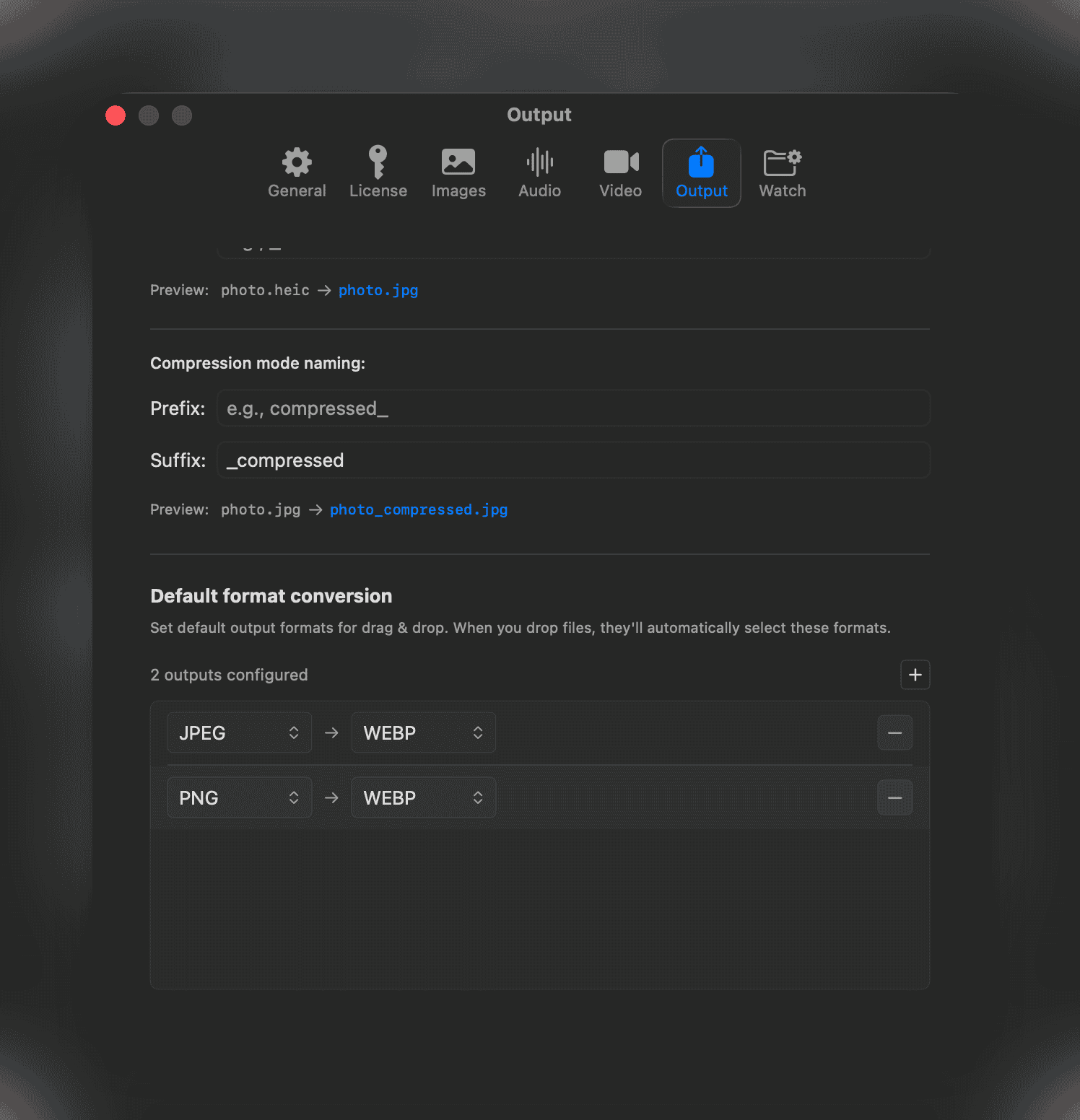
Section titled “Default format conversion”Picmal can pick the output format for you when you drop files, so drag-and-drop workflows don’t need a click. Choose how in Settings → Output → Default format, with the Convert dropped images to menu. There are two modes.
Per input format
Section titled “Per input format”Leave the menu on Depends on the input format and set a default output format for each input type, all HEIC files to JPEG, all PNGs to WebP, and so on. Click Add format rule to add a pair. Input types you haven’t mapped keep using the format you last picked for them.
Keep a format as it is
Section titled “Keep a format as it is”Any rule can be set to KEEP instead of an output format. Files of that type are added to the list but never converted, so you can map HEIC to WebP, leave your PNGs alone, and drop a whole mixed folder without filtering it first.
KEEP is also available per file: click a row’s format in the Convert list and pick KEEP to skip just that file.
Compressing is unaffected, a KEEP rule only controls what a file converts to, so Compress mode still shrinks those files as usual.
Convert everything to
Section titled “Convert everything to”Pick one format in the menu and every image you drop converts to it, whatever it started as. This is the quick way to send a folder of mixed JPGs, PNGs and HEICs out as WebP without writing a rule per format.
Files already in the target format are re-encoded at your compression quality rather than pushed out to a different, often larger, format. Audio and video are unaffected, an MP4 never becomes a WebP.
Switching back to Depends on the input format leaves your rules as they were.