
Audio and video
Audio compression
Section titled “Audio compression”The audio presets are in the compressing files table.
Codecs
Section titled “Codecs”| Codec | Type | Best For |
|---|---|---|
| AAC | Lossy | General music and audio, widest compatibility |
| MP3 | Lossy | Legacy compatibility |
| Opus | Lossy | Speech, podcasts, low-bitrate audio |
| FLAC | Lossless | Archival, music production |
| ALAC | Lossless | Apple Lossless, imports straight into Apple Music |
ALAC (Apple Lossless)
Section titled “ALAC (Apple Lossless)”Pick ALAC as the output format to get a lossless .m4a from FLAC, WAV, or AIFF. It’s the format Apple Music expects for lossless libraries. ALAC conversions are bit-for-bit lossless; they preserve every sample of the source.
Bitrate modes
Section titled “Bitrate modes”| Mode | Description |
|---|---|
| VBR (Variable) | Allocates more bits to complex passages. Best quality per file size |
| ABR (Average) | Targets an average bitrate. Good balance |
| CBR (Constant) | Fixed bitrate throughout. Predictable file size |
Force mono
Section titled “Force mono”Turn on force mono to collapse stereo audio down to a single channel. Useful for voice recordings and podcasts, where nobody notices the missing stereo field and the file comes out roughly half the size.
Sample rate
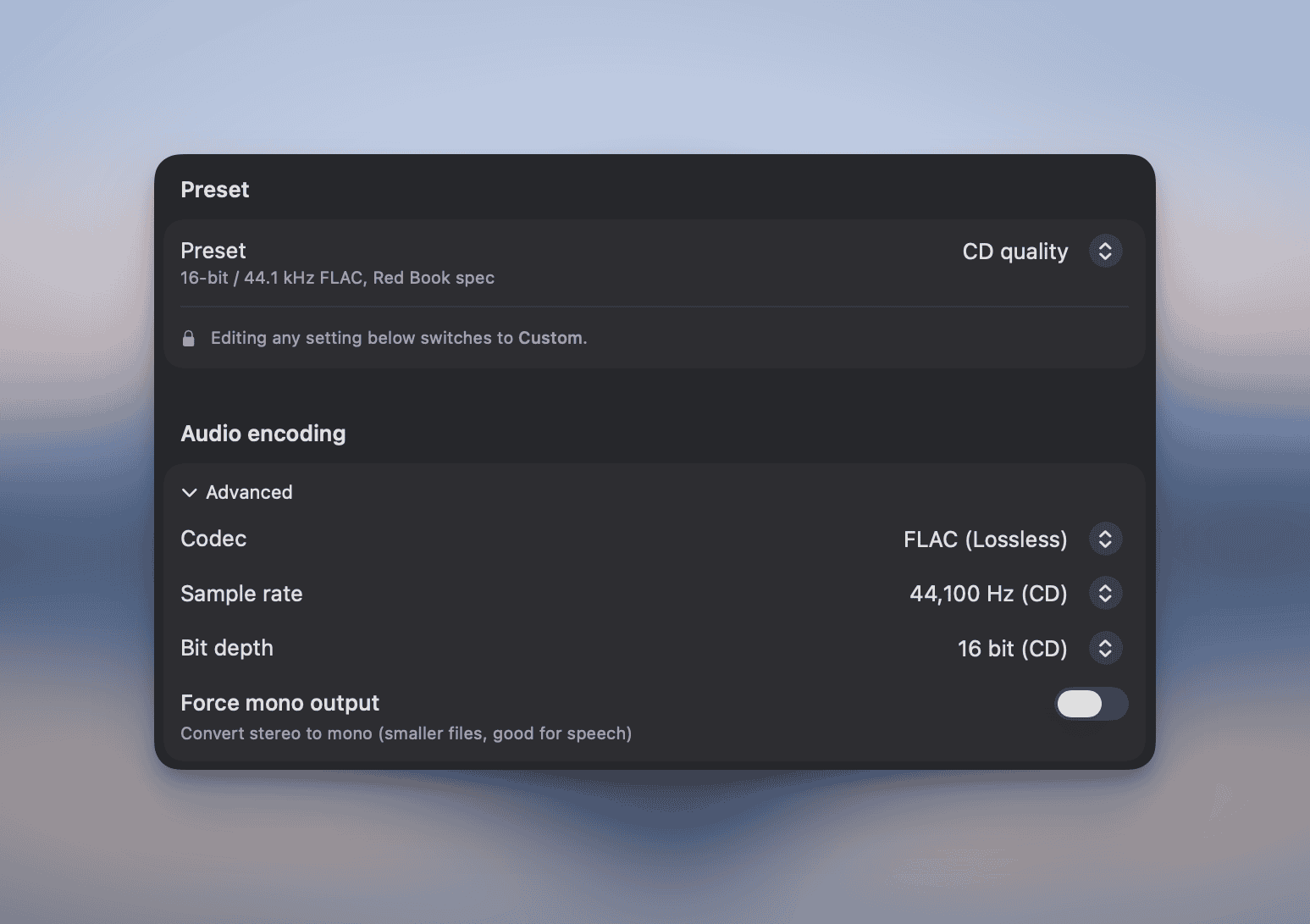
Section titled “Sample rate”The Custom audio preset has a sample rate picker, from 8 kHz all the way up to 96 kHz:
| Rate | Typical Use |
|---|---|
| 8 kHz | Telephony |
| 16 kHz | VoIP, voice assistants |
| 22.05 kHz | AM radio |
| 44.1 kHz | CD audio |
| 48 kHz | DVD, video production |
| 96 kHz | High-resolution audio |
Want to resample without touching the codec? Convert a file to its own format (FLAC → FLAC, for example) and pick your target sample rate. See converting files for the details.
Not every codec accepts every rate: MP3 stops at 48 kHz, and Opus only speaks 8, 12, 16, 24, and 48 kHz. Ask for 96 kHz into MP3 and Picmal converts at the nearest rate the codec does support, then says which one in the Convert table. It used to fail the encode and leave a 0-byte file. The command line makes the same substitution.
Bit depth
Section titled “Bit depth”The Custom audio preset also lets you pick a bit depth on top of the sample rate:
| Depth | Typical Use |
|---|---|
| 16 bit | CD quality, general listening |
| 24 bit | Studio masters, mixing, mastering |
| 32 bit | Floating-point processing, archival masters |
Pair 16 bit with 44.1 kHz for CD-quality FLAC, or jump to 24 bit + 48 kHz for studio work. The dedicated CD quality preset is 16 bit + 44.1 kHz FLAC in one click.
Cover art
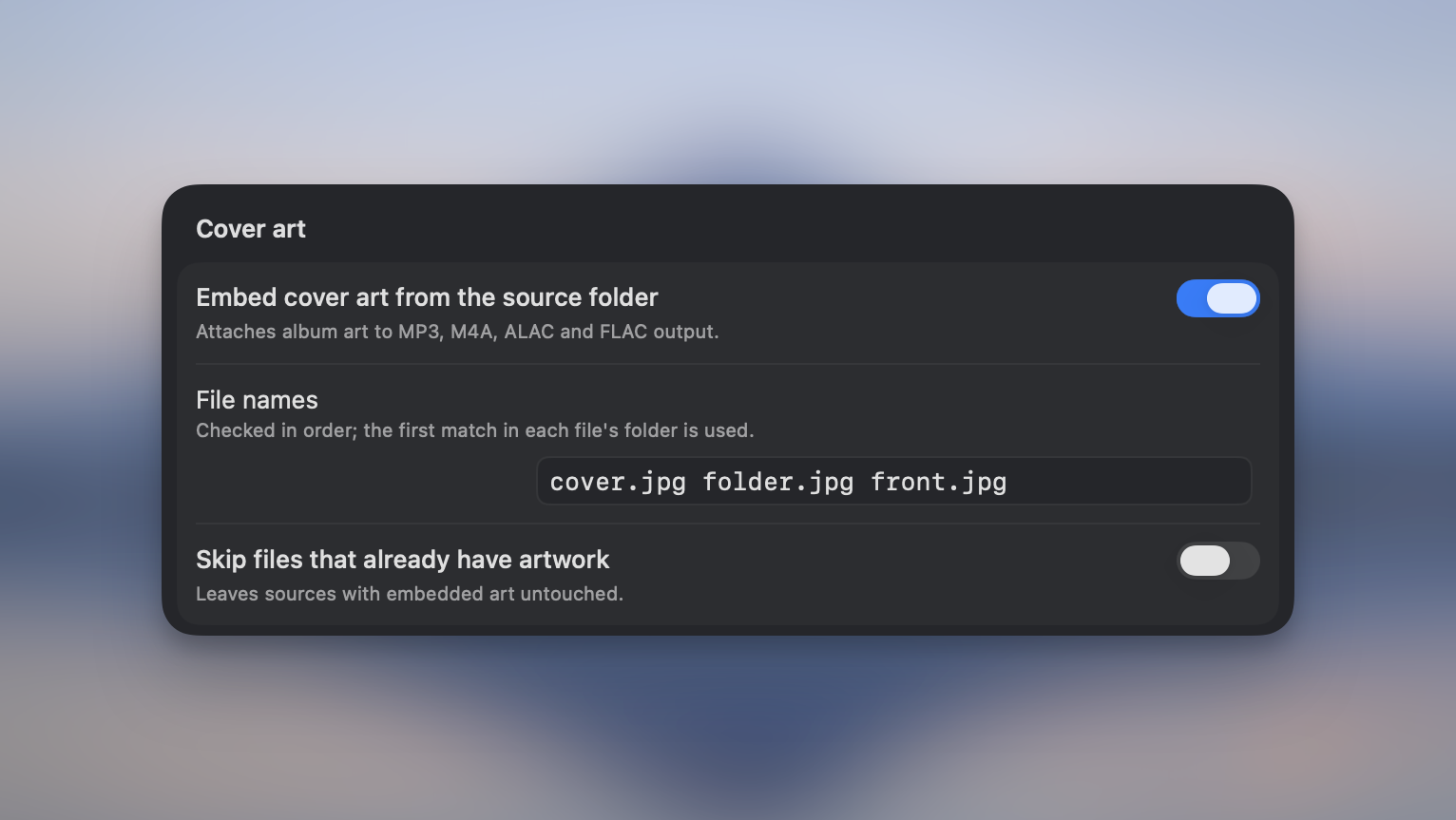
Section titled “Cover art”Picmal can embed album art into your audio output automatically. Turn on Embed cover art from the source folder in Settings → Audio, and for each track it looks for a cover image in the same folder and writes it into the file. It works both when converting and when compressing.
By default it looks for cover.jpg, folder.jpg, and front.jpg, but you can edit that list of filenames to match how your library is organized. The names have to match exactly, extension included. Add cover.png or AlbumArt.jpg to the list if that’s how your library names them. Capitalization doesn’t matter, and the image has to sit in the same folder as the track.
Turn on Skip files that already have artwork to leave existing covers alone. Picmal only adds art to tracks that don’t have any. Turn it off if you want the folder image to replace the artwork a track already carries.
Only some formats can store a picture: MP3, M4A, M4B, ALAC and FLAC. WAV, AIFF, OGG and Opus have nowhere to put one, so choosing one of those leaves the output with no art. Picmal flags the row and explains why. Compressing a track keeps whatever art it already has, unless you also have Remove metadata turned on, which strips it along with everything else.
Video compression
Section titled “Video compression”The video presets are in the compressing files table.
Codecs
Section titled “Codecs”| Codec | Compatibility | Compression | Notes |
|---|---|---|---|
| H.264 | Excellent | Good | Plays everywhere, web, mobile, desktop |
| H.265 (HEVC) | Good | Better | ~50% smaller than H.264 at same quality |
| VP9 | Good | Better | Google’s codec, great for WebM |
| AV1 | Growing | Best | Newest, best compression, slowest to encode |
| Copy | , | None | Carries the existing picture and sound over untouched |
Copy (no re-encode)
Section titled “Copy (no re-encode)”Pick Copy when you only want to change the container. Picmal moves the existing video and audio streams into the new file without touching them, so a clip that would take minutes to re-encode is done in about a second, at the original quality.
Copy needs the target container to be able to hold the streams it’s given, and it needs nothing else about the picture to change. Ask for a resize, a frame-rate change, a playback-speed change, or a watermark and there’s nothing to copy. Picmal encodes with H.264 instead. It’s a Convert setting: compressing a video always means re-encoding it, so Compress falls back to H.264 too.
Encoding speed
Section titled “Encoding speed”| Speed | Encode Time | File Size | Quality |
|---|---|---|---|
| Ultrafast | Fastest | Largest | Lowest |
| Fast | Fast | Larger | Lower |
| Medium | Moderate | Balanced | Good |
| Slow | Slow | Smaller | Better |
| Slower | Slowest | Smallest | Best |
Slower speeds give the encoder more time to find efficient compression. Medium is the sensible default for most jobs.
CRF (Constant Rate Factor)
Section titled “CRF (Constant Rate Factor)”CRF controls quality on a 0–51 scale. Lower = better quality, larger file.
| CRF Range | Quality Level |
|---|---|
| 18–20 | Visually lossless / archival |
| 21–23 | High quality, good file size |
| 24–26 | Balanced |
| 27–28 | Noticeable compression, small files |
| 29+ | Heavy compression |
Audio quality for video
Section titled “Audio quality for video”Settings → Video → Advanced has its own Audio quality slider, shown in kbps (48–320). It’s separate from the video quality slider: push it up for a music clip, pull it down for a talking head.
It only applies when the soundtrack is re-encoded. A plain container change copies the audio across untouched, which is what keeps that path fast.
From the terminal, --audio-quality on convert and compress does the same thing on a 1–100 scale. See Command line.
Frame rate
Section titled “Frame rate”Drop the frame rate (say 60 fps → 30 fps) to squeeze the file down further. It suits screen recordings, tutorial clips, and anything else that doesn’t need cinema-grade motion. Set the target frame rate in the video compression settings.
Resolution
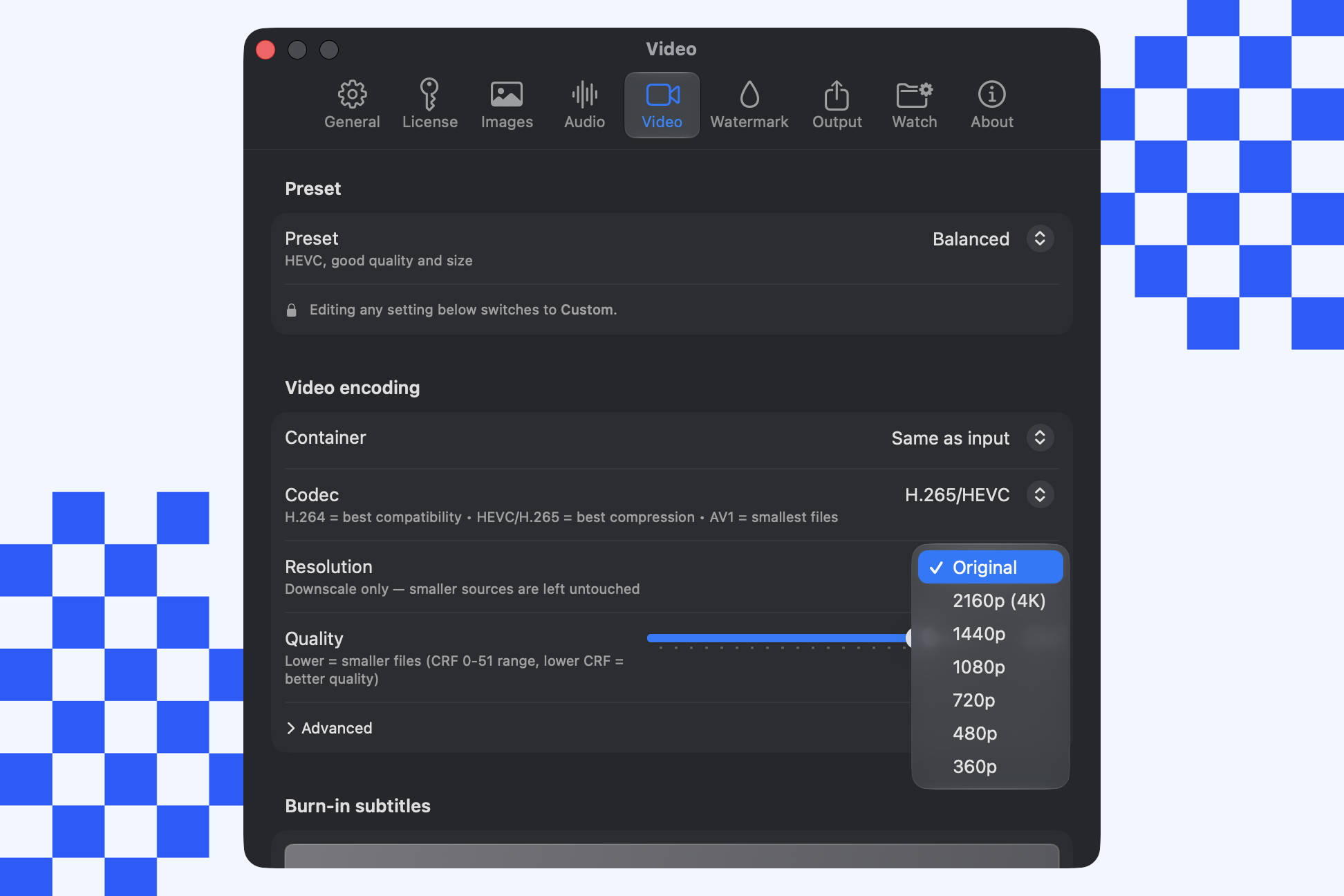
Section titled “Resolution”Open Video Options and pick a Resolution to cap how tall the output can be, 2160p (4K), 1440p, 1080p, 720p, 480p, 360p, or Original. Picmal only ever scales down and keeps the aspect ratio, so a clip that’s already shorter than your pick comes through untouched. The setting applies whether you’re converting or compressing.
In Compress, the same picker sits in the settings popover next to the Compress button, with the codec and quality. Resolution is independent of the preset: pick 720p and Balanced stays Balanced. From the terminal, use --resolution on convert and compress. See Command line.
Output format
Section titled “Output format”You can swap the container format while you compress. Take a MOV and come out the other side with MP4, MKV, WebM or AVI. Picmal handles codec compatibility for you; if the codec you picked won’t fit in the container you chose, it picks one that will.
Set the output format in the video compression settings. Leave it alone if you want to keep the original container.
Estimated size
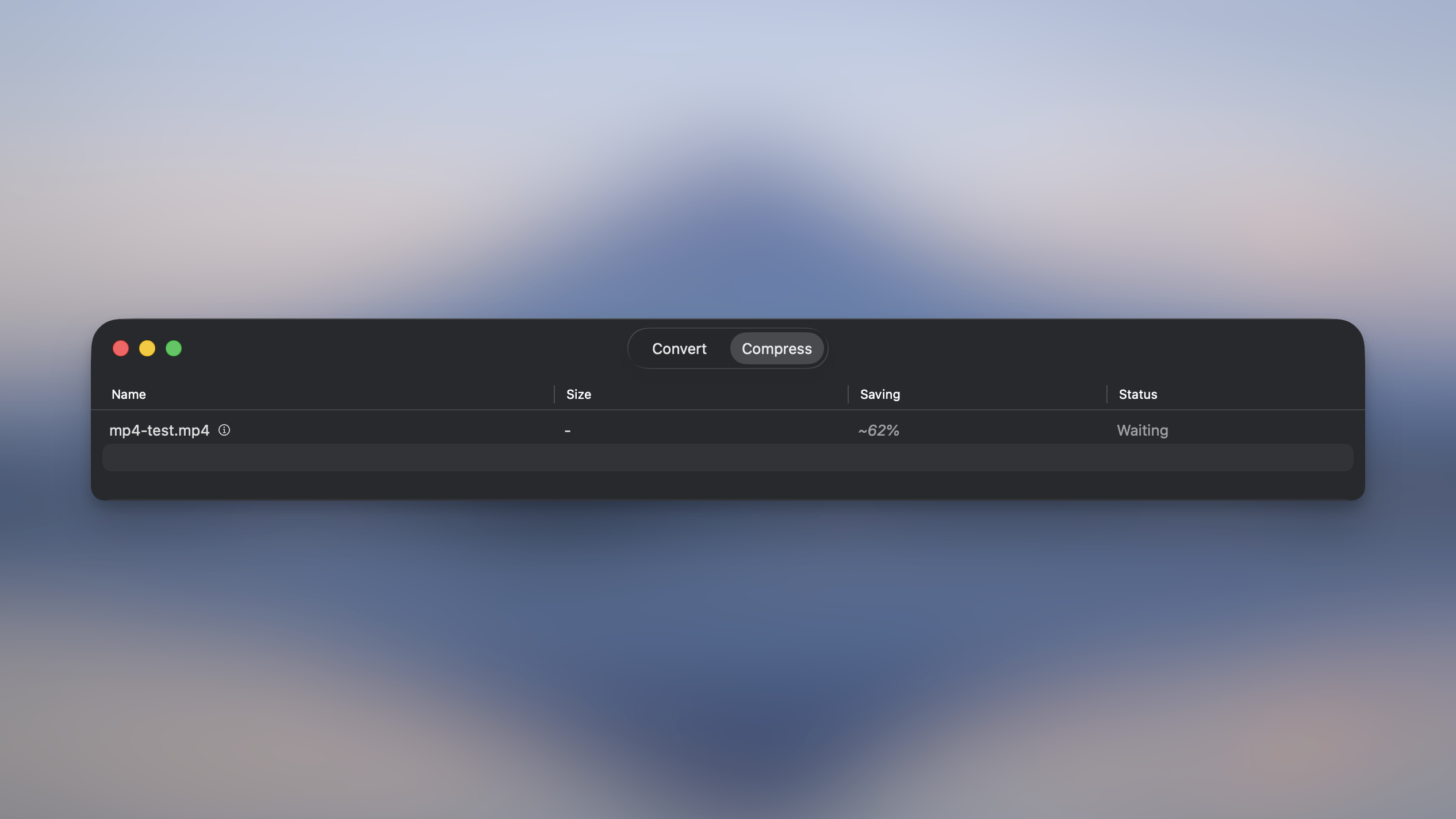
Section titled “Estimated size”Before you run a video compression, Picmal shows an estimate of the output size based on your current codec, CRF, and frame-rate settings, so you know roughly how much space you’ll save without having to encode first. Change a setting and the estimate updates.
Subtitle burn-in
Section titled “Subtitle burn-in”Attach an SRT or VTT file to any video and the subtitles get rendered straight into the frames. Because the text is painted onto the pixels, it shows up on any device, whether or not the player handles subtitle tracks.
How to use
Section titled “How to use”- Click the film icon next to a video in the file list
- Pick your
.srtor.vttfile - Convert as usual. The subtitles come out baked into the output
Styling
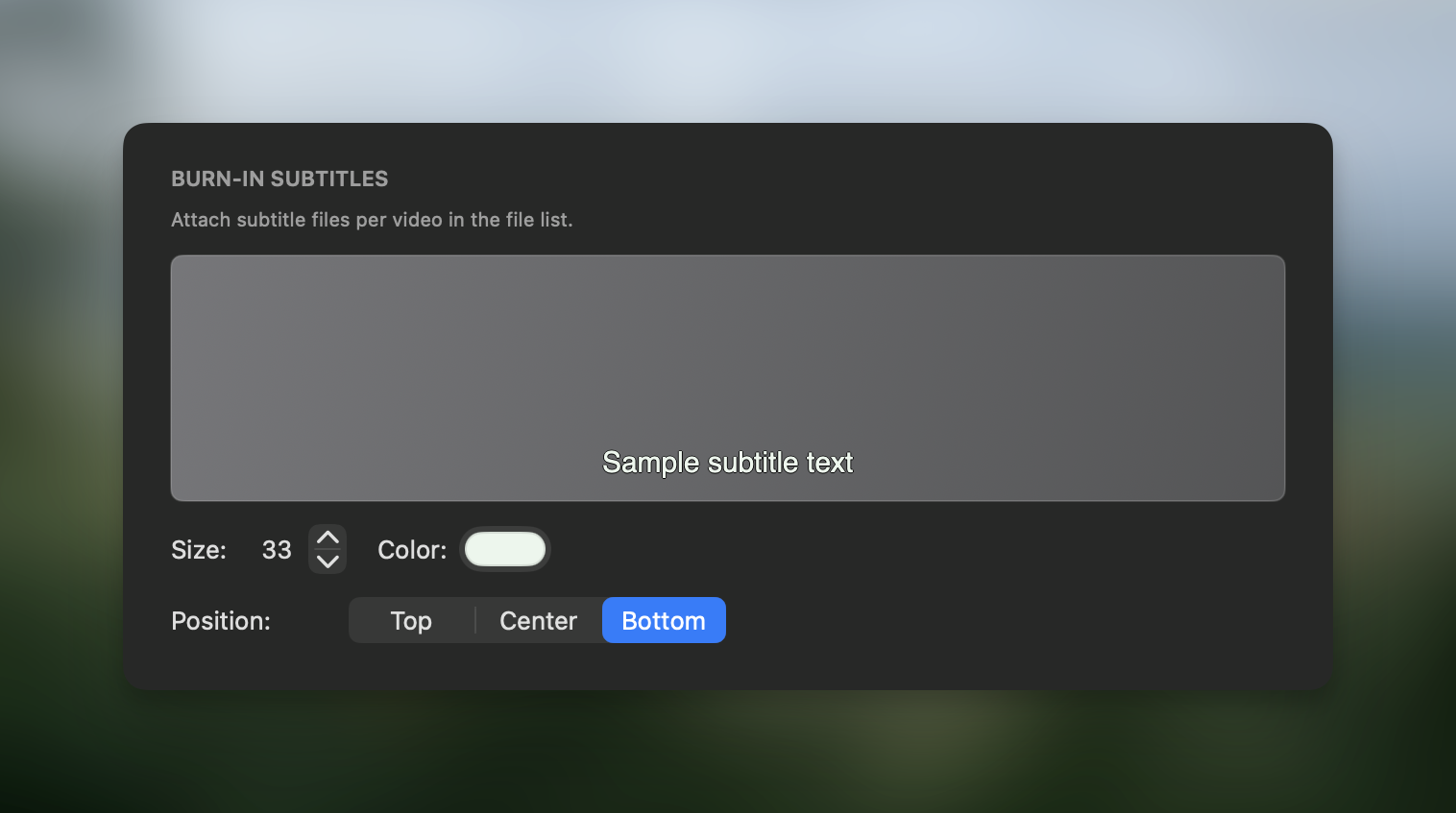
Section titled “Styling”Open Settings → Video to control how subtitles look:
| Setting | Options |
|---|---|
| Size | Small, medium, large, or a custom point size |
| Color | Any color (text and optional outline) |
| Position | Top, center, or bottom of the frame |
Styling is global. Whatever you pick in Settings applies to every video with a subtitle file attached.
Existing subtitle tracks are preserved
Section titled “Existing subtitle tracks are preserved”If a video already carries soft subtitle tracks (the kind Subler and other tools add), Picmal keeps them when it converts or compresses the file, as long as the output format can hold them: text subtitles into MP4, MOV, and WebM, and anything into MKV. A subtitle the target format can’t store is quietly dropped so the conversion still goes through. This is separate from burn-in above, the tracks stay selectable subtitles rather than being painted onto the frames. It works in the app and from the command line.
Playback speed
Section titled “Playback speed”Speed a video up or slow it down without wrecking the audio pitch. Useful for trimming down meeting recordings, rolling tutorials into time-lapses, or stretching a golf swing out for review.
How to use
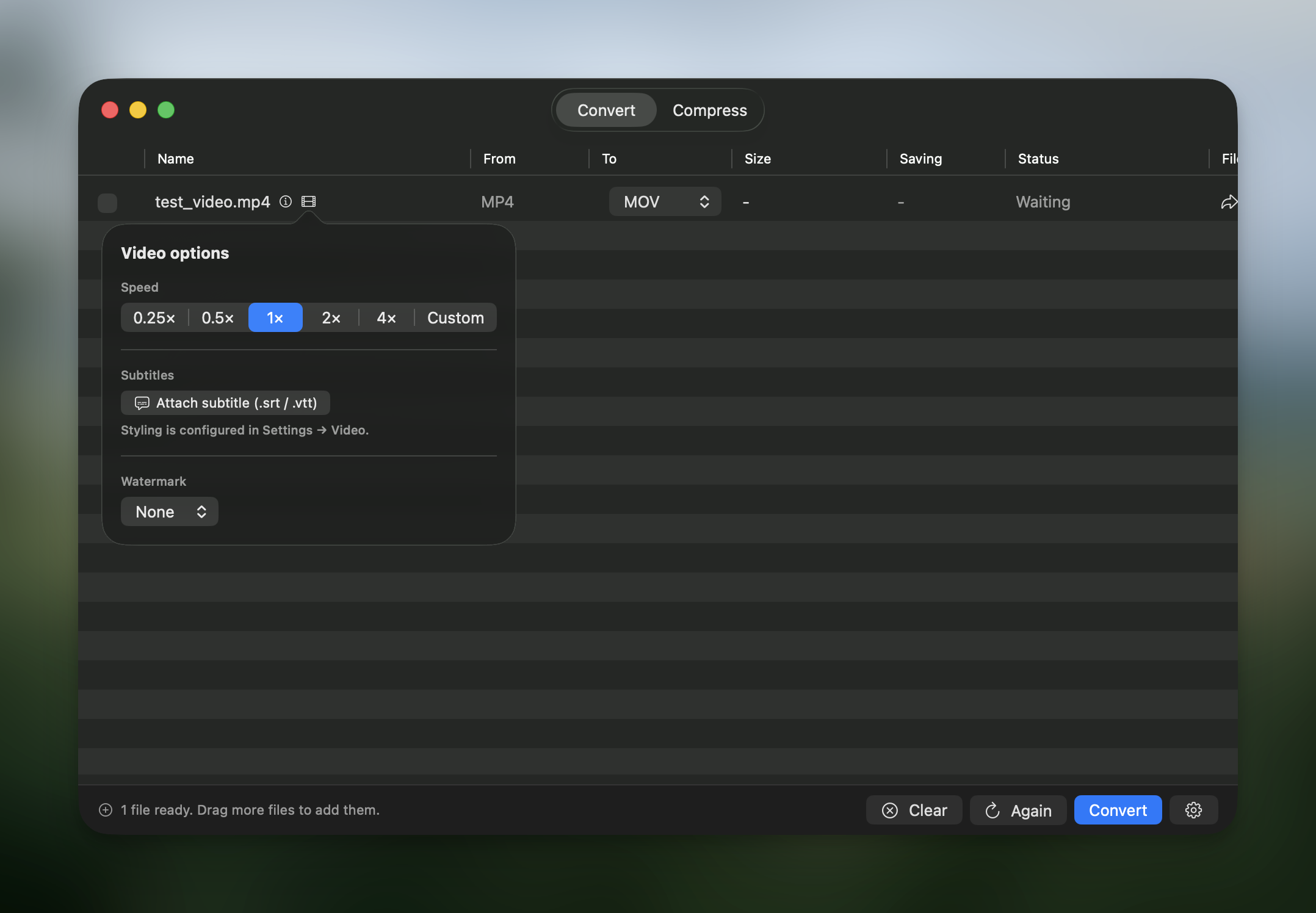
Section titled “How to use”- Click the film icon next to a video in the file list
- Pick a preset (0.25×, 0.5×, 2×, 4×) or enter a custom speed from 0.1× to 8×
- Optionally click Apply speed to all videos to reuse the setting across the whole batch
Audio pitch is preserved, so 2× speeds up a narration without turning your voiceover into a chipmunk.