
Image compression
Picmal ships with six built-in presets that apply sensible quality settings across all image formats. Pick Custom if you want full control over the quality slider for each format. The presets table is in compressing files. Each format has its own page too: WebP, AVIF, GIF, TIFF and PDF.
Lossy formats (Quality 0–100)
Section titled “Lossy formats (Quality 0–100)”These formats use a quality percentage where higher = better quality, larger file.
| Format | Range | Default | Notes |
|---|---|---|---|
| JPEG | 0–100 | 85 | Most common. 80–90 is usually the sweet spot |
| WebP | 0–100 | 85 | Excellent compression, modern browsers |
| HEIC | 0–100 | 85 | Apple ecosystem, great compression |
| AVIF | 0–100 | 85 | Next-gen, best compression ratios. To get there from a PNG, see PNG to AVIF |
| TIFF | 0–100 | 85 | Archival/print use |
| 0–100 | 85 | Quality of the images inside the PDF, text stays selectable | |
| JP2 | 0–100 | 85 | JPEG 2000 |
| JXL | 0–100 | 85 | JPEG XL |
BMP, TGA, DDS, EXR, PCX, PSD, SGI, QOI and SVG have no quality slider. Their encoders ignored the number, so the slider is gone and those files are written the same way every time.
How PDF compression works
Section titled “How PDF compression works”Picmal re-compresses the images embedded inside a PDF (the Compress PDF on Mac page has the app side, and how to compress a PDF on Mac compares four methods) and leaves everything else alone: text stays selectable, links keep working, and vector graphics stay sharp.
A web article saved as PDF often looks like a text document but is almost entirely image data, browsers store photos losslessly when printing to PDF, so a three-page article can carry a single photo that makes up 97% of the file. Picmal re-encodes that photo as JPEG at your chosen quality and typically saves 60–80% without touching a word of the text.
A PDF that is mostly text and fonts has almost nothing to remove. When that happens, Picmal says so, the Saving column shows Already optimized and your original is kept byte-for-byte.
Scanned documents are the other case. There the picture is the page, so re-encoding it at its original size only goes so far. Picmal lowers the resolution of the images inside to match the quality you picked. A 25 MB scan typically lands around 2 MB, and because only the pictures are touched, the text stays real text you can select and search.
Squeezing a document that hard means rebuilding it, and a rebuilt PDF loses its links, bookmarks, and form fields. When your file has any of those, Picmal shows a warning on the row rather than dropping them quietly. Scans and photo exports have none, so they compress with no warning at all.
Never larger than the original
Section titled “Never larger than the original”When you compress a file, Picmal compares the result against the source and keeps whichever is smaller. If a compression pass wouldn’t save space, your original is left untouched, so you never end up with a file bigger than the one you started with.
Compress to a target file size
Section titled “Compress to a target file size”Need an image under a specific size? Turn on resizing and pick Max File Size, then type a budget like 100 KB or 2 MB. Picmal scales the image down just enough to fit. See resize for details.
Level-based formats (1–9)
Section titled “Level-based formats (1–9)”These formats use a compression level where higher = more compression, smaller file (but processing takes longer).
| Format | Range | Default | Notes |
|---|---|---|---|
| PNG | 1–9 | 9 | Level affects how hard Picmal tries, not how the image looks |
| GIF | 1–9 | 7 | Higher levels mean more aggressive optimization |
| SVG | 1–9 | 7 | Optimization level for SVG cleanup |
PNG at level 9 is worth using. It runs a lossy palette pass first and a lossless squeeze after, and on a photographic PNG it regularly halves the file. Drop the level if you want the palette left alone.
PDF rasterization DPI
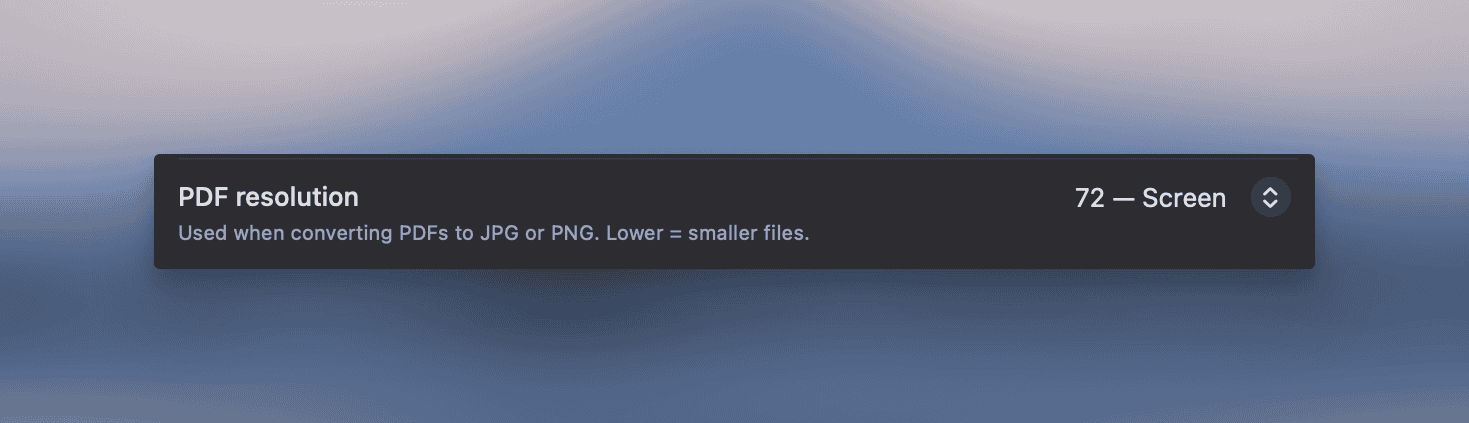
Section titled “PDF rasterization DPI”When converting PDFs to JPG or PNG, Picmal rasterizes each page at a chosen DPI. Higher DPI means sharper output and larger files. Pick the resolution in Settings → Images:
| DPI | Best For |
|---|---|
| 72 | Quick thumbnails, screen previews |
| 150 | General web use (default) |
| 300 | Print-ready output |
| 600 | High-quality print, fine detail |
The default is 150, which keeps output crisp without bloating file sizes on multi-page documents.
Quick Guide: What preset should I use?
Section titled “Quick Guide: What preset should I use?”| Use Case | Recommended Preset |
|---|---|
| Archiving photos, printing | Maximum quality |
| Portfolio website, client delivery | High quality |
| Blog posts, documentation | Balanced |
| Landing pages, e-commerce | Web optimized |
| Social media posts | Social media |
| Email attachments, bandwidth-limited | Maximum compression |
| Specific needs | Custom |