A new sidebar, Combine PDFs, and Images to PDF
Picmal has a new sidebar. Convert and Compress now live under Media, and a new PDF section adds two tools for working with documents — all still running entirely on your Mac.
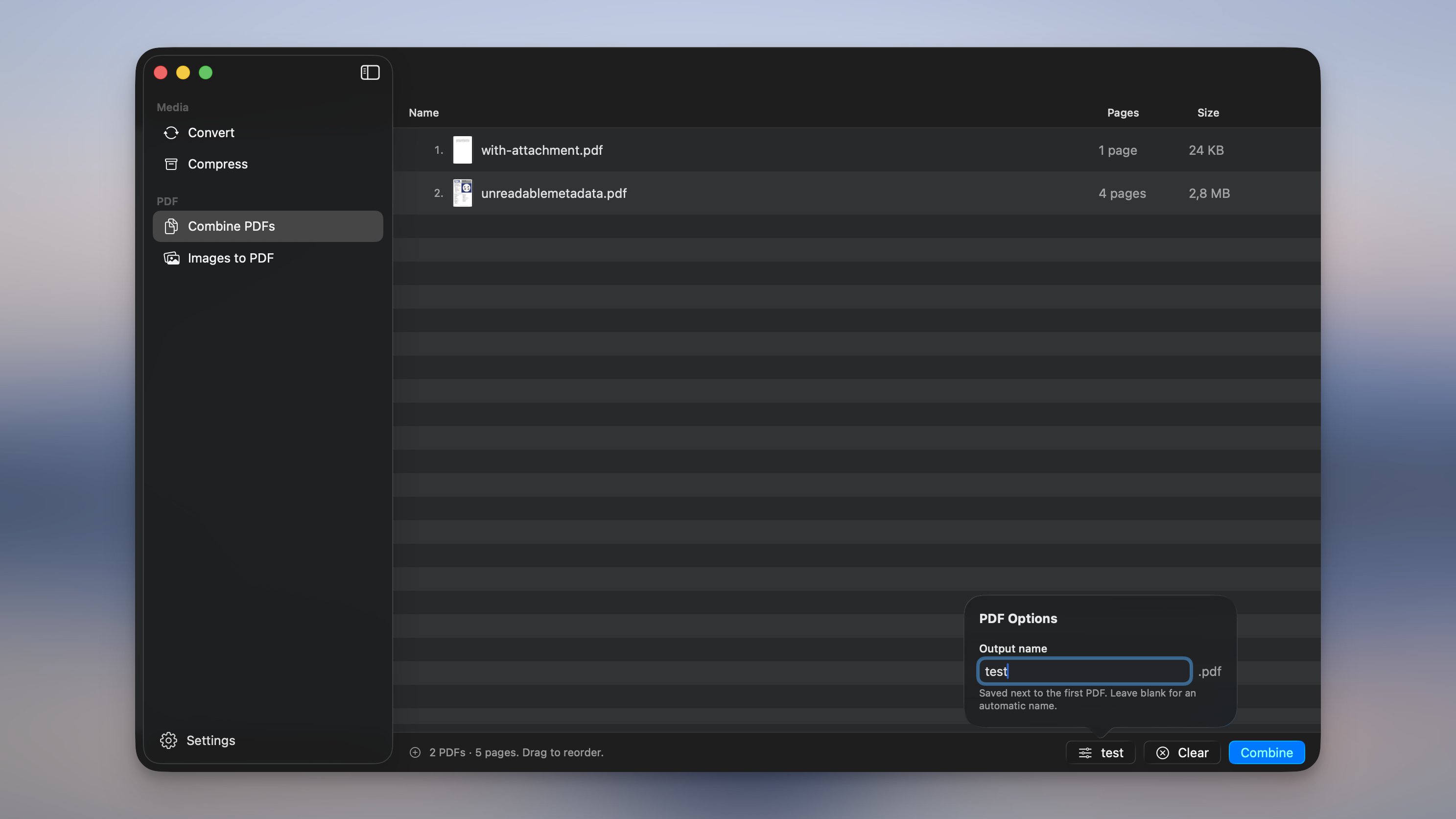
New features
- A redesigned sidebar. Picmal’s tools moved to the side, grouped into Media (Convert, Compress) and PDF (Combine PDFs, Images to PDF), with Settings at the bottom and the title bar gone — so there’s room to grow beyond converting and compressing.
- Combine PDFs. Drop in several PDFs, drag to reorder them, and merge everything into one document. Name the output in PDF Options or leave it blank for an automatic name. The combined PDF is saved next to the first file and never overwrites anything.
- Images to PDF. Turn a batch of images into a single PDF, one image per page. Drag to set the page order, pick a page size (Fit to Image, A4, US Letter, or a custom size in millimeters), set the image quality, add an optional password, and name the output file. Sideways phone photos come out upright.
- PDF tools work everywhere. Both run from the Finder right-click menu, the Shortcuts app, and the command line (
picmal-cli combineandpicmal-cli images-to-pdf). You get a notification when the PDF is ready, just like Convert and Compress. - Custom metadata control. On top of strip-all, keep-essential, and keep-all, a new Custom mode lets you choose exactly which categories to keep — location (GPS), camera & exposure, date & time, copyright & author, color profile, orientation, serial & owner IDs, and the embedded thumbnail — each on its own. The command line gains matching
--keepand--stripflags.
Improvements
- A fresh coat of Liquid Glass. The bottom bar, the clipboard overlay, and the license banner now use macOS’s Liquid Glass look, so they sit more naturally over whatever’s behind them.
- Combining PDFs now reports a clear error if a page can’t be read, instead of quietly leaving it out of the merged file.
Bug fixes
- Fixed resizing and compressing in one go producing bloated files. When an image was both resized and compressed — in Compress mode or a watched folder — the resize step quietly undid the optimization. The output is now optimized properly, matching a separate resize-then-compress pass.
- Fixed converted photos coming out sideways. Portrait shots from your iPhone (and any photo that relies on a rotation tag) were being flipped to landscape on convert. Picmal now rotates the pixels upright, the Orientation setting in Settings → Images does what it says, and the command line rotates correctly too.
- Fixed conversions and compressions that could freeze or stall. A quick one-off job could hang right as it finished, and big batches could get stuck partway. The heavy PDF, SVG, and image work now runs to the side, so the app stays responsive and files keep moving.
- Fixed some audio failing to convert to OGG. Converting to OGG (Vorbis) could fail with an “encoder setup failed” error, most often on lower-sample-rate files like 22 kHz MP3s. Picmal now sets the Vorbis quality directly instead of a target bitrate, so these conversions go through.
- Fixed a crash when removing files with the Delete key. Deleting selected rows from the keyboard while the list was updating could bring the app down. Deletions now wait for the list to settle, the same way the right-click Remove already did.
Use Picmal to easily convert your media on your Mac
One-time purchase · No subscription · 14-day money-back guarantee