Command line tool, zoomable Before/After, and Finder fixes
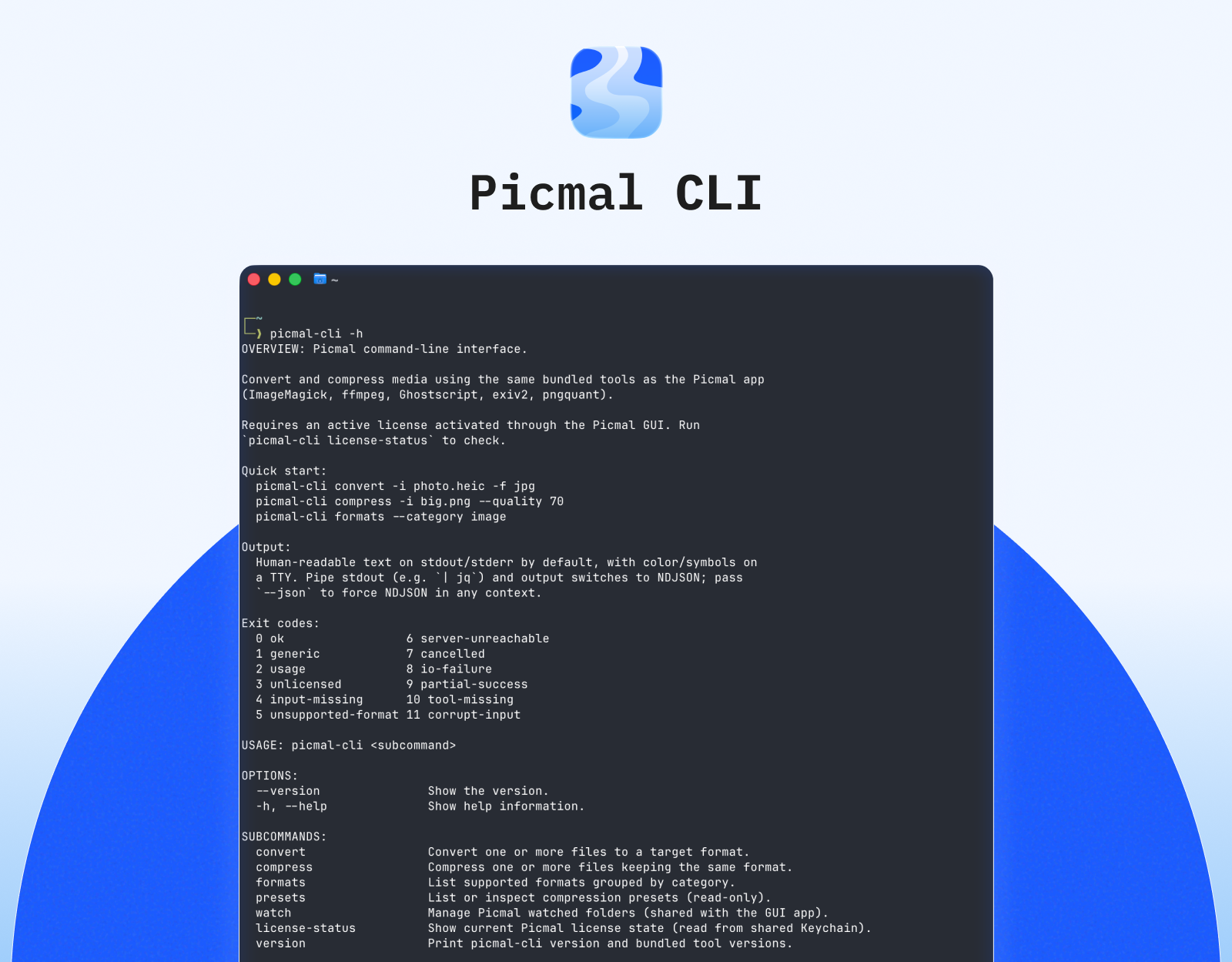
Picmal now has a command line tool. Convert and compress images, audio, and video straight from the Terminal, using the same engines as the app. Run picmal-cli convert -i photo.heic -f jpg, picmal-cli compress -i big.png --quality 70, or picmal-cli watch to monitor a folder. It supports presets, resizing, metadata stripping, color space and DPI options, and watermarks, and outputs NDJSON when you pipe it into other tools. It uses your existing Picmal license. See the CLI docs for the full reference.
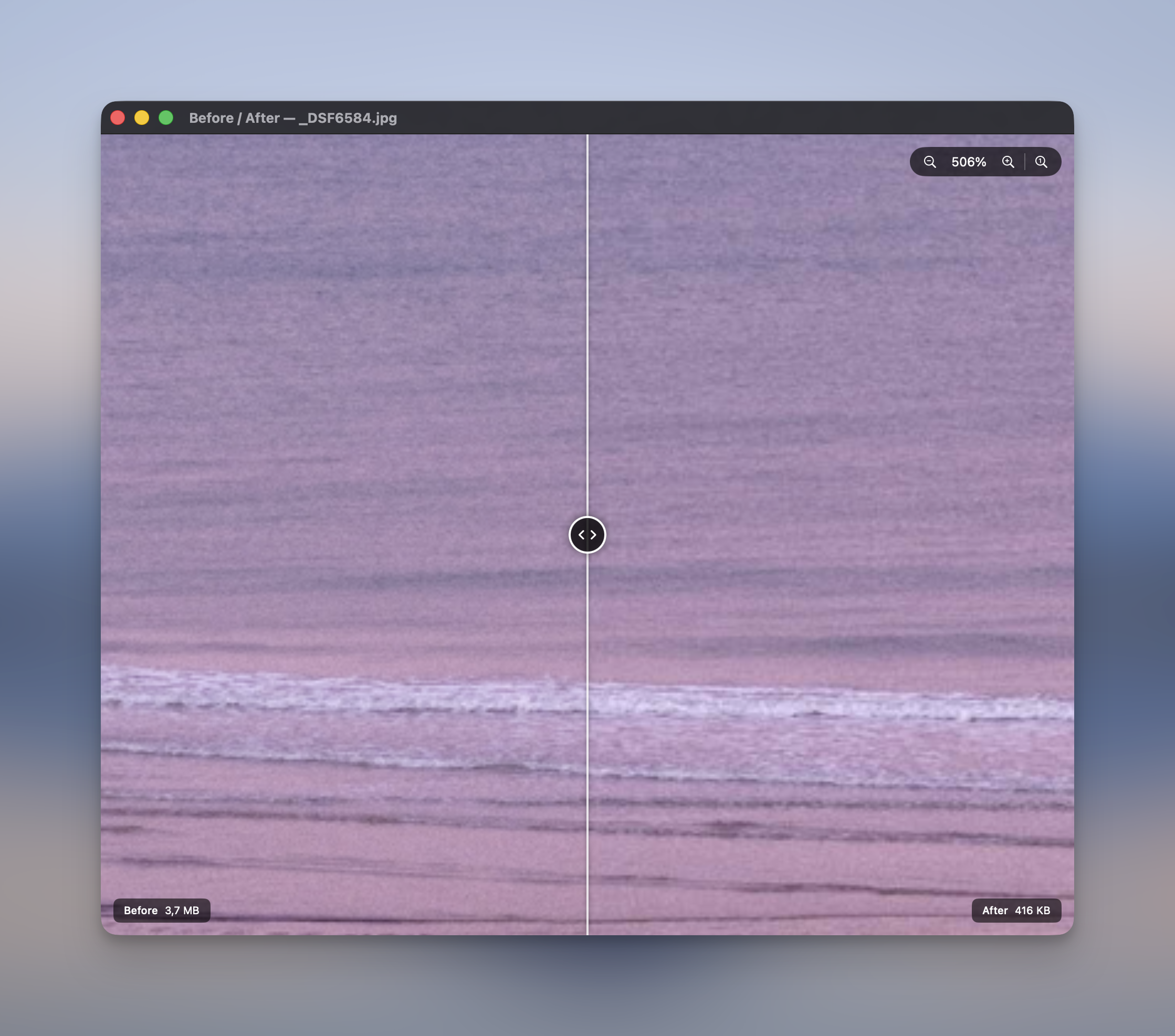
Zoom in and out in the Before/After window to inspect fine compression detail. Pinch on the trackpad, use the new +, −, and 100% controls in the corner, or press ⌘+, ⌘−, ⌘0. Drag to pan while zoomed; the slider handle still moves the divider at any zoom level. Double-click to reset.
Fixed the Finder right-click “Convert with Picmal” and “Compress with Picmal” options doing nothing. The window now comes to the front and the files land in the list, whether Picmal was closed, already running, or hidden in the menu bar.
Fixed batch conversions failing with a temporary-file error when “Save to subfolder” was on. The output subfolder is now created up front, and if a destination really can’t be written to, only those files are marked failed instead of crashing the whole batch.
Use Picmal to easily convert your media on your Mac
One-time purchase · No subscription · 14-day money-back guarantee