
Command line (picmal-cli)
Picmal ships with a command-line companion, picmal-cli, bundled inside the app. Same conversion engine as the UI, so the output is identical. You just get flags, JSON, and exit codes you can drop into a script.
Installation
Section titled “Installation”From the menu bar, choose Picmal → Install Command Line Tool…. Picmal asks for your administrator password and creates a symlink at /usr/local/bin/picmal-cli, which is on the default macOS PATH for both bash and zsh. After that, picmal-cli works from any terminal.
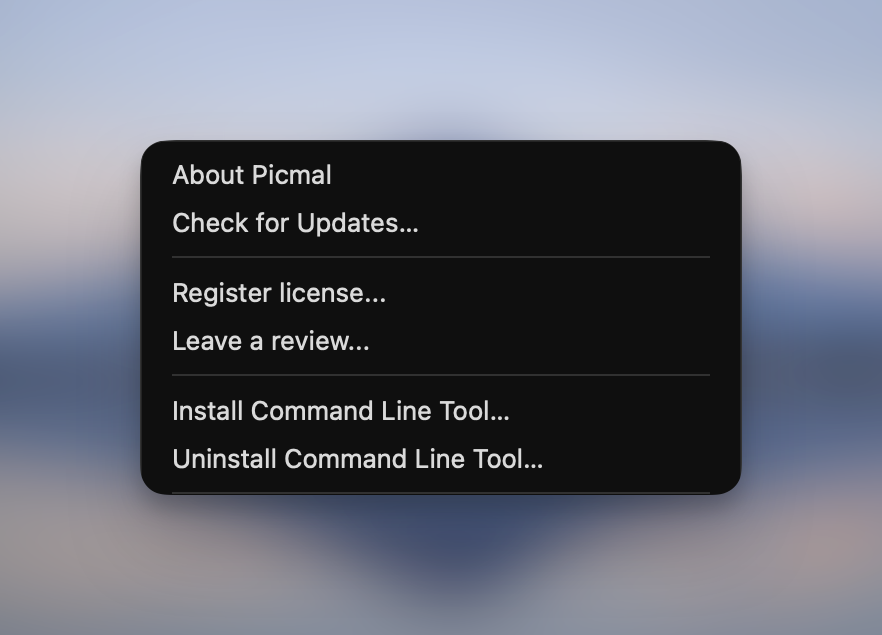
To remove it later, use Picmal → Uninstall Command Line Tool…. Only the symlink is removed; the app stays put.
If you’d rather invoke the binary directly without installing it, it lives inside the app bundle:
/Applications/Picmal.app/Contents/MacOS/picmal-cliconvert, compress, crop, combine-pdfs, combine-videos, split-pdf, images-to-pdf, merge-audio, split-chapters, remove-background, upscale, and watch need a valid Picmal license. The 7-day trial covers the app, not the command line. The read-only commands (presets, formats, license-status, version) work without one.
Synopsis
Section titled “Synopsis”picmal-cli <subcommand> [options]| Subcommand | What it does |
|---|---|
convert | Convert files to a target format |
compress | Compress files keeping the same format |
crop | Crop margins off images and PDF pages |
combine-pdfs | Combine two or more PDFs into one |
split-pdf | Split a PDF into one document per page range |
images-to-pdf | Create a multi-page PDF from images |
merge-audio | Merge two or more audio files into one |
combine-videos | Combine two or more videos into one |
slideshow | Turn images and videos into one framed video |
split-chapters | Split a chaptered audiobook into per-chapter files |
remove-background | Cut the background out of images (transparent PNG) |
upscale | Make images 2x or 4x larger with on-device AI |
presets | List or inspect saved presets (built-in + custom) |
formats | List supported formats by category |
watch | Add, list, and remove watched folders |
license-status | Check whether the host app is licensed |
version | Print the bundled app version |
Global options
Section titled “Global options”These flags work on every subcommand:
| Flag | Description |
|---|---|
--json | Force NDJSON output to stdout (one JSON object per line). Auto-on when piped. |
--text | Force human-readable output even when piped. |
-q, --quiet | Suppress per-file status lines (final summary still emitted). Where available. |
--verbose | Pass underlying tool stderr through. Useful for debugging. |
convert
Section titled “convert”Convert one or more files to a target format.
picmal-cli convert -i photo.heic -f jpgpicmal-cli convert -i ~/Pics -f webp -o ~/out --quality 80picmal-cli convert -i a.png b.png -f avif --strip-metadatapicmal-cli convert -i clip.mov -f mp4 --quality 70picmal-cli convert -i photo.jpg -f jpg --resize 100kBpicmal-cli convert -i photo.jpg -f jpg --copyright "© 2026 Jane Doe" --artist "Jane Doe"picmal-cli convert -i icon.icns -f png -o ~/outcat list.txt | picmal-cli convert -i - -f webp -o ~/out| Flag | Description |
|---|---|
-i, --input <paths> | One or more input paths. Use - to read newline-separated paths from stdin. |
-f, --format <ext> | Target format extension (e.g. jpg, webp, mp4, mp3). |
-o, --output <path> | Output file or directory. Defaults to alongside each input. |
-w, --overwrite | Overwrite existing outputs. |
--pattern <pattern> | Rename outputs with a naming pattern (see naming patterns). |
--quality <n> | Quality 0–100. Format-specific defaults if omitted. Overrides --preset. |
--preset <name> | Apply a saved preset by name (see Presets). |
--resize <value> | Resize geometry (1920x1080, 1920x, x1080, 50%) or a target file size (100kB, 2MB), images are scaled down to fit the budget. |
--trim | Trim a solid-color border off each image before resizing (5% tolerance; use crop --fuzz for another one). |
--audio-quality <n> | Audio quality 1–100 for video outputs, mapped to 48–320 kbps. Only used when the soundtrack is re-encoded. |
--resolution <size> | Shrink videos to this height: 4k, 1440p, 1080p, 720p, 480p or 360p. Keeps the aspect ratio and never enlarges a smaller video. Video inputs only. |
--color-space <name> | One of srgb, p3, adobergb, gray, cmyk. |
--metadata <mode> | Preset: stripall, essential, or keepall. See Metadata. |
--keep <categories> | Comma-separated categories to keep; everything else is stripped. |
--strip <categories> | Comma-separated categories to strip; everything else is kept. |
-s, --strip-metadata | Strip EXIF/IPTC/XMP from output (alias for --metadata stripall). |
--copyright <text> | Copyright notice to embed (EXIF, IPTC, and XMP). Written even with --strip-metadata. |
--artist <text> | Artist / creator name to embed (EXIF Artist, IPTC byline, XMP creator). |
--credit <text> | Credit line to embed (IPTC credit, XMP credit). |
--contact <text> | Contact or URL to embed (XMP rights web statement, IPTC contact). |
--pdf-dpi <n> | DPI for PDF rasterization (also tags output density on raster outputs). |
--icon-size <size> | Which image to take out of a multi-size icon (.icns): largest (default), all, or a pixel size such as 512. |
--watermark <path> | Watermark image path. |
--watermark-opacity <n> | 0.0–1.0. Default 0.5. |
--watermark-position | tl, tr, bl, br, or center. Default br. |
The copyright flags are independent of --strip-metadata: pass both to strip a photo’s camera/GPS data while still stamping your own ownership tags onto the output. Empty flags are skipped; values you pass always overwrite any existing tag.
An .icns input gives you one image at its largest embedded size. Pass --icon-size all to get one output per size instead, named <name>-<W>x<H>.<ext> (the same convention split-pdf uses for pages), or a pixel size such as --icon-size 256 to pick one. --quality, --resize, and --watermark apply to whatever comes out. Every output lands in -o, not beside the source. See Apple icon files.
Metadata
Section titled “Metadata”The metadata flags mirror the app’s Metadata settings. Use a preset, or take per-category control with --keep / --strip:
picmal-cli convert -i photo.jpg -f jpg --metadata essentialpicmal-cli convert -i photo.jpg -f jpg --keep copyright,colorProfilepicmal-cli convert -i photo.jpg -f jpg --strip location,identifiersCategories: location, camera, dateTime, copyright, colorProfile, orientation, identifiers, thumbnail. Friendly aliases work too, gps, icc, date, serial, lens, thumb. --keep lists what survives; --strip lists what comes off and keeps the rest. Precedence is --keep > --strip > --metadata > --strip-metadata.
These flags work the same on compress and watch add.
compress
Section titled “compress”Compress one or more files keeping the same format. Output defaults to <basename>_compressed.<ext> next to each input.
picmal-cli compress -i big.jpg --quality 70picmal-cli compress -i ~/Pics -o ~/out --strip-metadatapicmal-cli compress -i clip.mp4 --quality 60 -o clip-small.mp4picmal-cli compress -i portfolio.jpg --copyright "© 2026 My Studio" --contact "hello@example.com"picmal-cli compress -i podcast.mp3 --preset "Voice memo"| Flag | Description |
|---|---|
-i, --input <paths> | One or more input paths. Use - for stdin. |
-o, --output <path> | Output file or directory. |
--quality <n> | Quality 0–100. Format-specific defaults if omitted. Overrides --preset. |
--preset <name> | Apply a saved preset by name (see Presets). |
--trim | Trim a solid-color border off each image before encoding (5% tolerance). |
--audio-quality <n> | Audio quality 1–100 for video outputs, mapped to 48–320 kbps. Only used when the soundtrack is re-encoded. |
--resolution <size> | Shrink videos to this height: 4k, 1440p, 1080p, 720p, 480p or 360p. Keeps the aspect ratio and never enlarges a smaller video. Video inputs only. |
-s, --strip-metadata | Strip EXIF/IPTC/XMP from output. |
--copyright <text> | Copyright notice to embed (EXIF, IPTC, and XMP). Written even with --strip-metadata. |
--artist <text> | Artist / creator name to embed. |
--credit <text> | Credit line to embed. |
--contact <text> | Contact or URL to embed. |
-w, --overwrite | Overwrite existing outputs. |
--pattern <pattern> | Rename outputs with a naming pattern (see naming patterns). |
PDFs are compressed with the same text-preserving engine as the app: only the images inside are re-encoded, and the output is never larger than the input. Compressing a scan hard enough to shrink it means rebuilding the document, which drops its links, bookmarks, and form fields, when that happens picmal-cli prints a warning and adds pdf_structure_dropped to the file’s notes in JSON output. See How PDF compression works.
Naming patterns
Section titled “Naming patterns”convert and compress both take --pattern, which renames outputs using the same tokens as the app: {original}, {date}, {datetime}, {year}, {month}, {day}, {camera}, {iso}, and {sequence}. See output and naming for what each one means.
# holiday-001.webp, holiday-002.webp, ...picmal-cli convert -i ~/Pics/*.jpg -f webp -o ~/out --pattern 'holiday-{sequence:3}'
# 2026-03-15_IMG_0042.jpg, dated from EXIFpicmal-cli compress -i ~/Pics -o ~/out --pattern '{date}_{original}'
{sequence} numbers files in the order you pass them. Without --pattern, convert keeps the original name and compress appends _compressed. A --output path that names a file rather than a directory is used verbatim, pattern or not.
If your --preset is an audio or video preset and you don’t pass --output, picmal-cli picks the right container for you (Opus → .opus, AAC → .m4a, FLAC → .flac, VP9 → .webm). Pass --output if you want a specific path.
Crop margins off images and PDF pages, or auto-trim a solid-color border from images. Margins are pixels for images and millimeters for PDFs. PDF pages keep their text, links, and form fields, only the page boxes change.
picmal-cli crop photo.png --auto-trimpicmal-cli crop scan.jpg --top 40 --bottom 40picmal-cli crop report.pdf --top 20 --bottom 20 # 20 mm off each pagepicmal-cli crop *.pdf --left 15 -o out/| Flag | Description |
|---|---|
<inputs...> | Image or PDF files to crop (positional, at least one). |
--top <n> | Margin to remove from the top. Default 0. |
--bottom <n> | Margin to remove from the bottom. Default 0. |
--left <n> | Margin to remove from the left. Default 0. |
--right <n> | Margin to remove from the right. Default 0. |
--auto-trim | Images only: remove a solid-color border by reading the corner color. |
--fuzz <n> | Auto-trim color tolerance, 0–50%. Default 5. |
-o, --output <dir> | Output directory. Default: next to each input, as <basename>_cropped.<ext>. |
-w, --overwrite | Overwrite existing output files. |
Pass a margin, --auto-trim, or both, with neither, the command refuses rather than writing a byte-identical copy. --auto-trim on a PDF is an error for the same reason: give PDFs explicit margins. See Crop.
For a border trim as part of a normal conversion, convert and compress take --trim instead.
combine-pdfs
Section titled “combine-pdfs”Combine two or more PDFs into a single document. Inputs are merged in the order you pass them. Also available as combine, its name before 1.8.7.
picmal-cli combine-pdfs a.pdf b.pdfpicmal-cli combine-pdfs chapter*.pdf -o book.pdf| Flag | Description |
|---|---|
<inputs...> | PDF files to combine, in page order (positional, at least two). |
-o, --output <path> | Output file or directory. Default: <first basename> (combined).pdf next to the first input. |
-w, --overwrite | Overwrite an existing output file. |
Password-protected inputs are refused (exit 11). Unlock them first. Uses PDFKit, macOS’s native PDF engine, so pages are copied losslessly.
split-pdf
Section titled “split-pdf”Split a PDF into one document per page range. Each comma-separated range in --pages becomes its own file; with no --pages, every page is split into a separate file.
picmal-cli split-pdf book.pdf --pages 1-3,5,8-picmal-cli split-pdf book.pdfpicmal-cli split-pdf *.pdf --pages 1-2 -o out/| Flag | Description |
|---|---|
<inputs...> | PDF files to split (positional, at least one). Each is split by the same ranges. |
--pages <ranges> | Page ranges, 1-based: N, N-M, N- (N to end), -M (start to M), comma-separated. Default: one file per page. |
-o, --output <dir> | Output directory. Default: next to each input, as <basename>-1.pdf, <basename>-2.pdf, … |
-w, --overwrite | Overwrite existing output files. |
Like combine-pdfs, it uses PDFKit and copies pages losslessly; password-protected inputs are refused. Unlock them first.
images-to-pdf
Section titled “images-to-pdf”Create a multi-page PDF from images, one image per page, in the order you pass them. Accepts the formats macOS decodes natively (jpg, png, heic, tiff, gif, bmp, webp, avif, jp2, jxl). EXIF orientation is applied, so sideways phone photos come out upright.
picmal-cli images-to-pdf scan1.jpg scan2.jpgpicmal-cli images-to-pdf *.png --page-size a4 --quality 70 -o album.pdfpicmal-cli images-to-pdf report.png --password secret| Flag | Description |
|---|---|
<inputs...> | Image files, in page order (positional, at least one). |
--page-size <size> | fit (page wraps each image, default), a4, letter, or <W>x<H>mm (e.g. 210x297mm). Fixed sizes auto-rotate to each image’s orientation. |
--quality <n> | JPEG quality for embedded images, 40–100. Default 85. |
--password <text> | Password required to open the PDF. |
-o, --output <path> | Output file or directory. Default: <first basename>.pdf next to the first input. |
-w, --overwrite | Overwrite an existing output file. |
app-icons
Section titled “app-icons”Turn a single image into app icons: a macOS .icns, a Windows .ico, and an iOS .appiconset you can drag into Xcode. Pass no format flag to generate all three. A non-square source is fit into the square without cropping, and the iOS icon is flattened onto an opaque background.
picmal-cli app-icons logo.png # all three formatspicmal-cli app-icons logo.png --macos # just .icnspicmal-cli app-icons logo.png --ios --windows -o icons/Also available as app-icon, its name before 1.8.7.
| Flag | Description |
|---|---|
<input> | Source image to generate icons from (positional). Use a square image ≥ 1024×1024 for crisp results. |
--macos | Generate the macOS .icns. |
--windows | Generate the Windows .ico. |
--ios | Generate the iOS .appiconset. |
-o, --output <path> | Output directory. Default: a <name> App Icons folder next to the source. |
-w, --overwrite | Overwrite existing output files. |
Pass any combination of --macos, --windows, and --ios to pick formats; with none, all three are generated. See App Icons.
remove-background
Section titled “remove-background”Cut the background out of one or more images and write each subject to a transparent PNG. It uses Apple’s on-device Vision framework.
picmal-cli remove-background photo.jpgpicmal-cli remove-background *.png -o cutouts/| Flag | Description |
|---|---|
<inputs...> | Source image(s) to remove the background from (positional). |
-o, --output <path> | Output directory. Default: <name>_removed.png next to each source. |
-w, --overwrite | Overwrite existing output files. |
--json | Force JSON output. |
An image with no clear subject is skipped and reported, and the rest of the batch still runs. A batch with both successes and skips exits 9, bad arguments exit 2, and a missing input path exits 4 before any work starts. See Remove Background.
upscale
Section titled “upscale”Make one or more images 2x or 4x larger with Real-ESRGAN, running on your Mac. Nothing is uploaded.
picmal-cli upscale photo.jpgpicmal-cli upscale *.png --scale 2 -o upscaled/| Flag | Description |
|---|---|
<inputs...> | Source image(s) to upscale (positional). |
-s, --scale <n> | How much larger: 2 or 4. Default: 4. |
-o, --output <path> | Output directory. Default: <name>_upscaled.<ext> next to each source. |
-w, --overwrite | Overwrite existing output files. |
--json | Force JSON output. |
Each result keeps the source format when macOS can write it, HEIC included, and is a PNG otherwise. Images over the size limit, animated or multi-page images, and RAW files are skipped and reported, and the rest of the batch still runs. See Upscale.
merge-audio
Section titled “merge-audio”Join two or more audio files into one, in the order you pass them. When every input shares the same codec, sample rate, and channels the streams are copied losslessly; mix formats and they’re re-encoded to the output format instead.
picmal-cli merge-audio part1.mp3 part2.mp3picmal-cli merge-audio intro.wav track.wav outro.wav -o full.wav| Flag | Description |
|---|---|
<inputs...> | Audio files to merge, in order (positional, at least two). |
-o, --output <path> | Output file or directory. The extension sets the format. Default: <first basename> (merged).<ext> next to the first input, in that file’s format. |
-w, --overwrite | Overwrite an existing output file. |
Uses the same bundled ffmpeg as Convert and Compress. Decode-only formats (like APE) are refused as output targets. Pick a format Picmal can write.
combine-videos
Section titled “combine-videos”Join two or more videos into one, in the order you pass them. When every input shares the same codec, resolution, and frame rate the streams are copied losslessly; mix formats or sizes and each clip is scaled onto the first one’s frame and re-encoded to match.
picmal-cli combine-videos clip1.mp4 clip2.mp4picmal-cli combine-videos intro.mov main.mp4 outro.webm -o full.mp4| Flag | Description |
|---|---|
<inputs...> | Video files to combine, in order (positional, at least two). |
-o, --output <path> | Output file or directory. The extension sets the format. Default: <first basename> (combined).<ext> next to the first input, in that file’s format. |
-w, --overwrite | Overwrite an existing output file. |
Uses the same bundled ffmpeg as Convert and Compress. H.264 for MP4/MOV/MKV, VP9 for WebM; H.264 encodes on the Mac’s hardware media engine on both Apple Silicon and Intel. Decode-only formats are refused as output targets. Pick a format Picmal can write.
slideshow
Section titled “slideshow”Turn images and videos into one framed video. Files appear in the order you pass them. Each image is held for the same time; each video plays at its own length and keeps its sound. Everything is scaled to fit the frame and centered, with the background filling the rest, so nothing is cropped unless you ask for --fit fill.
picmal-cli slideshow photo1.jpg photo2.jpg photo3.jpgpicmal-cli slideshow *.heic --duration 5 --resolution 4k -o trip.mp4picmal-cli slideshow *.png --aspect 4:3 --background '#FCF6ED' --margin 10picmal-cli slideshow intro.jpg rec.mov outro.jpg --trim 2:14.5A screen recording, framed square at its native size with rounded corners:
picmal-cli slideshow rec.mov --aspect 1:1 --resolution match \ --background '#F5F5F7' --margin 13 --corner-radius 16A phone recording inside a drawn phone:
picmal-cli slideshow phone.mov --aspect 9:16 --margin 8 \ --device punch-hole --device-finish silver| Flag | Description |
|---|---|
<inputs...> | Image and video files, in the order they should appear (positional). |
-o, --output <path> | Output file or directory. Default: <first basename> (slideshow).mp4 next to the first input. |
--duration <seconds> | Seconds each image is held. Default: 3. |
--resolution <size> | Frame size: match, 4k, 1080p or 720p. Default: 1080p. |
--aspect <W:H> | Frame shape: 16:9, 4:3, 1:1, 9:16, 3:2, or any W:H. Taken literally. Default: 16:9, turned to match most of the inputs. |
--background <#RRGGBB> | Color behind the images. Default: black. |
--fit <mode> | fit shows each image whole; fill covers the frame and crops the overflow. Default: fit. |
--margin <percent> | Inset on every edge, 0 to 40. 10 leaves the image at 80% of the frame. Default: 0. |
--corner-radius <percent> | Corner radius, 0 to 50 percent of each image or video’s short side. 50 makes a pill. Default: 0. |
--device <kind> | Put everything inside a device: pill, punch-hole, or the path of a mockup image whose screen is transparent or one plain color. In a device, media fills the screen and --corner-radius does not apply. |
--device-finish <color> | Color of a drawn phone: black, silver or natural. Default: black. |
--codec <codec> | h264 or h265. Default: h264. |
--trim <start:end> | Play only part of each video, in seconds (1.5:9). Once applies it to every video; repeat it to give each video its own, in order. |
--mute | Drop the sound of the videos. By default videos keep their sound and images are silent. |
-w, --overwrite | Overwrite an existing output file. |
Output is an MP4 with images at 30 fps. match sizes the frame to your largest file. See Video tools.
split-chapters
Section titled “split-chapters”Split a chaptered audiobook into one file per chapter. Picmal reads the chapter markers in an M4B/M4A audiobook (or any audio file that carries them) and writes one file per chapter, tagged with its title and track number. Pass several files to split them all.
picmal-cli split-chapters book.m4b # one m4b per chapterpicmal-cli split-chapters book.m4b --format mp3 # convert to mp3picmal-cli split-chapters *.m4b --format mp3 -o out/| Flag | Description |
|---|---|
<inputs...> | Audiobook file(s) to split (positional). |
--format <fmt> | Output format, e.g. mp3. Default: keep the input’s format. |
-o, --output <dir> | Output directory. Default: next to each input. |
-w, --overwrite | Overwrite existing output files. |
Outputs are named <book> - 01 - <chapter title>.<ext>. Files with no chapter markers are reported and skipped.
presets
Section titled “presets”Browse the presets you’ve made in the app, plus the built-ins that ship with Picmal. Read-only. Make new ones in the app.
picmal-cli presets listpicmal-cli presets list --kind imagepicmal-cli presets show "Balanced"| Flag | Description |
|---|---|
--kind <image|audio|video> | Only show presets of this kind. |
Text mode groups results under Built-in and Custom. JSON mode emits a presets array where each row carries id, name, kind, source ("built-in" or "custom"), and description.
picmal-cli presets show "Maximum quality"Takes a preset name (case-insensitive) and prints everything it contains:
- Image presets: per-format quality (
jpegQuality,webpQuality,pngLevel,heicQuality, …) plus any resize / color / DPI sections. - Audio presets: codec, bitrate mode, target bitrate, sample rate, bit depth, mono flag.
- Video presets: codec, CRF, encoding speed.
If a name exists across kinds (the built-in “Maximum quality” exists for image, audio, and video), show prints every match. Custom presets win over built-ins of the same name within the same kind.
Using presets in compress / convert
Section titled “Using presets in compress / convert”Pass --preset NAME to either subcommand. The kind is matched against the input’s category (image / audio / video), and the preset’s values feed into the engine:
- Image preset → per-output-format quality, resize geometry, target color space, DPI.
- Audio preset → ffmpeg codec, bitrate, mono flag, sample rate, bit depth.
- Video preset → ffmpeg codec, CRF, encoding speed. Input audio is stream-copied.
Explicit flags always beat preset values. So --preset "Maximum compression" --quality 95 gives you a high-quality output, not a tiny one.
You can’t create custom presets from the CLI. Make them in the app first (see image compression and audio and video).
formats
Section titled “formats”List the formats Picmal can read and write, grouped by category.
picmal-cli formatspicmal-cli formats --category imagepicmal-cli formats --json | jq '.formats.image'| Flag | Description |
|---|---|
--category <image|audio|video|document> | Restrict output to one category. |
Manage Picmal’s watched folders from the terminal. The host app does the actual processing; picmal-cli watch only edits the list.
picmal-cli watch add ~/Screenshots --format webp --strip-metadatapicmal-cli watch add ~/Scans --action images-to-pdfpicmal-cli watch listpicmal-cli watch remove ~/Screenshots --yeswatch add
Section titled “watch add”| Flag | Description |
|---|---|
<folder> | Folder path to watch (positional). |
-o, --output <dir> | Output destination. Defaults to the watched folder. |
-f, --format <ext> | Target format extension. Implies convert mode. |
--action <name> | compress, convert, images-to-pdf, or combine-pdf. Default: compress, or convert when --format is given. |
-r, --recurse | Watch subfolders recursively. |
-s, --strip-metadata | Strip metadata from processed files. |
The batch actions collect what arrives instead of processing file by file: images-to-pdf turns the images that land within ten seconds of each other into one PDF, and combine-pdf merges the PDFs that land together into one, both in Finder name order. Page size, quality, and naming come from the folder’s settings in the app. See watched folders.
watch list
Section titled “watch list”Lists every configured watched folder, with mode, format, output, and UUID.
watch remove
Section titled “watch remove”picmal-cli watch remove <uuid-or-path> [--yes]Pass either the folder path or the UUID printed by watch list. --yes (-y) skips the confirmation prompt, which is required when stdout isn’t a terminal.
license-status
Section titled “license-status”Prints whether the host app is licensed.
picmal-cli license-statuspicmal-cli license-status --jsonversion
Section titled “version”Prints the bundled app version.
picmal-cli versionExit codes
Section titled “Exit codes”picmal-cli uses stable exit codes so scripts can branch on them:
| Code | Meaning |
|---|---|
0 | Success. |
1 | Generic failure (e.g. underlying tool reported a non-zero exit). |
2 | Usage error, bad arguments or missing required flag. |
3 | Unlicensed. |
4 | Input missing. |
5 | Unsupported format. |
7 | Cancelled (Ctrl+C). |
8 | Output write failure (output already exists without -w, disk full, …). |
9 | Partial success: some files succeeded, some failed in a batch. |
10 | A bundled tool (magick, ffmpeg) couldn’t be located. Reinstall fixes it. |
11 | Input is corrupt or cannot be decoded. |
JSON output
Section titled “JSON output”When stdout isn’t a terminal (piped or redirected), picmal-cli emits NDJSON: one JSON object per line. Force it with --json, force text with --text.
Every event carries an event discriminator and an RFC 3339 ts. Successful file outputs go to stdout; errors, warnings, and progress go to stderr. The schema version is 1 and is included in the started event so consumers can detect breakages early.
Every batch command ends its stream with a completed event carrying produced and failed counts, always as the last line, so a script can tell a finished batch from a process that died mid-run. convert, compress, crop, split-pdf, and remove-background all emit it.
{"event":"completed","produced":7,"failed":3,"ts":"2026-09-07T10:14:22Z"}A file event can also carry a notes array when there is something you shouldn’t miss. The only value today is pdf_structure_dropped, which means deeper PDF compression rebuilt that document and its links, bookmarks, and form fields did not survive. The field is omitted entirely when there is nothing to report, so existing consumers are unaffected.
Example pipeline:
picmal-cli compress -i ~/Pics -o ~/out --preset Balanced --json \ | jq -c 'select(.event=="file") | {input, output, savedPct: (1 - .bytesOut/.bytesIn)*100}'