Embedded cover art, space saved, and scheduled batches
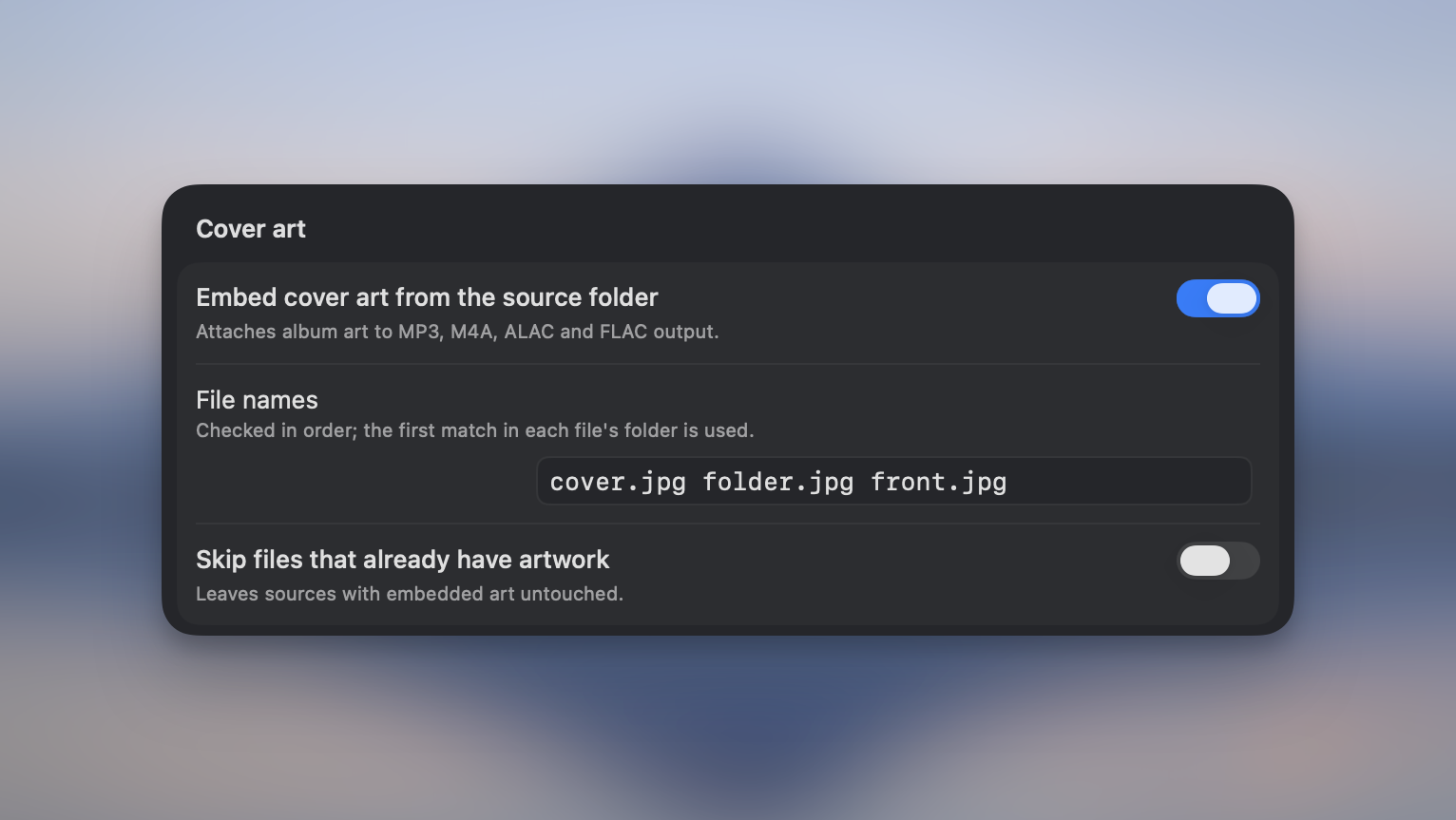
Embed album art into audio automatically. Turn on “Embed cover art from the source folder” in Settings → Audio and Picmal looks for a cover image next to each track (cover.jpg, folder.jpg, front.jpg, all editable) and adds it to MP3, M4A, ALAC and FLAC output. “Skip files that already have artwork” keeps any existing cover instead of replacing it.
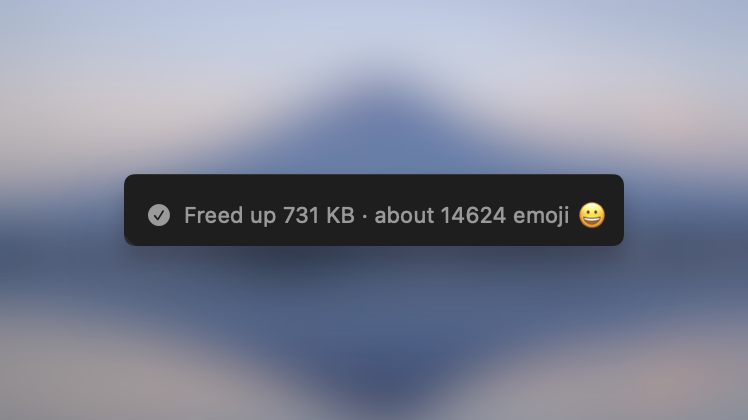
See how much space you saved after compressing. When a batch finishes, the bottom bar and the completion notification show the total freed space with a playful comparison, like “Freed up 9.66 GB · about a 4K movie 🎬”.
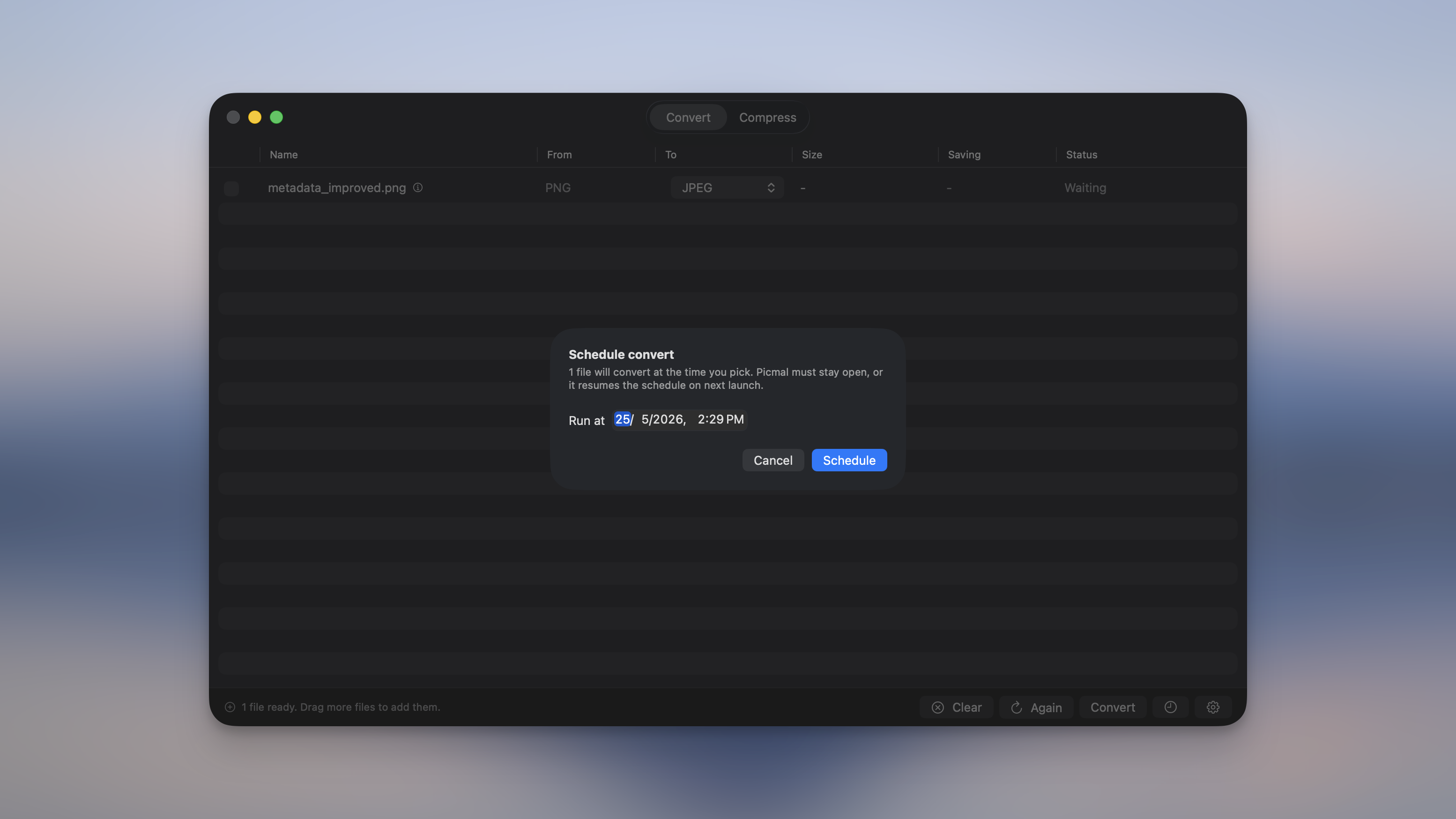
Schedule a batch for later. Tap the clock button next to Convert (or Compress) to pick a start time, handy for running big jobs overnight. The bottom bar shows what’s queued, you get a notification when it finishes, and schedules survive quitting and reopening Picmal.
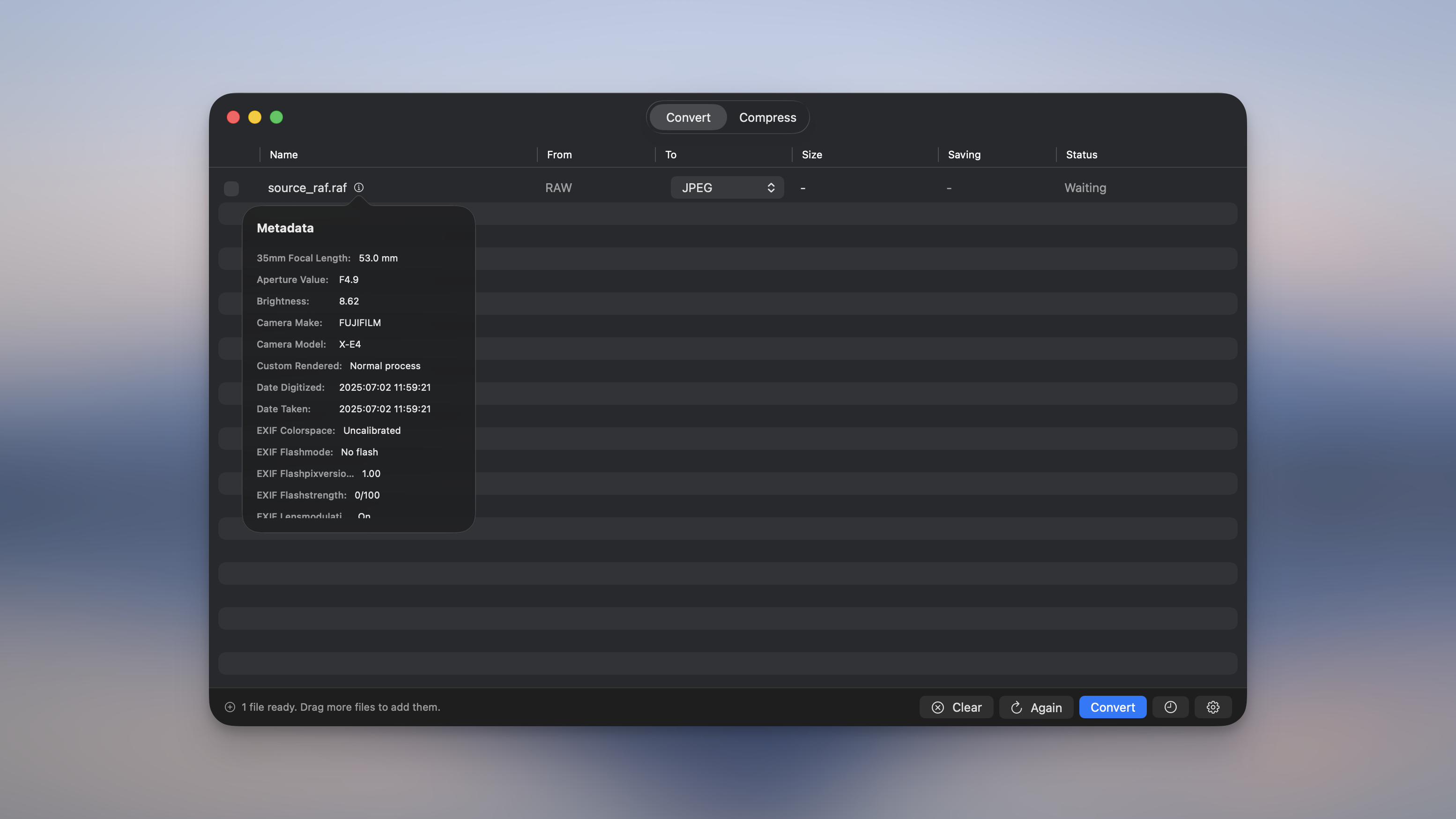
Converting RAW photos (NEF, CR2, ARW, RAF, DNG) now keeps your camera metadata. With “Keep all metadata” the output JPEG carries the make, model, lens, exposure, date and GPS. “Keep essential” keeps the basics while dropping location and serial numbers. The metadata indicator now reads RAW files too, so it no longer shows them as empty.
Use Picmal to easily convert your media on your Mac
One-time purchase · No subscription · 14-day money-back guarantee