
Audio tools
Picmal’s sidebar has an Audio section for working with audio files as a whole, rather than converting them one by one. Merge Audio joins several files into a single track (and can build a chaptered M4B audiobook) while Split by Chapter breaks an audiobook back into one file per chapter. Both run entirely on your Mac.
Merge Audio
Section titled “Merge Audio”- Select Merge Audio in the sidebar
- Drop two or more audio files into the window
- Drag rows to set the order, the list order is the play order
- Click Merge
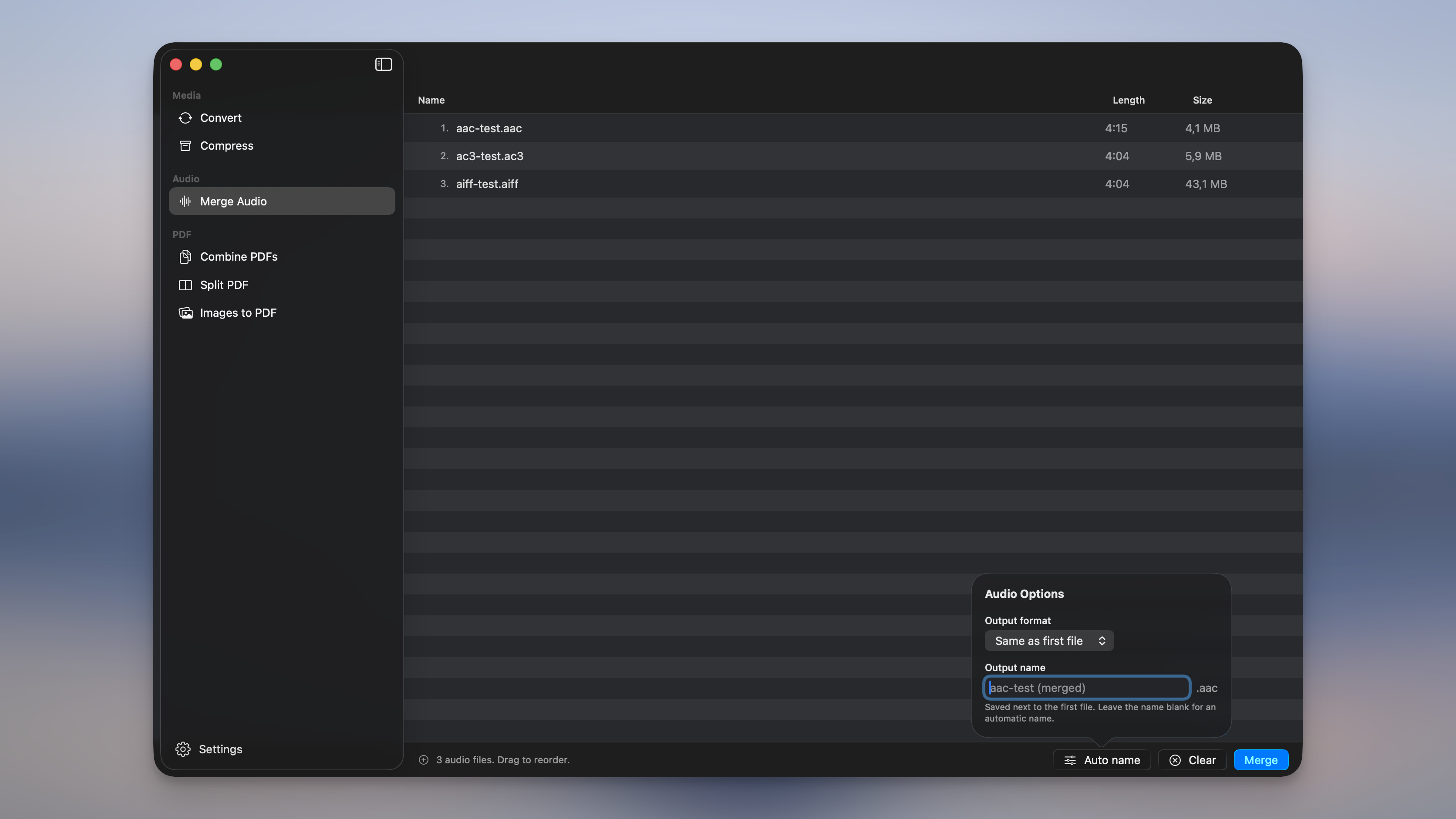
The merged file is saved next to the first one as <name> (merged).<ext>. If that name is taken, Picmal counts up instead of overwriting, <name> (merged) 2.mp3, and so on.
- Drag rows to reorder; the number on each row is its position in the merged track.
- Select rows and press Delete to remove them, or right-click for Remove / Show in Finder.
- A file Picmal can’t read as audio shows an orange warning and blocks the merge. Remove it and try again.
Lossless when it can be
Section titled “Lossless when it can be”When every file in the list already shares the same format, sample rate, and channels, Picmal joins the streams without re-encoding. It’s fast and there’s no quality loss. Mix formats (say an MP3 and a WAV) and it re-encodes them to the output format instead. Either way you get one continuous track.
Output format
Section titled “Output format”Open Audio Options to choose the output format. Leave it on Same as first file to keep the first track’s format (the setting that keeps a same-format merge lossless) or pick one of MP3, M4A, M4B, AAC, WAV, AIFF, FLAC, OGG, OPUS, or AC3 to convert everything as it merges. Your choice is remembered between sessions.
Build a chaptered audiobook
Section titled “Build a chaptered audiobook”Pick M4B as the output format and a Add chapter markers option appears in Audio Options. Tick it, and each file you added becomes its own chapter in the finished book, named after the file. Point Merge Audio at the per-chapter files you get out of Audible or Libation and you get a single M4B that scrubs by chapter in Books, Music, or QuickTime. Leave it unticked for one continuous track with no chapters.
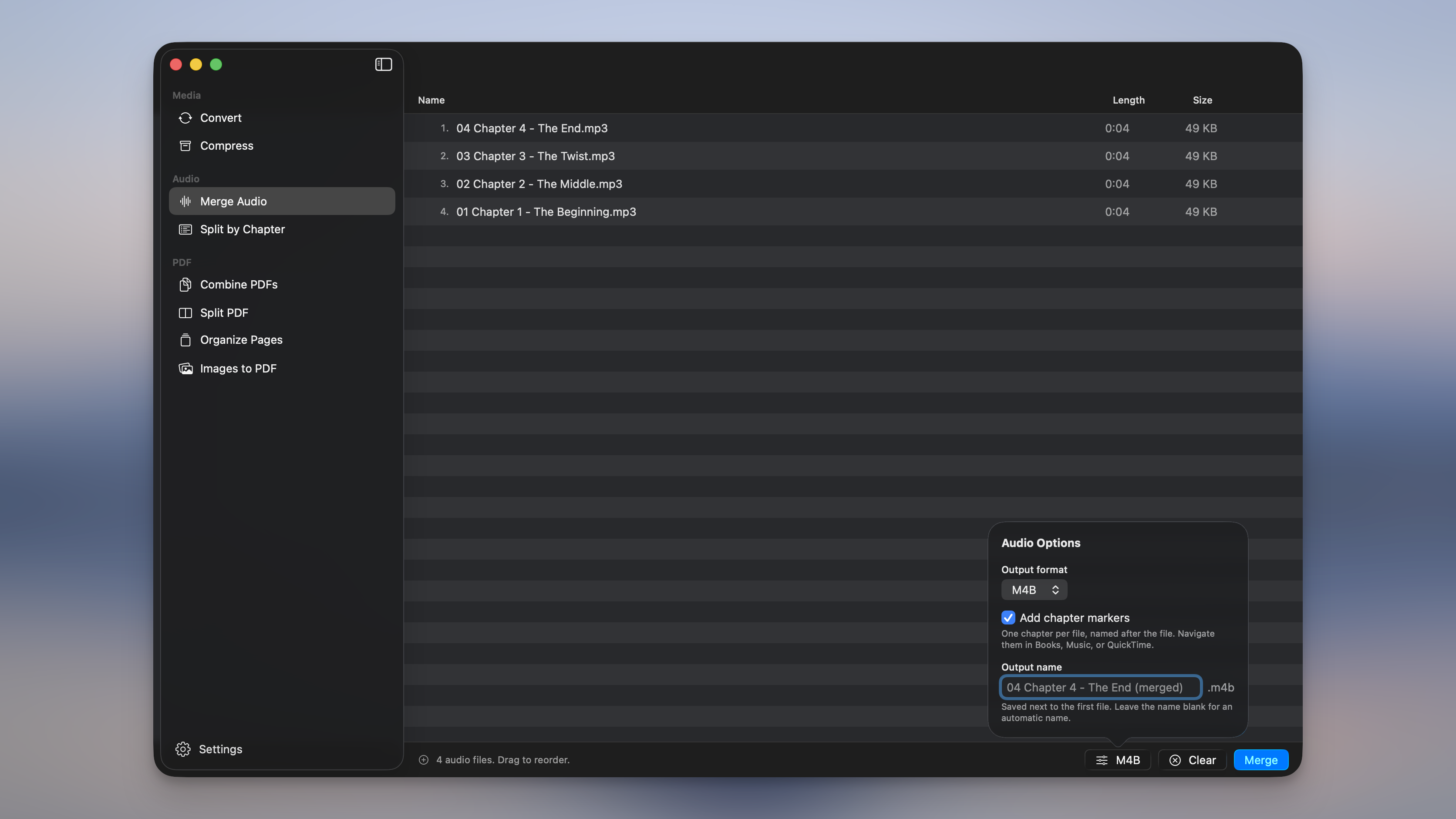
Output name
Section titled “Output name”In the same popover, type a name for the merged file, or leave it blank for the automatic <name> (merged) name. The extension follows the output format you picked. The file is always saved next to the first input.
Split by Chapter
Section titled “Split by Chapter”The reverse of building an audiobook: take one chaptered file and get one file per chapter back.
- Select Split by Chapter in the sidebar
- Drop in a chaptered audiobook (M4B, M4A, or any file that carries chapter markers)
- Its chapters show up in a list so you can check them
- Choose an output format, or keep the original
- Click Split
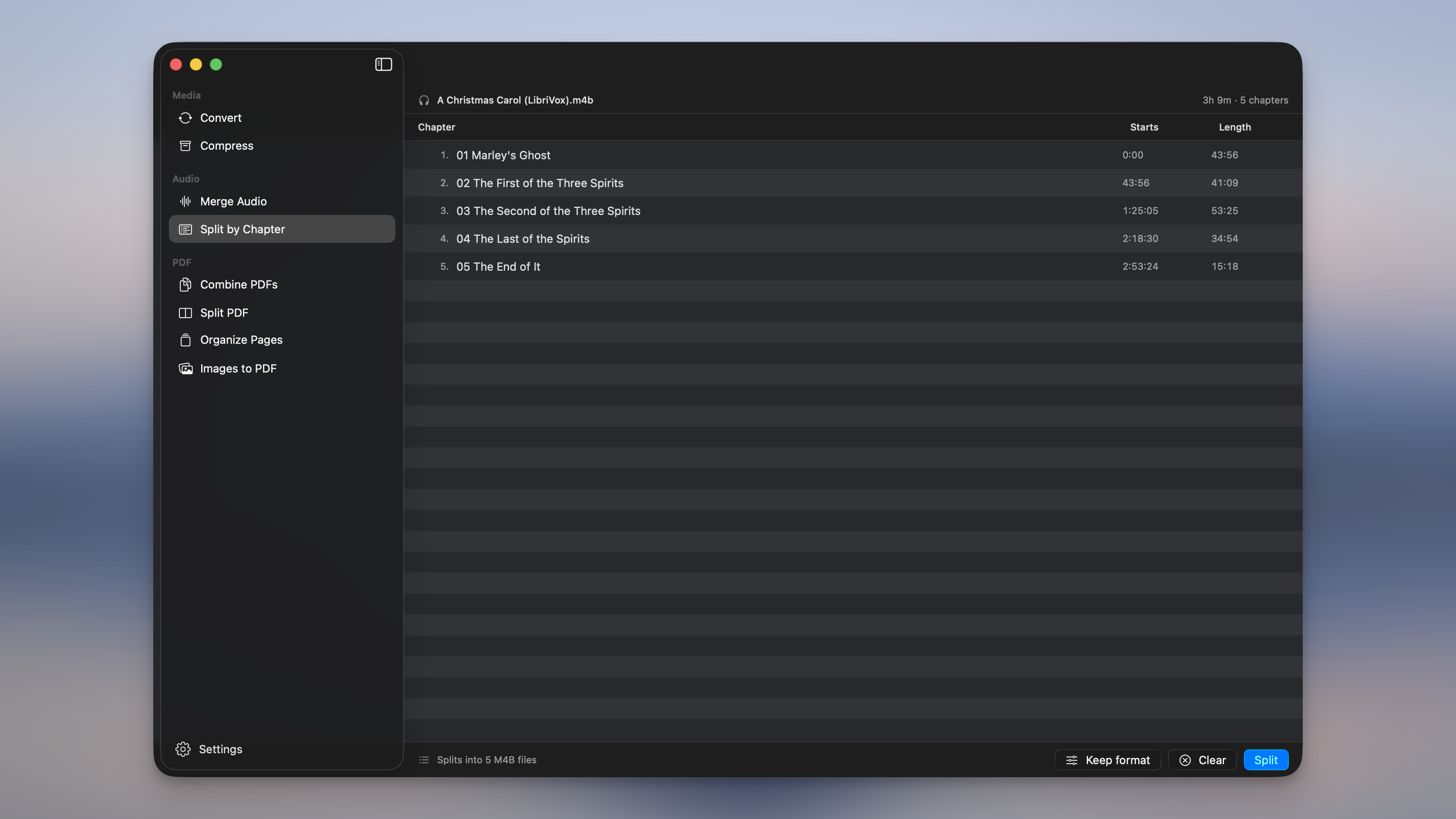
Each chapter is written out as Book - 01 - Chapter Title, tagged with its chapter title and track number so it stays in order in your library. Leave the format on the original to split without re-encoding, or pick another format (say MP3) to convert as it splits.
A file with no chapter markers can’t be split. Picmal tells you and skips it.
Use it from Shortcuts and the terminal
Section titled “Use it from Shortcuts and the terminal”- In Shortcuts, the Merge Audio action takes audio files in and returns the finished track. See Integrations.
- From the terminal, use
picmal-cli merge-audioto join files andpicmal-cli split-chaptersto split an audiobook. See Command line.
Converting and compressing audio
Section titled “Converting and compressing audio”To change the format of audio files, see the audio converter for Mac. To make them smaller, the compression presets cover the audio levels.