
Watermarks
Stamp a logo or PNG overlay onto images and videos during conversion. Handy for branding client deliverables, marking previews “draft,” or signing a batch of clips before they leave your Mac.
How to use
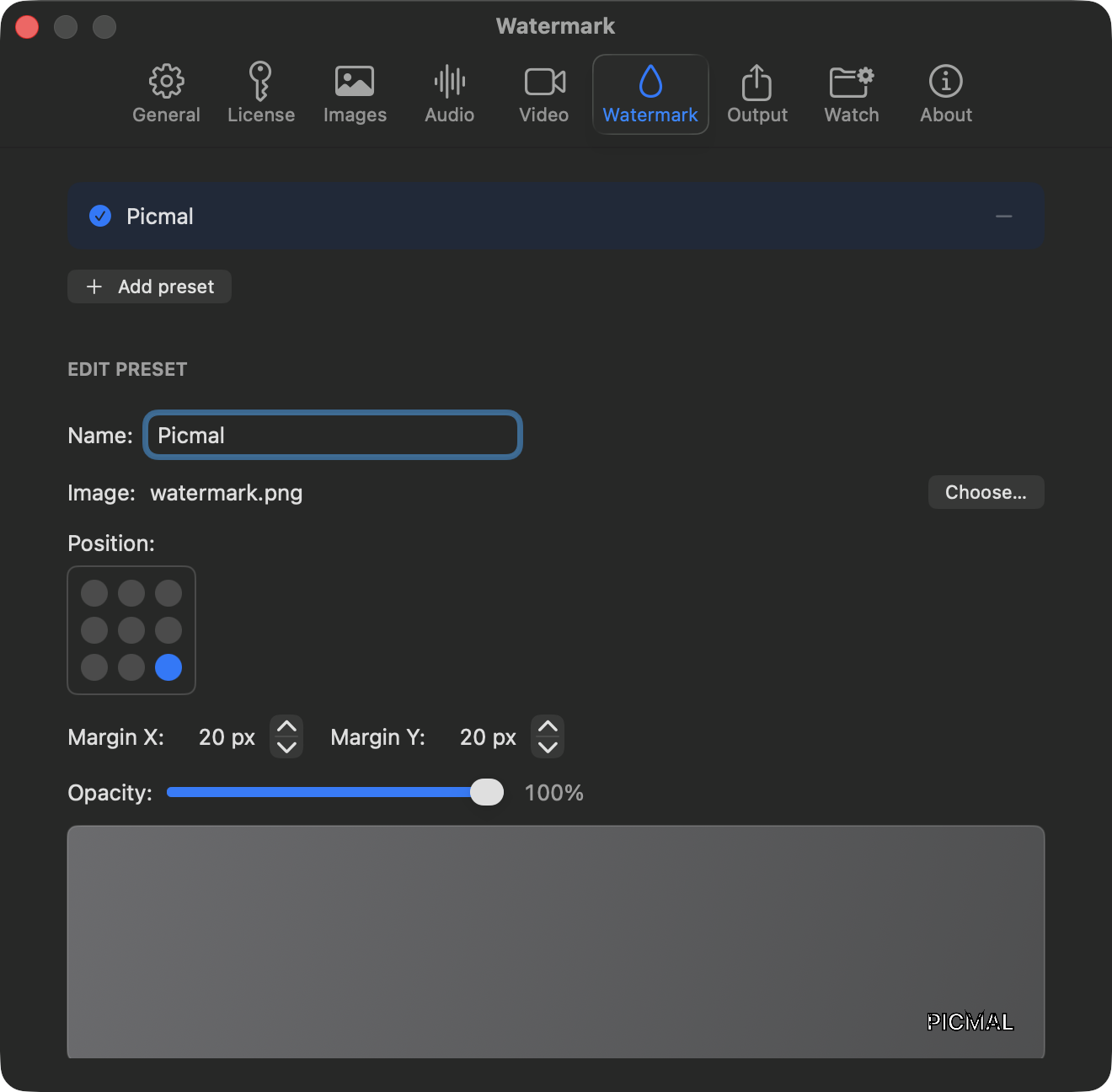
Section titled “How to use”- Open Settings → Watermark
- Create a preset and pick a PNG (transparency is preserved)
- Set position, margins and opacity
- Pick the preset in Add to every output at the top of the tab, or pick it in the video options on the main screen
- Run your conversion. The watermark is baked into every output
The same preset applies to the whole batch, so you’re not fiddling with it per file.
Position
Section titled “Position”Pick one of nine anchor points on a 3×3 grid:
| Top-left | Top-center | Top-right |
|---|---|---|
| Middle-left | Center | Middle-right |
| Bottom-left | Bottom-center | Bottom-right |
Margins push the watermark away from whichever edge you picked. Opacity runs from 0 (invisible) to 100 (fully opaque).
Scale to image
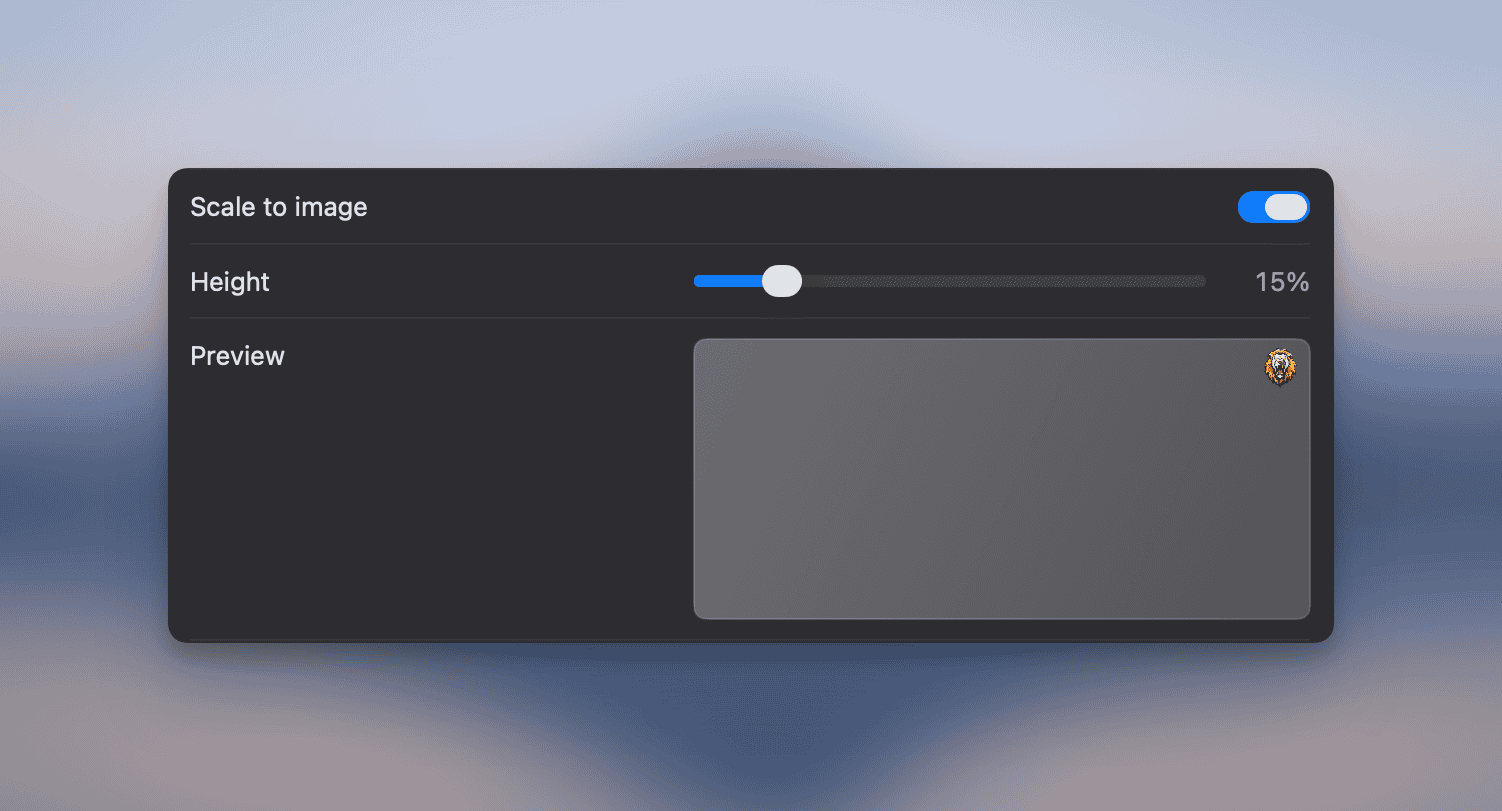
Section titled “Scale to image”Turn on Scale to image in the watermark editor to size the watermark as a percentage of each image’s height. One preset stays visually consistent across photos with very different dimensions, so you won’t get tiny logos on 6000 px shots and oversized ones on thumbnails. Drag the height slider to set the percentage.
Presets
Section titled “Presets”Save as many watermark configurations as you need. A small logo tucked into the bottom-right for client work, a fat “PREVIEW” slab for social, whatever your workflow asks for. Switch between presets from the Watermark settings without setting everything up again.
- Use a PNG with transparency, otherwise you’ll get a white rectangle sitting behind your logo.
- Tiny watermarks scaled onto large images and videos can go aliased and crunchy; export your logo close to the size it’ll appear at.
- Watermarks are burned in during encoding. Once the file is out, they’re not coming off.