Managing the queue
Picmal processes files as a queue. You can drop up to 10,000 files at once and manage the batch while it runs: reorder by priority, pause, resume, or cancel without losing your place.
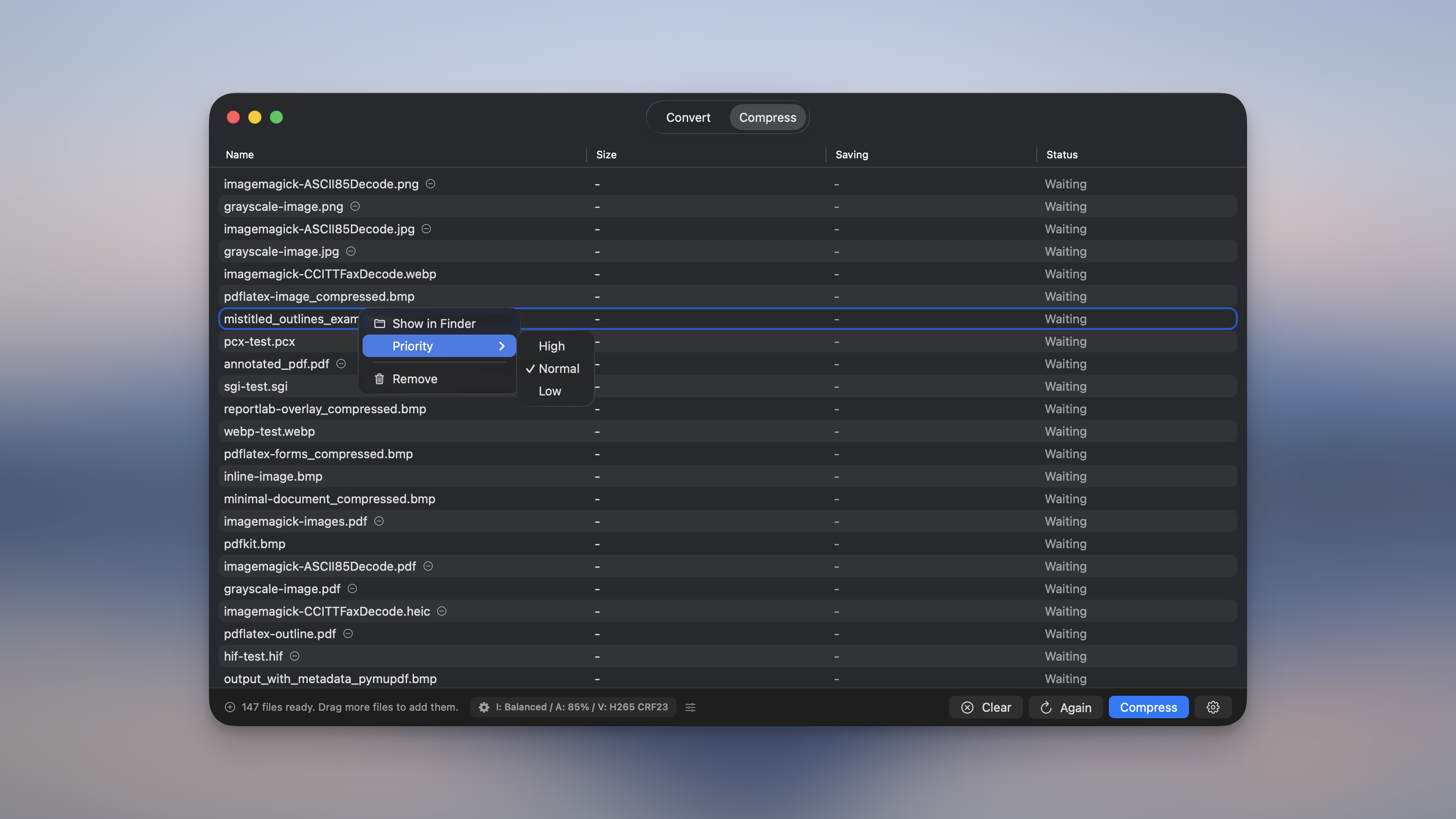
Right-click menu
Section titled “Right-click menu”Right-click any file in the list to:
- Show in Finder: reveal the source file (or its output) in Finder
- Set priority. High, Normal, or Low (see below)
- Remove from list. Drop the file from the queue
Show in Finder lives in this menu now, so there’s no separate “File” column taking up space in the table.
Double-clicking a row does the same thing, in every tool list: it reveals the converted file once that exists, and the original before it does.
Run only the files you tick
Section titled “Run only the files you tick”Every row in Convert and Compress has a checkbox. Tick a few and the run covers those files only; leave them all unticked and the run covers the whole list. The progress bar counts the files in the run, so a partial batch still reaches 100%.
Handy when a long batch failed halfway, or when you’ve added new files to a list that’s already finished: tick the ones you want and leave the rest alone instead of re-encoding everything. A scheduled run uses the same selection, so it won’t sweep up whatever else is sitting in the window when it fires.
The same checkboxes set a preset for several rows at once.
File priority
Section titled “File priority”Give an urgent file a head start. Right-click it and pick High, Normal, or Low priority. High-priority files jump to the front and get processed first, even mid-batch. Bump a file up while a large queue is already running and it gets picked up next, rather than waiting for everything ahead of it.
Pause and resume
Section titled “Pause and resume”Click Pause to halt the batch, and Resume to pick up where you left off. Pause stops files that are mid-conversion too, not just the ones still waiting, so it takes effect immediately rather than finishing the current file first.

Cancel
Section titled “Cancel”Click Cancel to stop the batch. Picmal stops quickly and tidies up after itself: any file that was interrupted returns to Ready instead of looking stuck, so you can restart the batch cleanly.
Watching progress
Section titled “Watching progress”While a batch runs, the file list scrolls smoothly and each file shows its own progress. The “X of Y files” counter at the bottom tracks the whole batch and updates all the way to the total. For audio and video, Picmal also shows the conversion speed and an estimated time remaining.
The sidebar keeps track too: a small ring and a percentage appear next to the tool that’s working, so a batch you started stays visible while you look at something else. Convert, Compress, Crop, Split PDF, and Remove Background show a real percentage. The other tools show that they’re busy without a number.
When the batch is done
Section titled “When the batch is done”Convert and Compress finish with a summary line in the bottom bar: “Done · 12 files converted”, how much space you got back, and a Show in Finder link. It stays until you clear the list or run again.
If some files broke, the line says so. Ten files in with three failures reads “Finished · 7 files converted · 3 failed”, under a warning glyph instead of the tick, so a partial batch never looks like a clean one.
Retry only the files that failed
Section titled “Retry only the files that failed”After a batch with failures, the Run Again button becomes Retry Failed, with the count on it. Press it and Picmal re-runs those files alone. The ones that finished keep their tick and their savings figure, and nothing gets encoded twice.
If Picmal is the app in front of you, that summary line is the whole notification: nothing beeps, because the window already says what happened. Results that arrive while you’re elsewhere stack rather than overwriting each other.
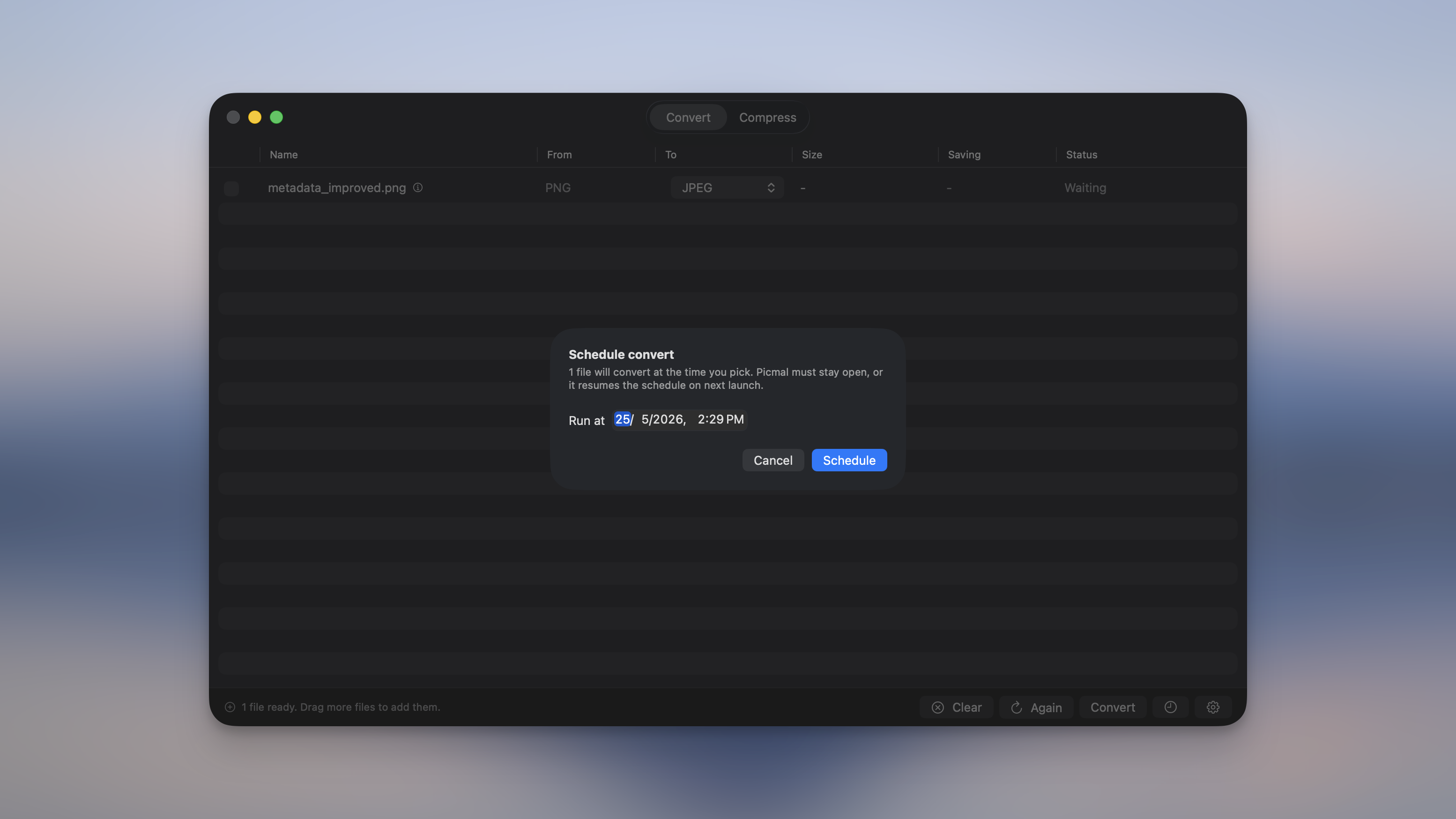
Schedule for later
Section titled “Schedule for later”Don’t want a big batch hogging your Mac right now? Tap the clock button next to Convert (or Compress) and pick a start time. Handy for kicking off large jobs overnight. The bottom bar shows what’s queued and when it’ll run, you get a notification when it finishes, and a scheduled batch survives quitting and reopening Picmal, so you don’t have to leave the app open in the meantime.