
Remove Background
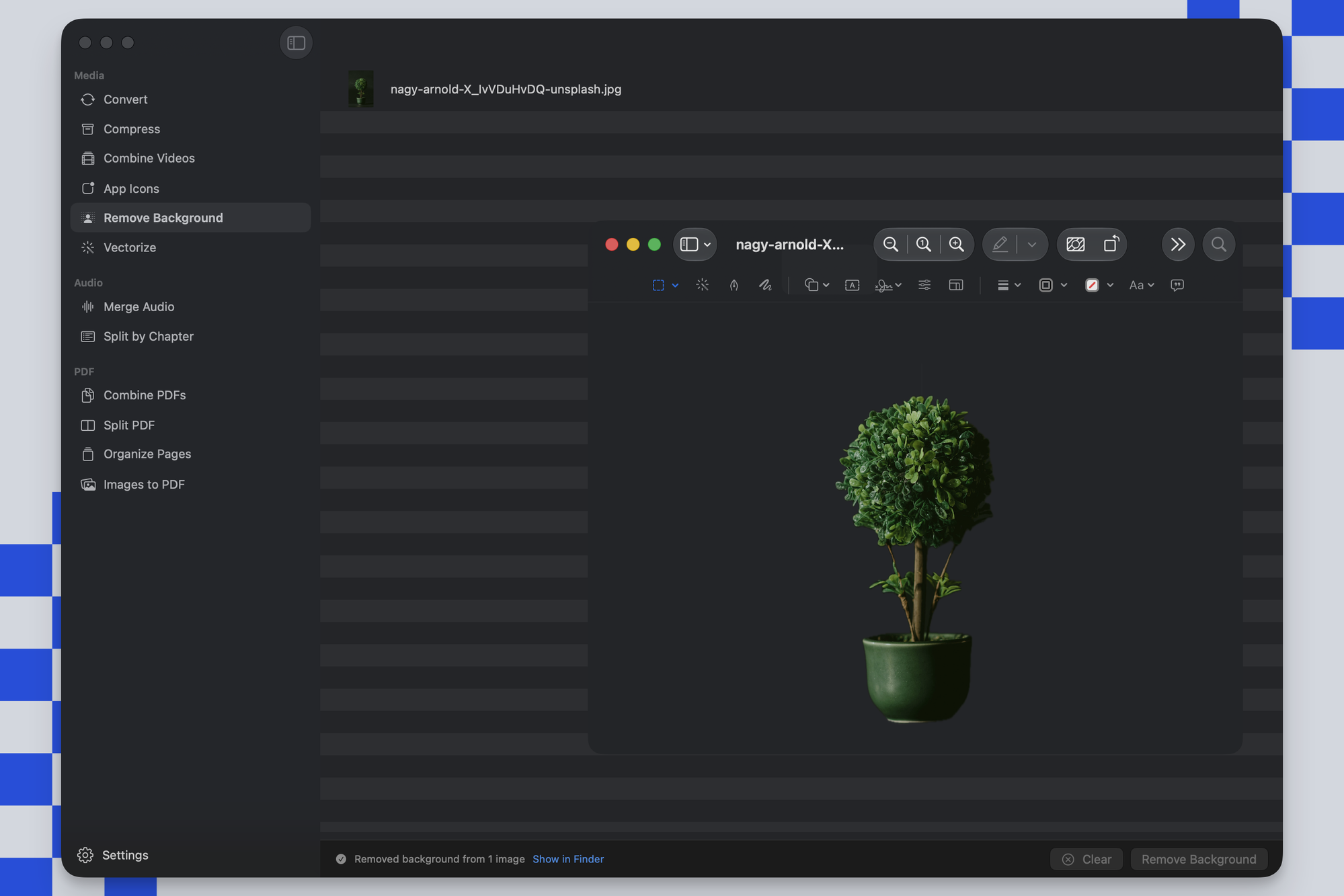
Picmal’s sidebar has a Remove Background tool that finds the subject in an image and drops everything else to transparent, giving you a clean PNG with an alpha channel. It uses Apple’s on-device Vision framework, so the whole thing happens on your Mac and works offline. Nothing is uploaded anywhere.
Remove a background
Section titled “Remove a background”- Select Remove Background in the sidebar
- Drop one or more images into the window
- Click Remove Background
Each result is written next to its source as <name>_removed.png, a transparent PNG. If Picmal can’t find a subject in an image, it skips that one and tells you in the status bar, then finishes the rest of the batch. Use Show in Finder to jump to the results.
From Shortcuts
Section titled “From Shortcuts”Picmal ships a Remove Background action for the Shortcuts app. Pass it one or more images and it returns the cut-out PNGs, so you can wire it into an automation or a Quick Action in Finder. See Integrations.
From the command line
Section titled “From the command line”The command line tool has a remove-background command:
picmal-cli remove-background photo.jpgpicmal-cli remove-background *.png -o cutouts/By default each output lands next to its source as <name>_removed.png. Pass -o to choose an output directory, -w to overwrite existing files, and --json for machine-readable output when you’re piping into other tools.
Getting a clean result
Section titled “Getting a clean result”- It works best with a clear subject. A person, product, or animal against a distinct background cuts out cleanly; a busy scene with no obvious subject may be skipped.