
Metadata
Every photo carries hidden data: where it was taken, what camera shot it, the date, serial numbers, and more. Picmal lets you decide exactly how much of that travels with your exports. Strip it all for privacy, keep it all for your archive, or choose category by category. You can also stamp your own copyright onto every file, even while stripping everything else.
The metadata controls live in Settings → General, under the Metadata and Copyright & ownership sections. Whatever you pick applies to both Convert and Compress, and to images, audio, and video.
Choosing what to keep
Section titled “Choosing what to keep”Pick one of four modes:
| Mode | What it does |
|---|---|
| Strip all metadata | Smallest files. Removes the original’s camera, date, location, and copyright info. |
| Keep essential only | Keeps orientation, color profile, and copyright; drops location and serial numbers. |
| Keep all metadata | Preserves all of the original’s metadata. |
| Choose what to keep… | Custom mode. Pick exactly which categories survive (see below). |
Stripping metadata makes files smaller and protects your privacy. Keeping it is useful for archiving, attribution, and keeping a photo’s camera and capture details intact.
Custom: category by category
Section titled “Custom: category by category”Choose Choose what to keep… and Picmal shows a checklist. Each category is independent, so you can (for example) drop location and serial numbers while keeping everything else:
| Category | What it covers |
|---|---|
| Location (GPS) | GPS coordinates of where the photo was taken |
| Camera & exposure | Make, model, lens, and exposure settings |
| Date & time taken | When the photo was captured |
| Copyright & author | Copyright notice, author, and credit |
| Color profile (ICC) | Embedded ICC color profile |
| Orientation | Rotation tag describing how to display the image |
| Serial & owner IDs | Camera body / lens serial numbers and owner name |
| Embedded thumbnail | Small preview embedded by the original camera |
The most common privacy combo: keep camera, date, and color profile, but uncheck Location (GPS) and Serial & owner IDs so you can share photos without leaking where you live or which camera is yours.
Add your own copyright
Section titled “Add your own copyright”Fill in the Copyright & ownership fields once and Picmal stamps them into every export across EXIF, IPTC, and XMP:
- Copyright notice: e.g.
© 2026 Jane Doe - Artist / Creator
- Credit
- Contact / URL
Your copyright is written even when you’re stripping everything else, the camera and location data come off, your ownership tags stay on. Type it once; it’s saved and reused on every export. Toggle Add my copyright to exported images off to keep your details on file without applying them.
RAW photos
Section titled “RAW photos”When you convert RAW files (NEF, CR2, ARW, RAF, DNG and more), Picmal carries your camera metadata into the output JPEG. With Keep all metadata the export keeps make, model, lens, exposure, date, and GPS. Keep essential only keeps the basics while dropping location and serial numbers.
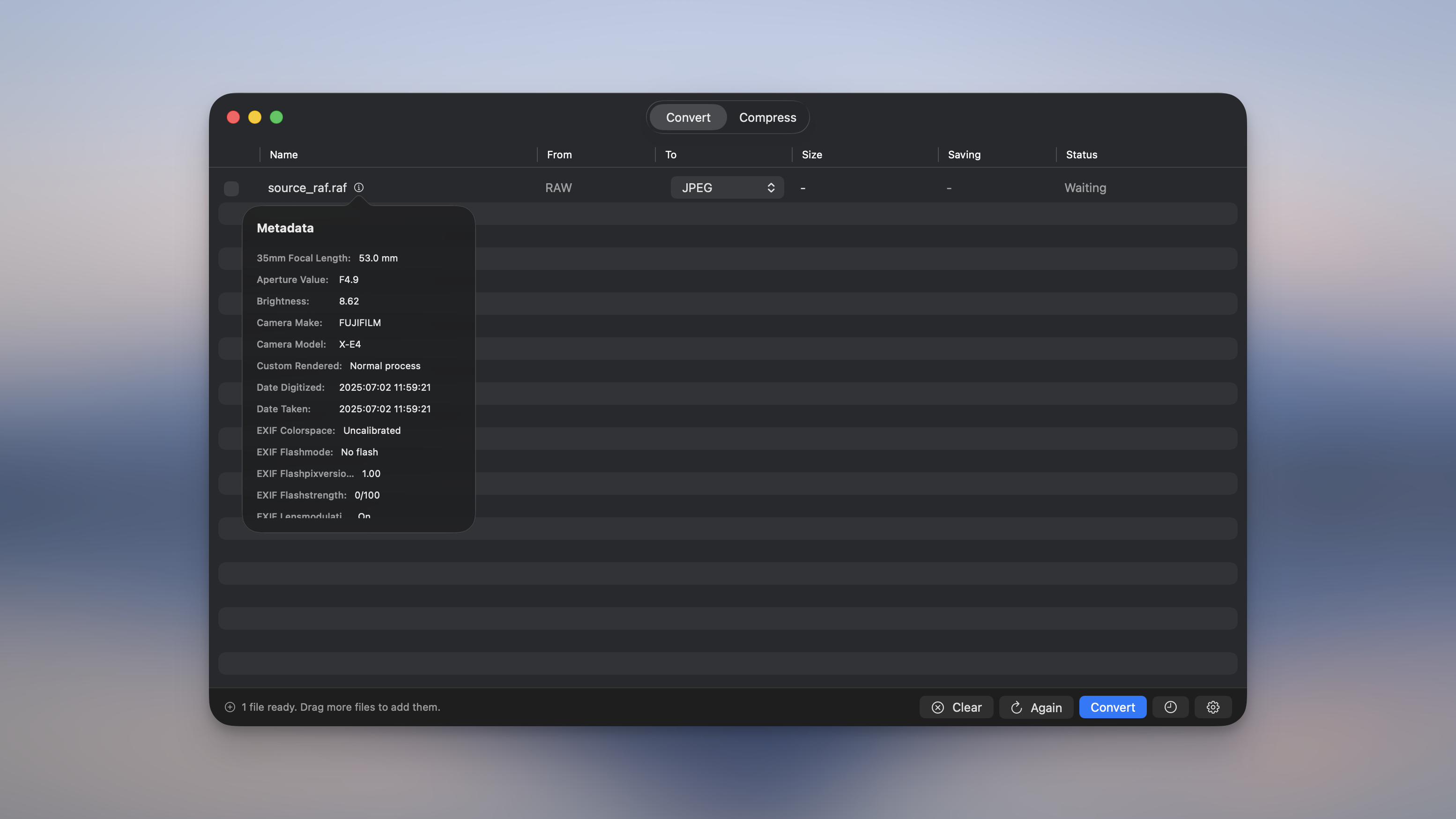
Check what landed
Section titled “Check what landed”After a file finishes, click the ⓘ button in the Size column. It opens on Result with an Original / Result switch, so you can confirm at a glance that your copyright landed and the camera and location data came off, even on files that started with no metadata at all.
Related settings
Section titled “Related settings”- Orientation. Auto-fix physically rotates pixels and removes the orientation tag.
- Color space and DPI, covers the ICC color profile that the Color profile category preserves.
- Output and naming. Rename exports from their EXIF metadata using
{camera},{iso},{date}and other tokens. - Command line (CLI), the same controls as
--metadata,--keep,--strip, and the--copyrightflags.