
Vectorize
Picmal’s sidebar has a Vectorize tool that traces a raster image (a PNG, JPG, or similar) into a true SVG with real vector paths. It’s not a bitmap wrapped in an SVG tag: the output is actual traced geometry you can scale to any size. It runs entirely on your Mac.
It works best on logos, icons, line art, and other flat, high-contrast images. Detailed photographs can be traced too, but expect large, complex paths.
Vectorize an image
Section titled “Vectorize an image”- Select Vectorize in the sidebar
- Drop one or more images into the window
- Pick a style for each image (see below), the dropdown sits on each row
- Click Vectorize All
Each SVG is written next to its source image, with the same name. If a .svg already exists there, Picmal adds a number so nothing is overwritten. Select rows and use Show in Finder to jump to the results.
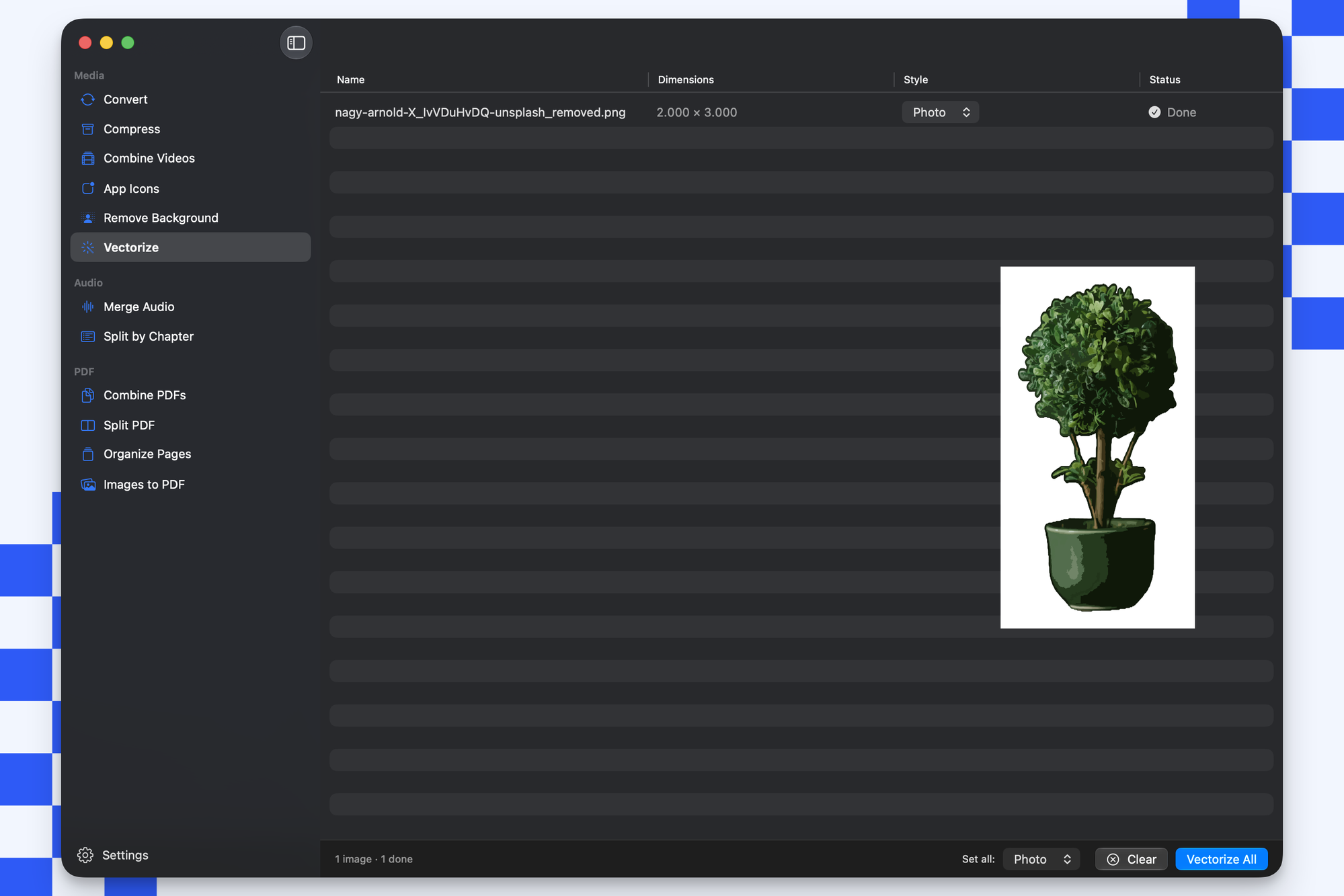
Styles
Section titled “Styles”Pick the style per image from the dropdown on its row. To set them all at once, use the style picker in the bottom bar.
| Style | Best for |
|---|---|
| Logo | Logos, icons, and flat color art. Traces smooth, filled color shapes. |
| Photo | Photographs and images with gradients or fine detail. |
| B&W | Line art, sketches, and anything you want as a clean black-and-white trace. |
Supported inputs
Section titled “Supported inputs”Vectorize accepts PNG, JPG, GIF, BMP, TIFF, and WebP. The output is always SVG.
Getting a clean result
Section titled “Getting a clean result”- Start with a high-contrast image. Flat art with clear edges traces cleanly; noisy or low-contrast images produce messy paths.
- Logo style suits most icons and marks. Reach for Photo only when the source really is a photograph. It produces far more (and larger) paths.
- Bigger sources trace more faithfully. A small, blurry input has soft edges the tracer has to guess at.