
PDF tools
Picmal’s sidebar has a PDF section with four tools: Combine PDFs merges documents into one, Split PDF breaks one document into several, Images to PDF turns a set of images into a multi-page PDF, and Organize Pages reorders and deletes pages inside a single PDF. All run entirely on your Mac, like everything else in Picmal.
Combine PDFs
Section titled “Combine PDFs”- Select Combine PDFs in the sidebar
- Drop two or more PDFs into the window
- Drag rows to set the page order, the list order is the document order
- Click Combine
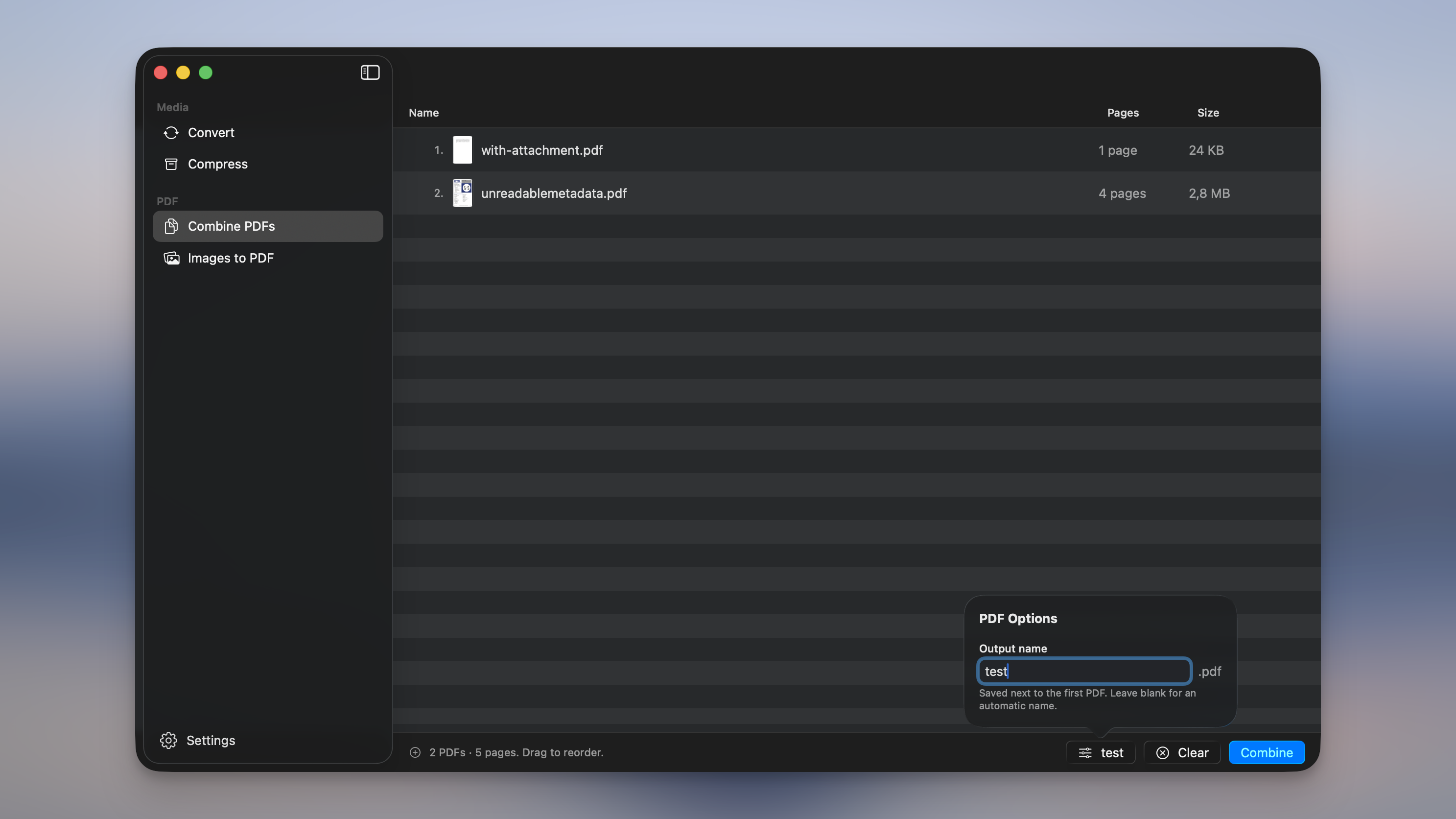
The merged file is saved next to the first PDF as <name> (combined).pdf. If that name is taken, Picmal counts up instead of overwriting, <name> (combined) 2.pdf, and so on.
- Drag rows to reorder; the number on each row is its position in the merged document.
- Select rows and press Delete to remove them, or right-click for Remove / Show in Finder.
- Locked PDFs show an orange lock badge and block the merge. Unlock them in Preview first, then re-add.
- If your Convert or Compress list has only PDFs when you switch to Combine PDFs, they carry over automatically.
Split PDF
Section titled “Split PDF”- Select Split PDF in the sidebar
- Drop a PDF into the window
- Type the page ranges you want in the options popover
- Click Split
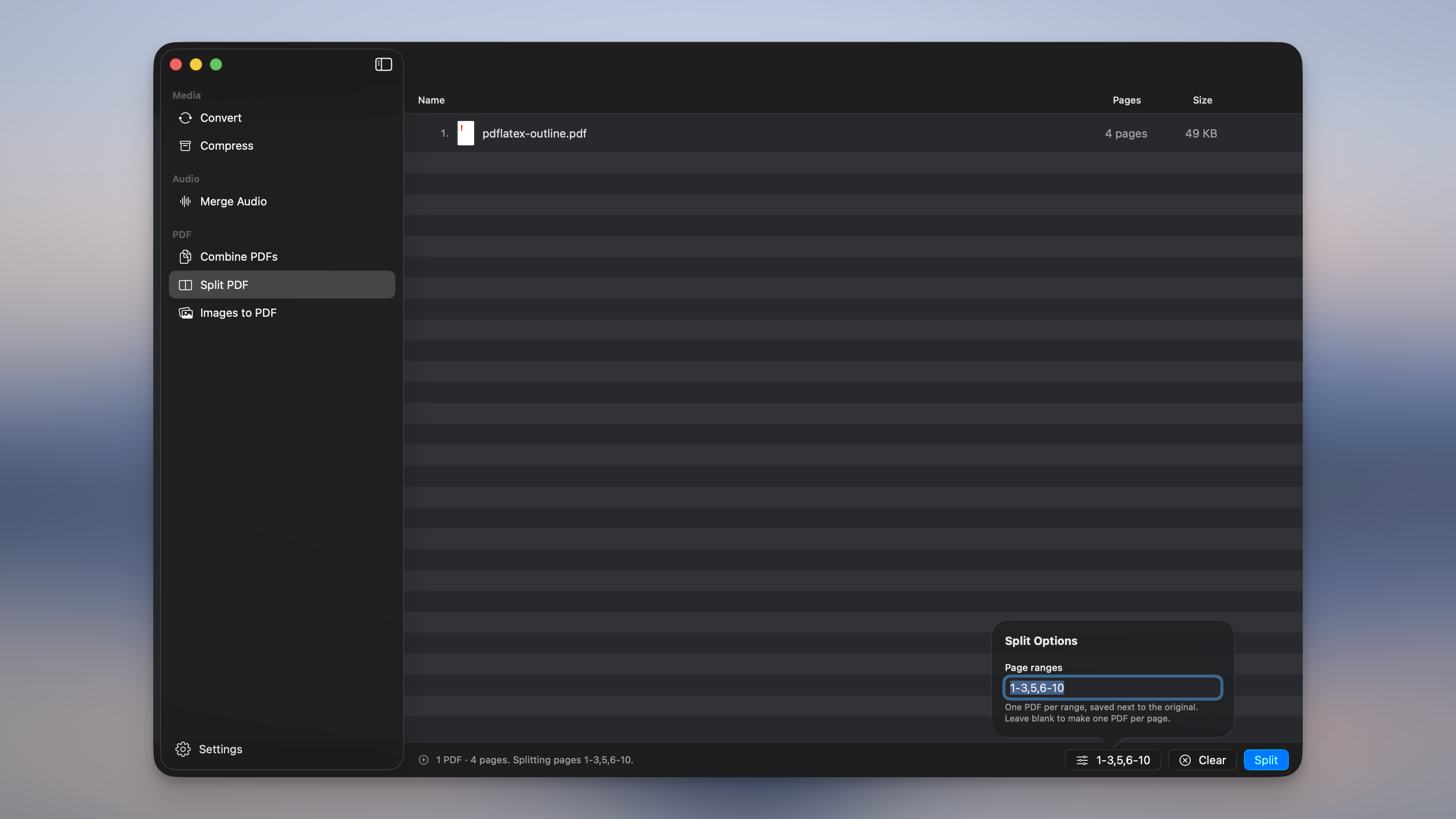
Each comma-separated range becomes its own PDF, saved next to the original as <name>-1.pdf, <name>-2.pdf, and so on. If a name is taken, Picmal counts up instead of overwriting.
Page ranges
Section titled “Page ranges”Ranges are written 1-based, separated by commas. So 1-3, 5, 8- makes three files: pages 1–3, page 5, and page 8 to the end.
| Token | Meaning |
|---|---|
5 | Just page 5 |
1-3 | Pages 1 through 3 |
8- | Page 8 to the last page |
-3 | The first page through 3 |
Leave the field blank to split every page into its own PDF, handy for bursting a scanned batch back into separate documents.
- Drop several PDFs at once and each is split by the same ranges.
- Locked PDFs show an orange lock badge and block the split. Unlock them in Preview first, then re-add.
Images to PDF
Section titled “Images to PDF”- Select Images to PDF in the sidebar
- Drop your images in, each image becomes one page
- Drag rows to set the page order
- Pick a page size, and adjust quality or add a password in the options popover
- Click Create PDF
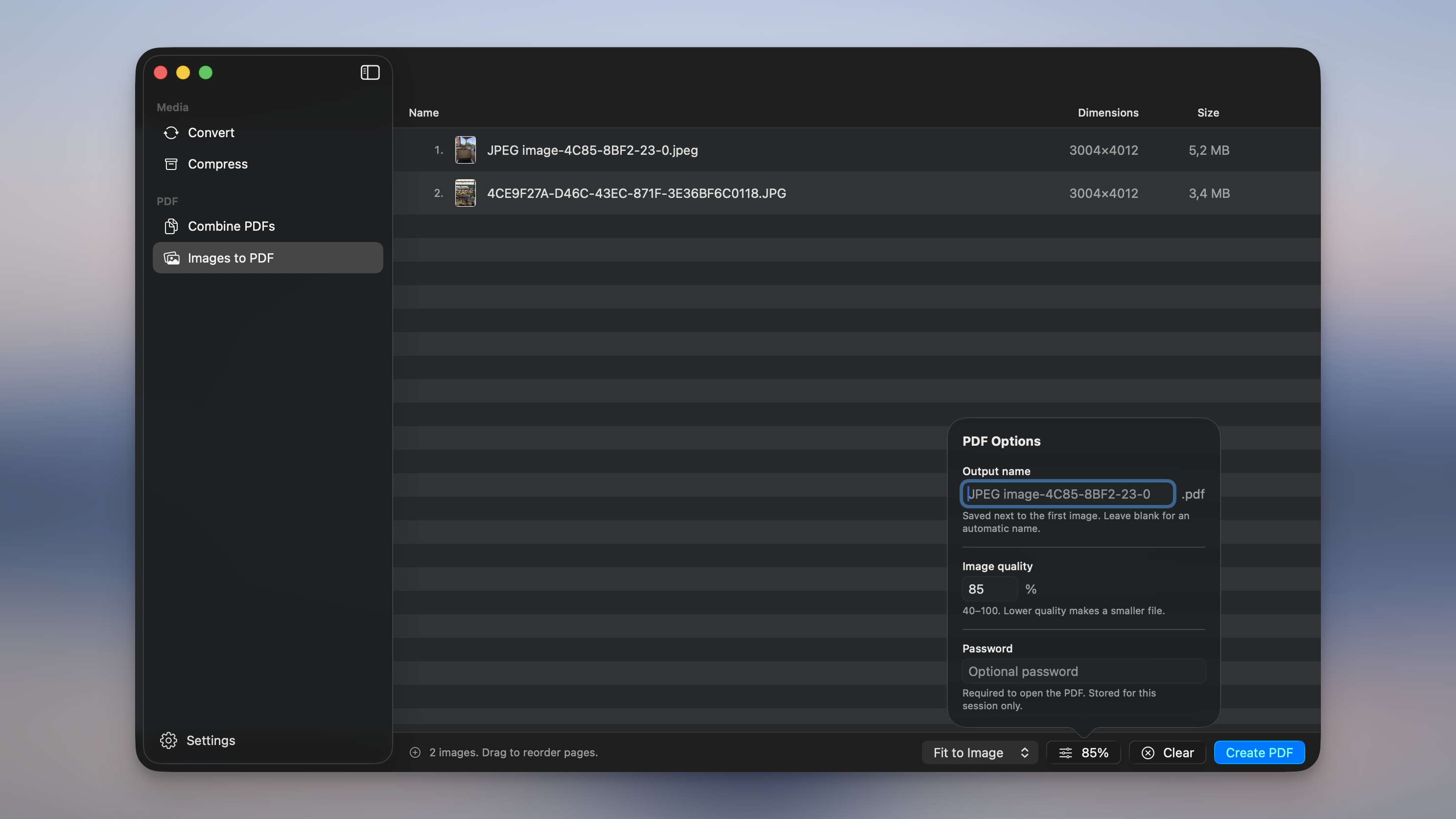
The PDF is saved next to the first image as <name>.pdf, uniquified the same way.
Accepted inputs are the formats macOS decodes natively: JPEG, PNG, HEIC/HEIF, TIFF, GIF, BMP, WebP, AVIF, JPEG 2000, and JPEG XL. Sideways photos from iPhones render upright. EXIF orientation is applied automatically.
Page sizes
Section titled “Page sizes”| Option | Behavior |
|---|---|
| Fit to Image | Each page exactly wraps its image, no borders, no scaling. Default. |
| A4 | Standard A4, auto-rotated to match each image’s orientation. |
| US Letter | Standard Letter, auto-rotated the same way. |
| Custom… | Your own size in millimeters (10–2000 mm per side). |
The row thumbnails preview the layout: change the page size and they reshape instantly to show how each image sits on its page.
Quality
Section titled “Quality”Images are embedded as JPEG at the quality you choose (40–100%, default 85%). Lower quality makes a smaller file. The setting is remembered between sessions.
Password protection
Section titled “Password protection”Type a password in the options popover and the PDF requires it to open. The password is kept for the current session only. Picmal never stores it on disk.
Organize Pages
Section titled “Organize Pages”- Select Organize Pages in the sidebar
- Drop a PDF into the window
- Drag the page thumbnails into the order you want, and delete any you don’t need
- Click Save
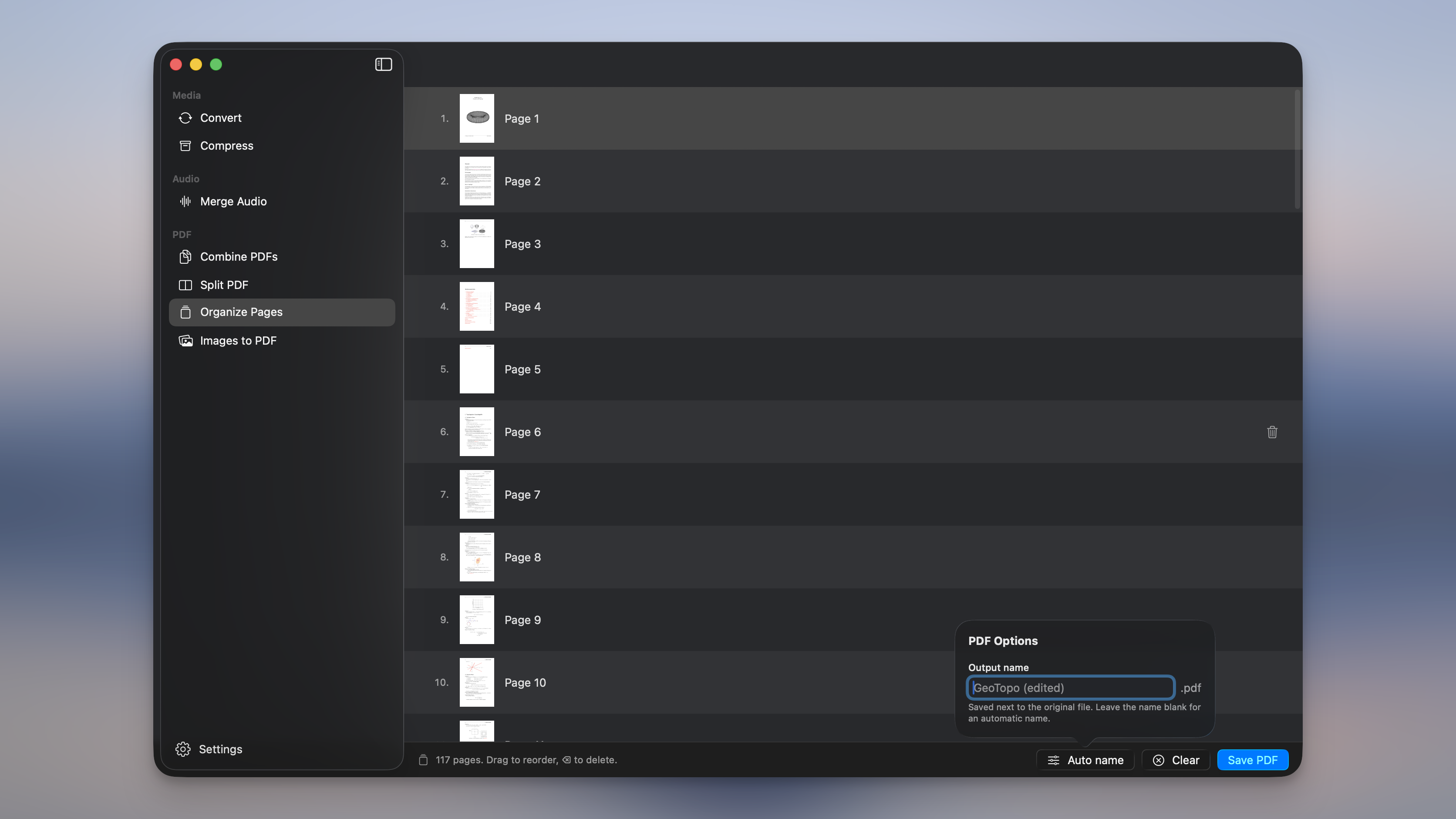
Each page shows up as a thumbnail in a list. Drag to reorder, select pages and press Delete (or right-click) to remove them, and click any thumbnail to preview it full-size. The saved PDF keeps only the pages you left, in the order you set.
Unlike the other three tools, Organize Pages is available in the app only for now. There’s no Finder, Shortcuts, or command-line equivalent yet.
Cropping a PDF
Section titled “Cropping a PDF”Trimming margins off a document isn’t one of these four tools either. Use Crop. Type the millimeters to take off each edge and Picmal writes a cropped copy next to the original. The text stays selectable and the links keep working; only the page size changes.
Making a PDF smaller
Section titled “Making a PDF smaller”Shrinking a PDF isn’t one of these four tools. Drop the file into Compress instead. Picmal re-encodes only the images inside the document, so text stays selectable and vector graphics stay sharp. Scans get their images downsampled as well, which is what makes a 25 MB scan come out around 2 MB; that route rebuilds the document, so if yours has links or bookmarks Picmal warns you on the row. See How PDF compression works.
Use them from Finder, Shortcuts, and the terminal
Section titled “Use them from Finder, Shortcuts, and the terminal”These tools are available beyond the app window:
- In Finder, right-click a PDF selection and choose Picmal — Combine PDFs, or an image selection and choose Picmal — Images to PDF. Both run with your saved settings, in selection order, even with Picmal closed. See Integrations.
- In Shortcuts, the Combine PDFs, Split PDF, and Images to PDF actions take files in and return the finished PDF. See Integrations.
- From the terminal, use
picmal-cli combine-pdfs,picmal-cli split-pdf, andpicmal-cli images-to-pdf. See Command line.
Like Convert and Compress, all three tools require the free trial or a license.