
Upscale
Picmal’s Image section has an Upscale tool that makes an image 2x or 4x larger and fills in the detail a plain resize would blur. It runs the Real-ESRGAN model on your Mac, Apple Silicon and Intel alike, so it works offline and nothing is uploaded anywhere.
Upscale images
Section titled “Upscale images”- Select Upscale in the sidebar
- Drop one or more images into the window
- Pick 2x or 4x in the bottom bar
- Click Upscale
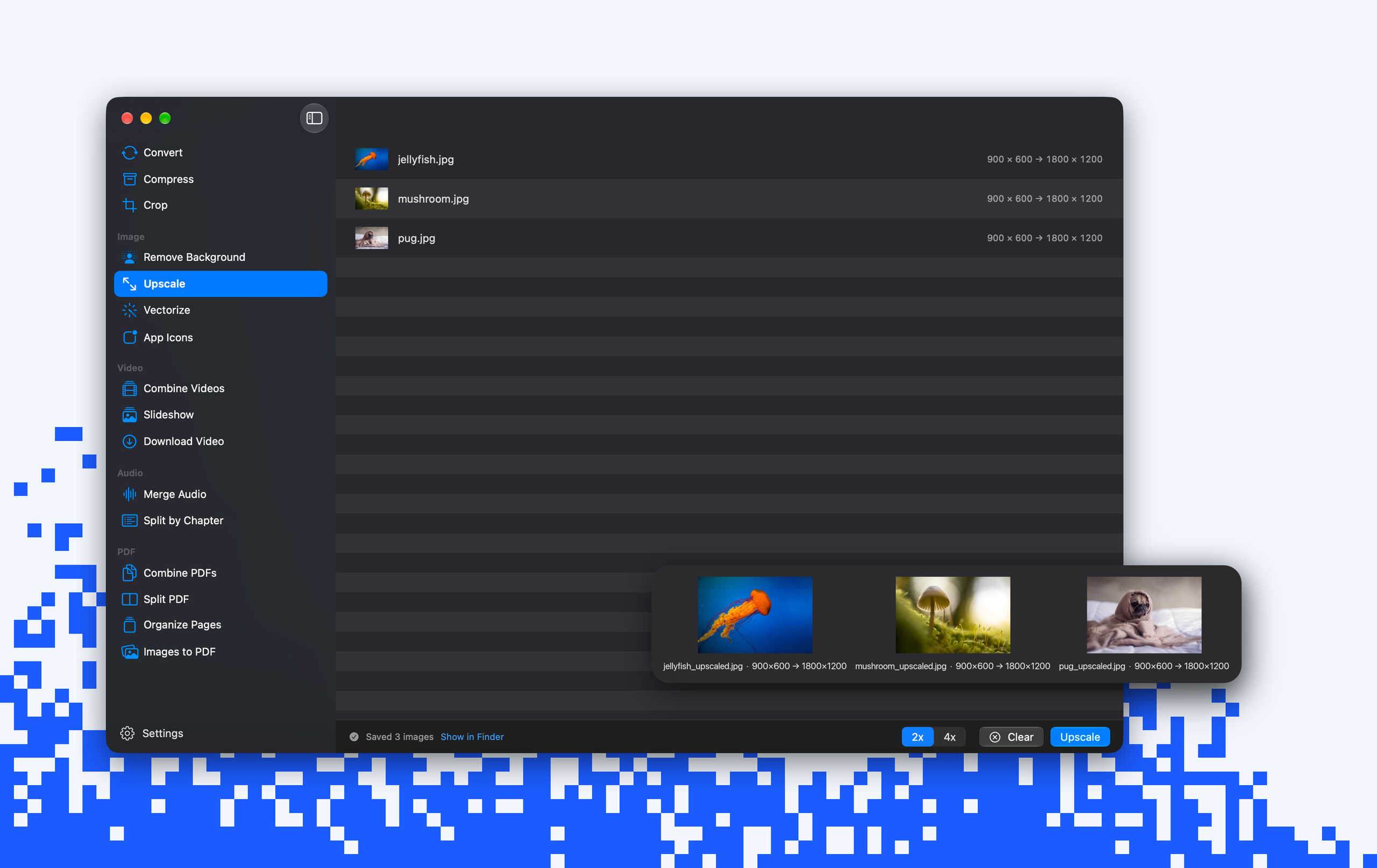
Each result is written next to its source as <name>_upscaled.<ext>. It keeps the source format when macOS can write it, HEIC included, and comes out as a PNG otherwise. Picmal remembers the scale you used last; 4x is the default.
While a batch runs, the Upscale button turns into Cancel. Cancel stops the image in progress and keeps the ones already saved. When the batch finishes, the bottom bar counts what was saved and skipped, with a Show in Finder link.
What it takes
Section titled “What it takes”Upscale reads JPEG, PNG, HEIC, TIFF, GIF, BMP, WebP, AVIF, JPEG 2000 and JPEG XL. Some images are marked in the list and skipped, while the rest of the batch carries on:
- Too large. The result has to fit in your Mac’s memory: up to 100 megapixels and 16,384 px per side on a Mac with 16 GB or more, a little less on 8 GB. At 4x that’s a source of about 6 megapixels; at 2x, about 25. Hover the warning to see the limit for your Mac.
- More than one frame. Animated GIFs, multi-page TIFFs and HEIC sequences would lose every frame after the first, so they’re skipped.
- Unreadable. A file Picmal can’t open as an image. RAW files aren’t accepted; convert them to TIFF or PNG first.
Transparent images keep their transparency, and images deeper than 8 bits are upscaled at 16 bits per channel.
From Shortcuts
Section titled “From Shortcuts”The Upscale Images action takes images and a 2x or 4x scale and returns the results, named after the originals. See Integrations.
From the command line
Section titled “From the command line”The command line tool has an upscale command:
picmal-cli upscale photo.jpgpicmal-cli upscale *.png --scale 2 -o upscaled/By default each output lands next to its source as <name>_upscaled.<ext>. Pass --scale 2 or --scale 4 (default 4), -o to choose an output directory, and -w to overwrite existing files.