
Crop
Picmal’s sidebar has a Crop tool that removes margins from images and PDF pages. Type how much to take off each edge and Picmal saves a cropped copy next to each original. Everything runs on your Mac.
Images are measured in pixels, PDFs in millimeters. The unit label above the margin fields follows whatever you’ve dropped in.
Crop a batch
Section titled “Crop a batch”- Select Crop in the sidebar
- Drop images, PDFs, or both into the window
- Open Crop Options and set the margins to remove
- Click Crop
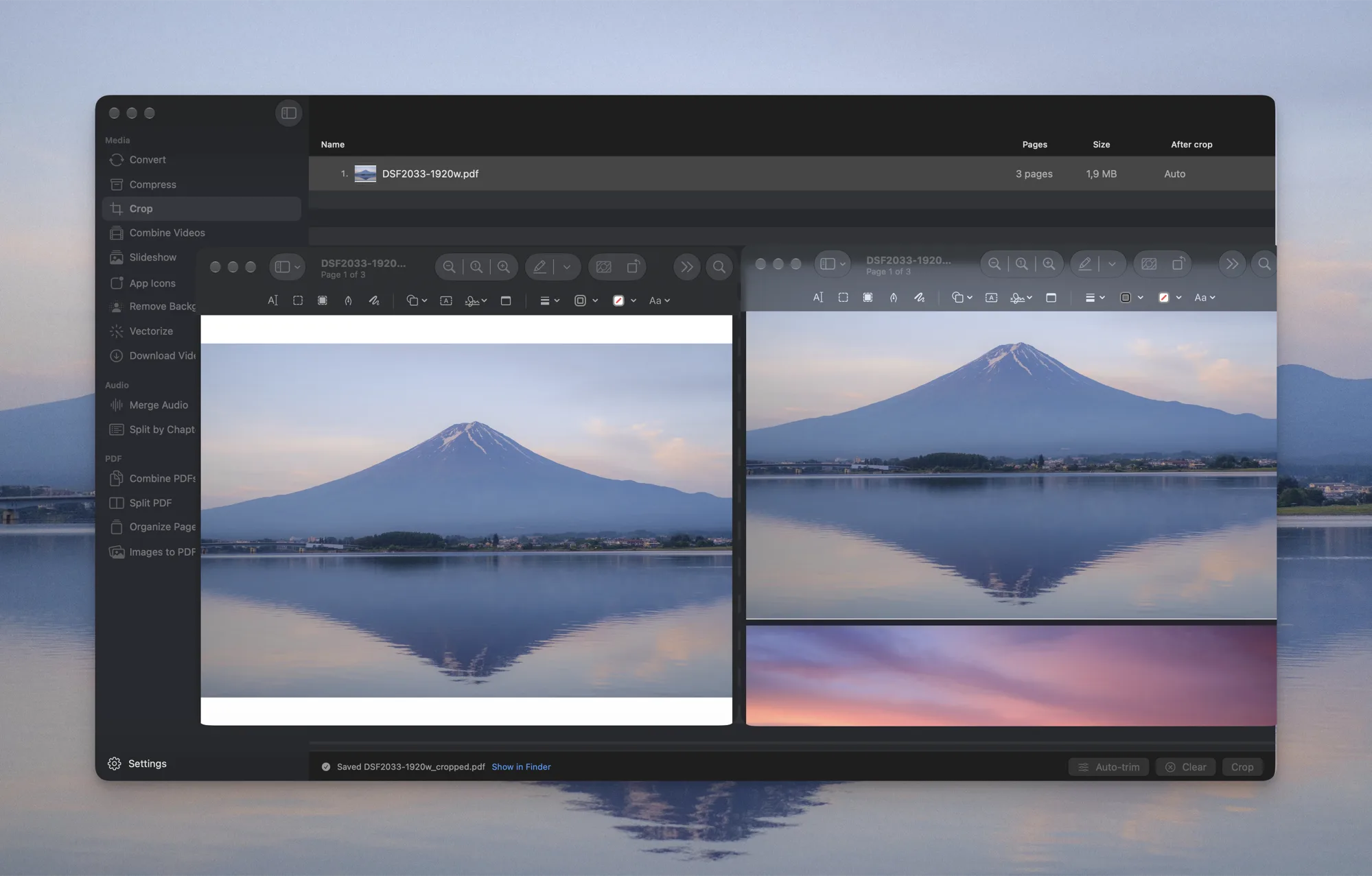
Each file is written next to its source as <name>_cropped.<ext>. The After crop column shows the size you’ll get before you run anything, so you can check the numbers against the original.
Auto-trim borders
Section titled “Auto-trim borders”Turn on Auto-trim borders in the options popover and Picmal reads the corner color of each image and removes the matching border around it, the white space around a screenshot, the black bars around an exported logo. No measuring, no per-file fiddling.
Tolerance (0–50%, default 5%) sets how much the border color may vary before Picmal stops trimming. Raise it for a JPEG whose “white” background isn’t quite uniform; lower it when a light part of the subject is being eaten.
Auto-trim is images only. PDFs need explicit margins.
PDFs keep their content
Section titled “PDFs keep their content”Cropping a PDF changes the page boxes, nothing else. Text stays selectable and searchable, links keep working, form fields keep working, and vector graphics stay sharp, the page is just smaller. Picmal sets both the crop box and the media box, so the new size holds in Preview, in a browser, and at the print shop.
The same margin is applied to every page in the document.
Trim borders in Convert and Compress
Section titled “Trim borders in Convert and Compress”You don’t need the Crop tool for a plain border trim. Settings → Resize has a Trim borders switch that removes a solid-color border from each image before it’s resized and encoded, at the same 5% tolerance. Turn it on when every screenshot in a batch carries the same margin. See resize and color space.
For another tolerance, or for PDFs, use the Crop tool or picmal-cli crop --fuzz.
Use it from Shortcuts and the terminal
Section titled “Use it from Shortcuts and the terminal”- In Shortcuts, the Crop Files action takes files, margins, and an auto-trim toggle, and returns the cropped files. See Integrations.
- From the terminal,
picmal-cli croptakes--top,--bottom,--left,--right,--auto-trim, and--fuzz. See Command line.