
Download Video
Picmal’s sidebar has a Download Video tool. Paste links, pick a folder, and Picmal fetches the videos to your Mac.
Download a batch
Section titled “Download a batch”- Select Download Video in the sidebar
- Add links. Click Add Links and paste one per line, press ⌘V in the window, or drag a link straight from your browser’s address bar
- Choose where the files go (Picmal starts on your Downloads folder and remembers your choice)
- Pick a quality for the batch
- Click Download
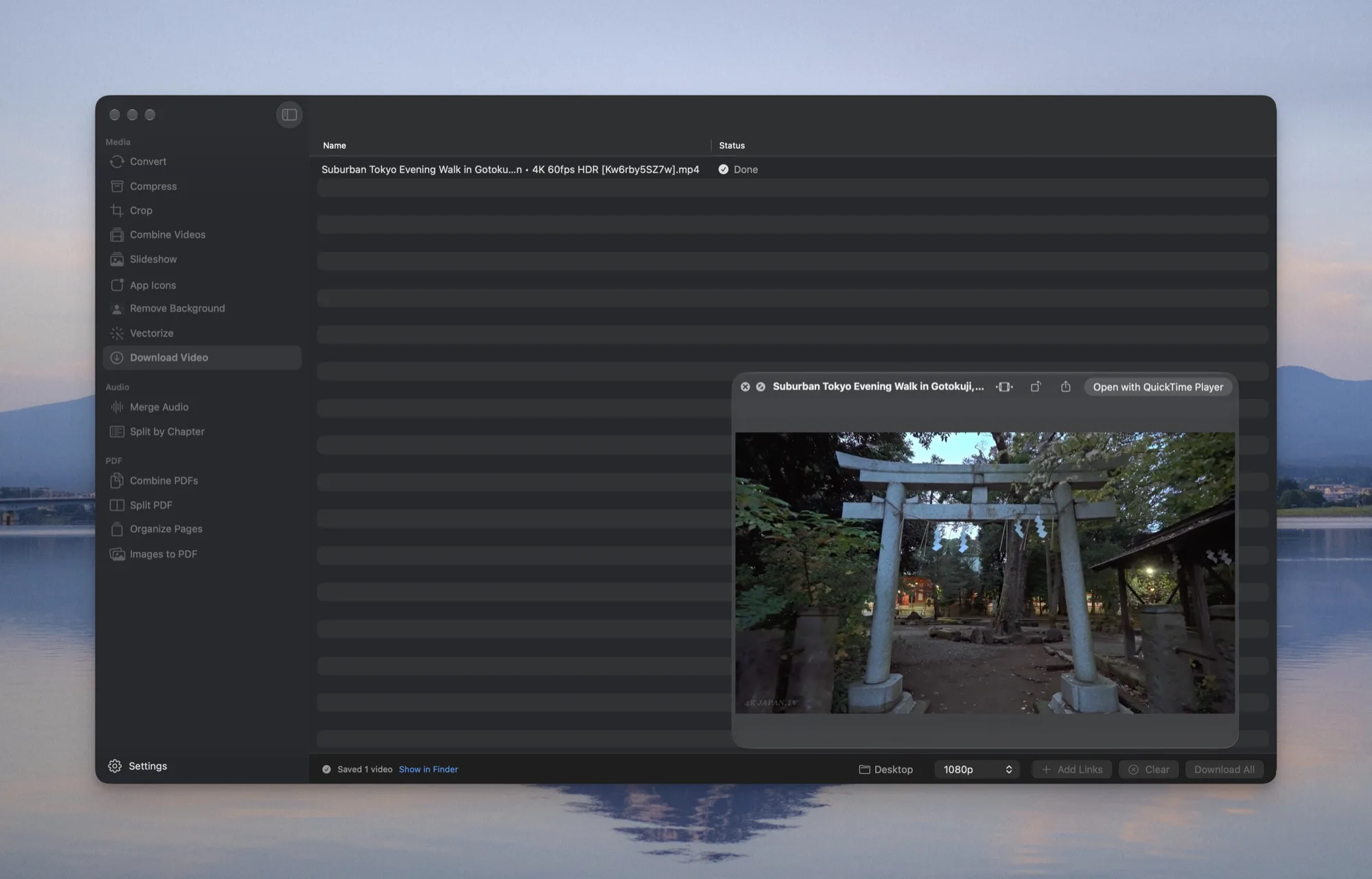
Each row shows its own progress, download speed, and estimated time remaining. When the batch finishes, the bottom bar says how many videos were saved and gives you a Show in Finder link.
Quality
Section titled “Quality”One picker sets the quality for every link in the list.
| Option | What you get |
|---|---|
| Best | The highest resolution the link offers, as an MP4. Default. |
| 1080p | Capped at 1080p, for a smaller file on a 4K source. |
| Audio only | The audio track on its own, with no video and no re-encode. |
Files that play in QuickTime
Section titled “Files that play in QuickTime”Sites hand out AV1 and VP9, and QuickTime refuses both with “contains some media that isn’t compatible”. Picmal checks every finished file: if the container can simply be rewrapped it does that, and if the footage really has to change it re-encodes, the row says Converting while it works. Files that already play are left exactly as they arrived.
Audio-only downloads pick an audio stream directly rather than extracting one, so there’s no re-encode and no quality loss.
When a link fails
Section titled “When a link fails”The row tells you why in plain words rather than handing you raw tool output: the video is private or needs a sign-in, it isn’t available in your region, the link is dead, the site is rate-limiting you, the disk is full, or Picmal can’t save to that folder. Failed rows don’t stop the rest of the batch.
Cancel a download and Picmal cleans up after itself, no half-written files left next to your finished videos.
Fair use
Section titled “Fair use”Download Video is for content you have the right to save: your own uploads, material you’ve licensed, and videos whose terms allow it. Check the site’s terms before you download, and don’t use it on copy-protected streams, those are refused anyway.
Download Video is app-only for now. There’s no Finder, Shortcuts, or command-line equivalent yet.